
Accounts and roles
This page shows the server’s administrator how to give access to family and friends, and how to manage their accounts afterwards. Everything is done in the administration console, in Accounts.
What you need
- An administrator account and the console open.
- A way to send a link to the person (a message, an e-mail).
Roles: administrator and user
Section titled “Roles: administrator and user”| User | Administrator | |
|---|---|---|
| Listens in the apps (Musonic, Musonic Web, Subsonic clients) | Yes | Yes, exactly the same features |
| Opens the administration console | No | Yes |
| Subject to rights and quotas | Yes | No, never limited |
The server always keeps at least one active administrator: the last one cannot be made a user, suspended or deleted.
Invite someone
Section titled “Invite someone”-
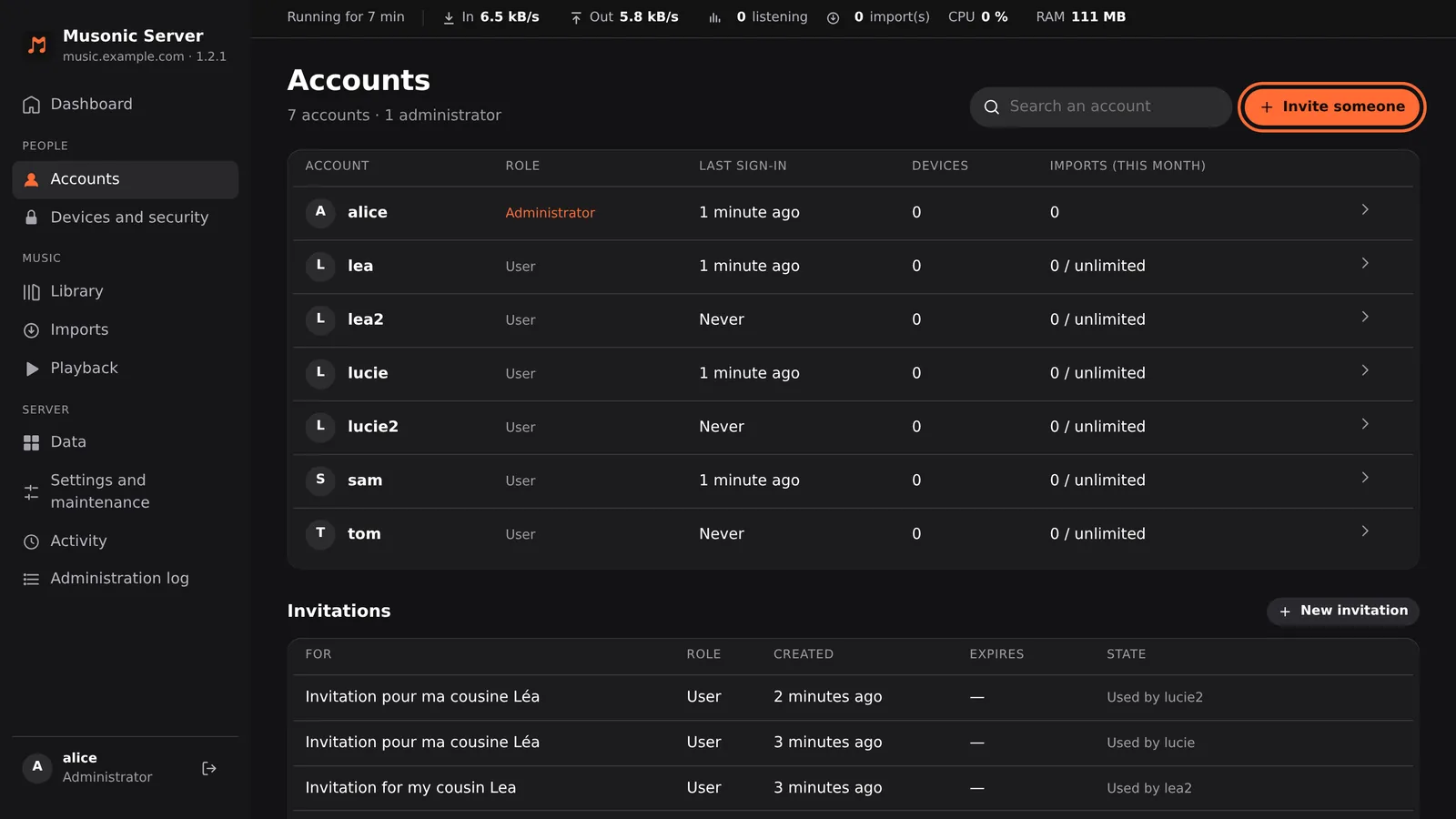
In the console, open “Accounts” and click “Invite someone”.
-
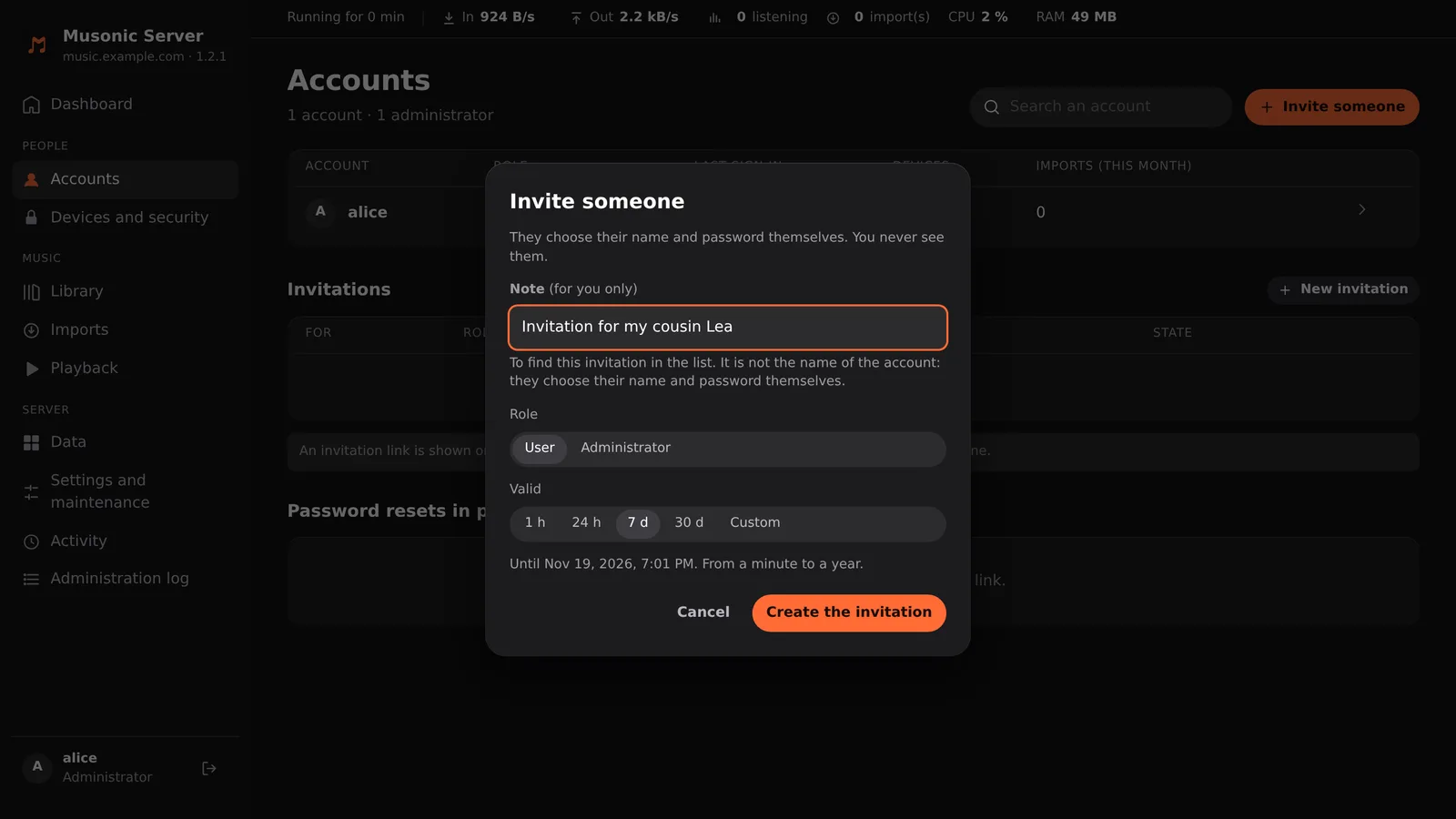
Write a note, choose the role and how long the link is valid.
The note is for you only, to find the invitation in the list (for example “My cousin Lea”). It is not the name of the account.
-
Click “Create the invitation”.
-
Click “Copy” and send the link to the person, then click “Done”.
The link looks like
https://music.example.com/invite/…, with your server’s address. It is shown only now. If you close the window without copying it, cancel the invitation and create another one.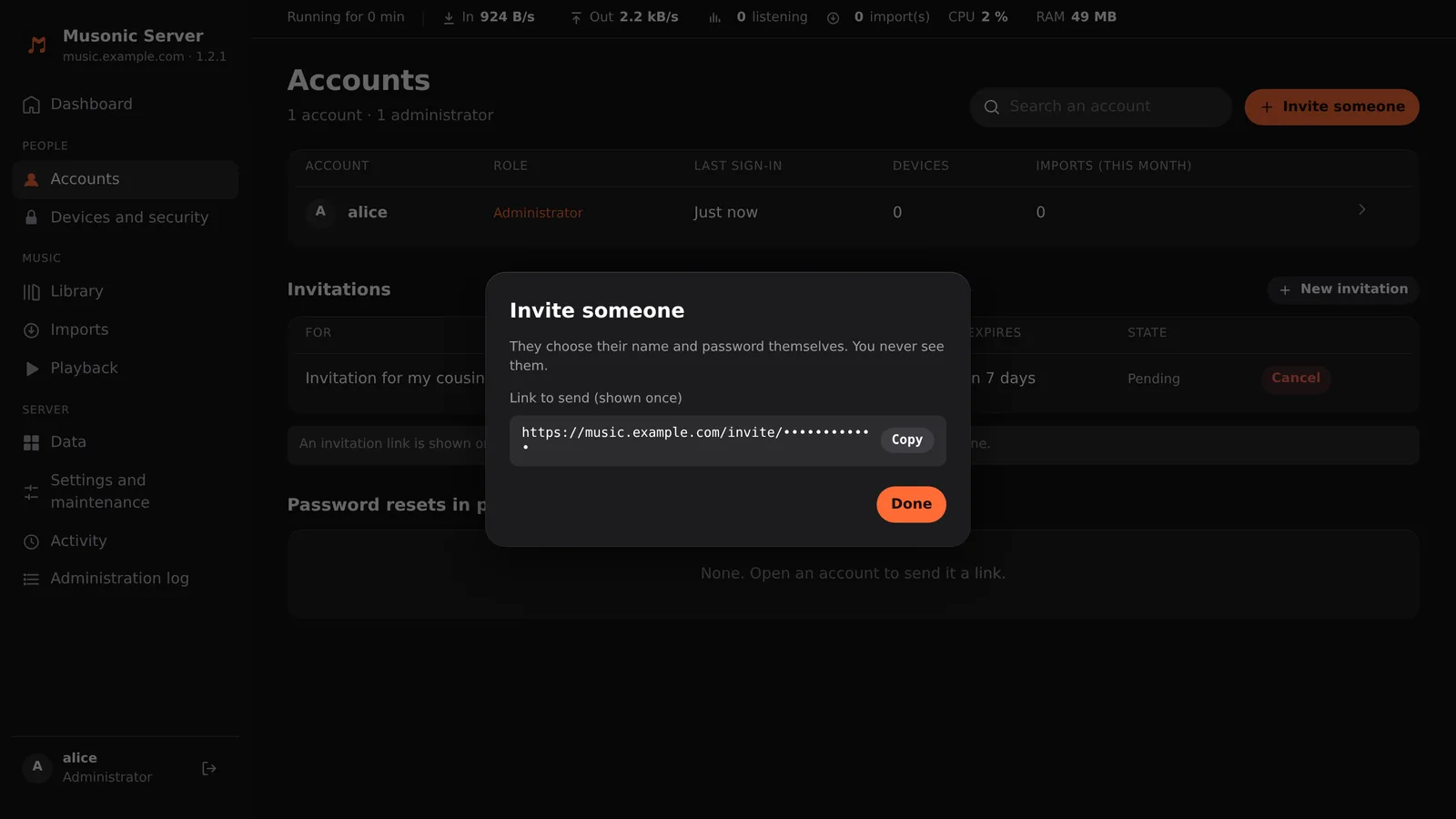
-
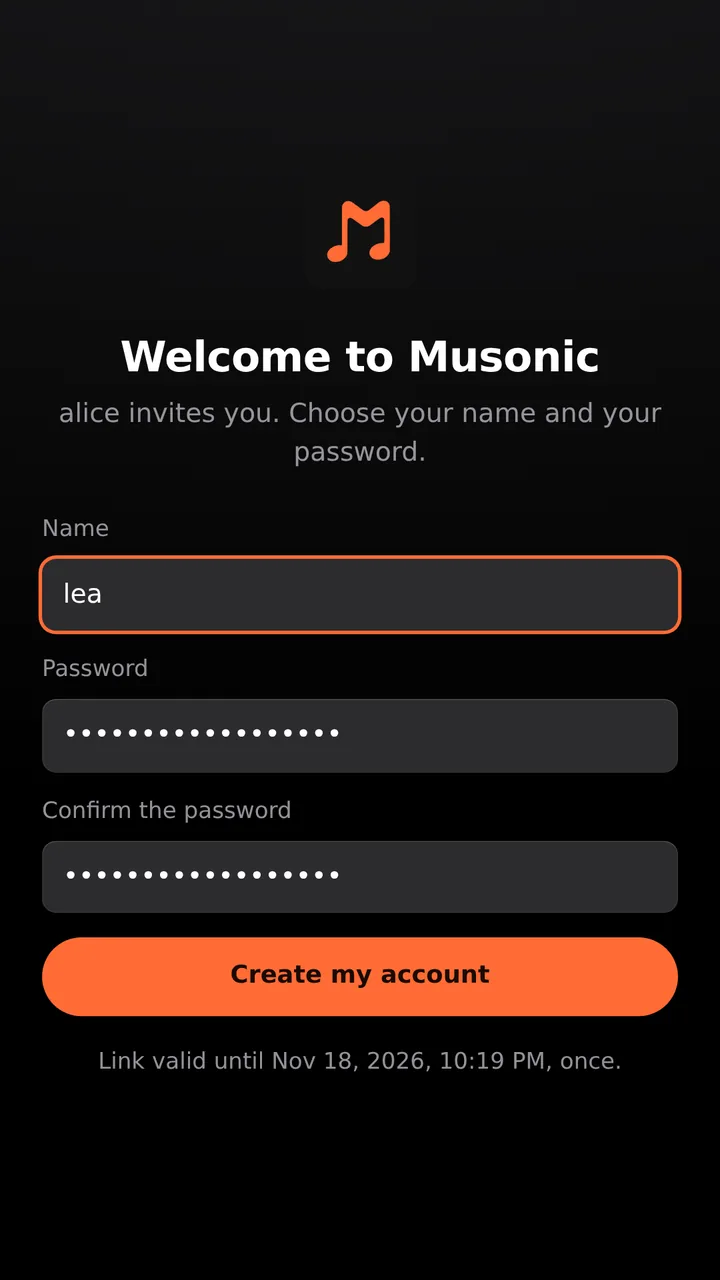
The person opens the link, chooses a name and a password, then taps “Create my account”.
The page says who sends the invitation and until when the link is valid.
-
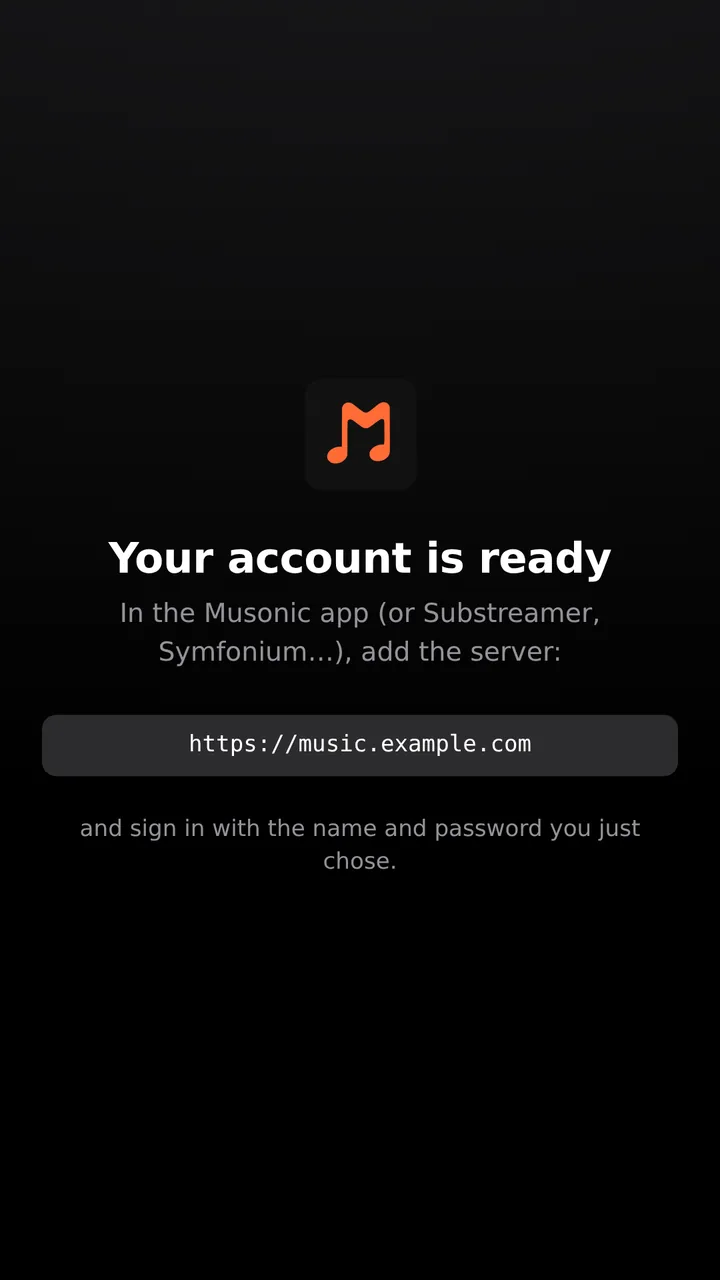
The page then shows the server’s address to add in the app. It works in the Musonic app or in a Subsonic app (Substreamer, Symfonium…). The person signs in with the name and password just chosen.
Details on invitations
Section titled “Details on invitations”- Validity: 1 hour, 24 hours, 7 days (the default) or 30 days, or a custom length from 1 minute to 1 year. The window shows the end date.
- Single use: once an account is created with it, the link no longer works. Its line in Invitations then says “Used by …”.
- Role: an invitation can create an administrator directly. Choose “User” unless you really want to share the console.
- Cancel: in Invitations, a pending invitation can be cancelled. The link then says “The administrator cancelled this link.”
- Name taken: if the person chooses a name already used, the page asks for another one.
- Password: 8 characters at least, typed twice.
- What the person sees on an unusable link: “This link was used already”, “This link expired. Ask the administrator for a new one.”, “The administrator cancelled this link.” or “This link does not exist. Check it is complete.”
- Only a fingerprint (SHA-256 hash) of the link is stored on the server, never the link itself: that is why it cannot be shown again.
Change the role or suspend an account
Section titled “Change the role or suspend an account”-
In “Accounts”, click the account.
-
Under “Role”, click “User” or “Administrator”. It is saved at once.
-
To suspend it, turn “Active account” off.
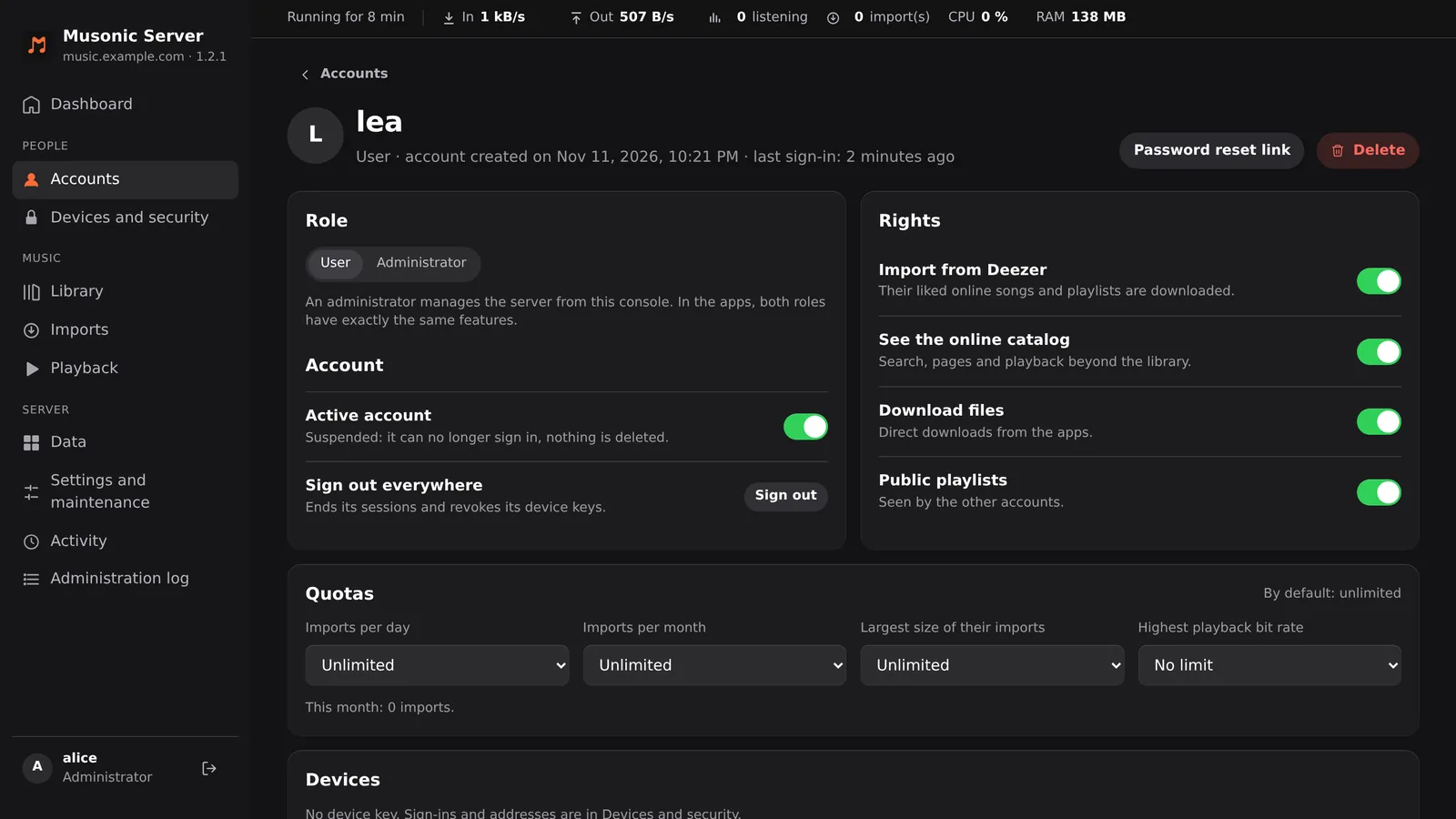
A suspended account can no longer sign in (the console tells it “This account is suspended: ask the server’s administrator”) and its sessions end. Nothing is deleted: turn “Active account” back on to restore it.
Rights and quotas
Section titled “Rights and quotas”Rights and quotas apply to users only. On an administrator’s page, the console says “Administrators are never limited.”
Rights
Section titled “Rights”Four switches, all on by default:
| Right | When it is off |
|---|---|
| Import (first switch) | Online songs the person likes or puts in a playlist stay online; they are not imported as files. |
| See the online catalog | Search, pages and playback stay within the library. Playlist imports only look in the library. |
| Download files | Direct downloads of files from the apps are refused. Listening still works. |
| Public playlists | The person’s playlists cannot be made public (seen by the other accounts). |
Quotas
Section titled “Quotas”All quotas are unlimited by default. For each one, pick a preset, “Custom…” for your own number, or “Unlimited” (“No limit” for the bit rate).
| Quota | Presets | What it counts |
|---|---|---|
| Imports per day | 10, 50 | Imports asked by the person since midnight (UTC). |
| Imports per month | 100, 500 | Imports asked since the 1st of the month (UTC). |
| Largest size of their imports | 1 GB, 5 GB | The total size of the files already imported for the person. |
| Highest playback bit rate | 320, 192, 128 kbit/s | The person’s streams are made smaller above it (needs ffmpeg). |
- When a quota is reached, the next songs the person likes stay online and are not queued for import. Nothing is deleted.
- The page shows “This month: N imports.” under the quotas, and the Accounts list shows imports this month against the monthly quota.
- The account’s bit rate limit and the server’s Highest bit rate by default (Playback screen) both apply: the lower one wins.
- Changes are saved as you make them (“Saved” appears).
Reset a password
Section titled “Reset a password”You never see or type a user’s password. You send a link, and the person chooses a new one.
-
Open the account and click “Password reset link”.
-
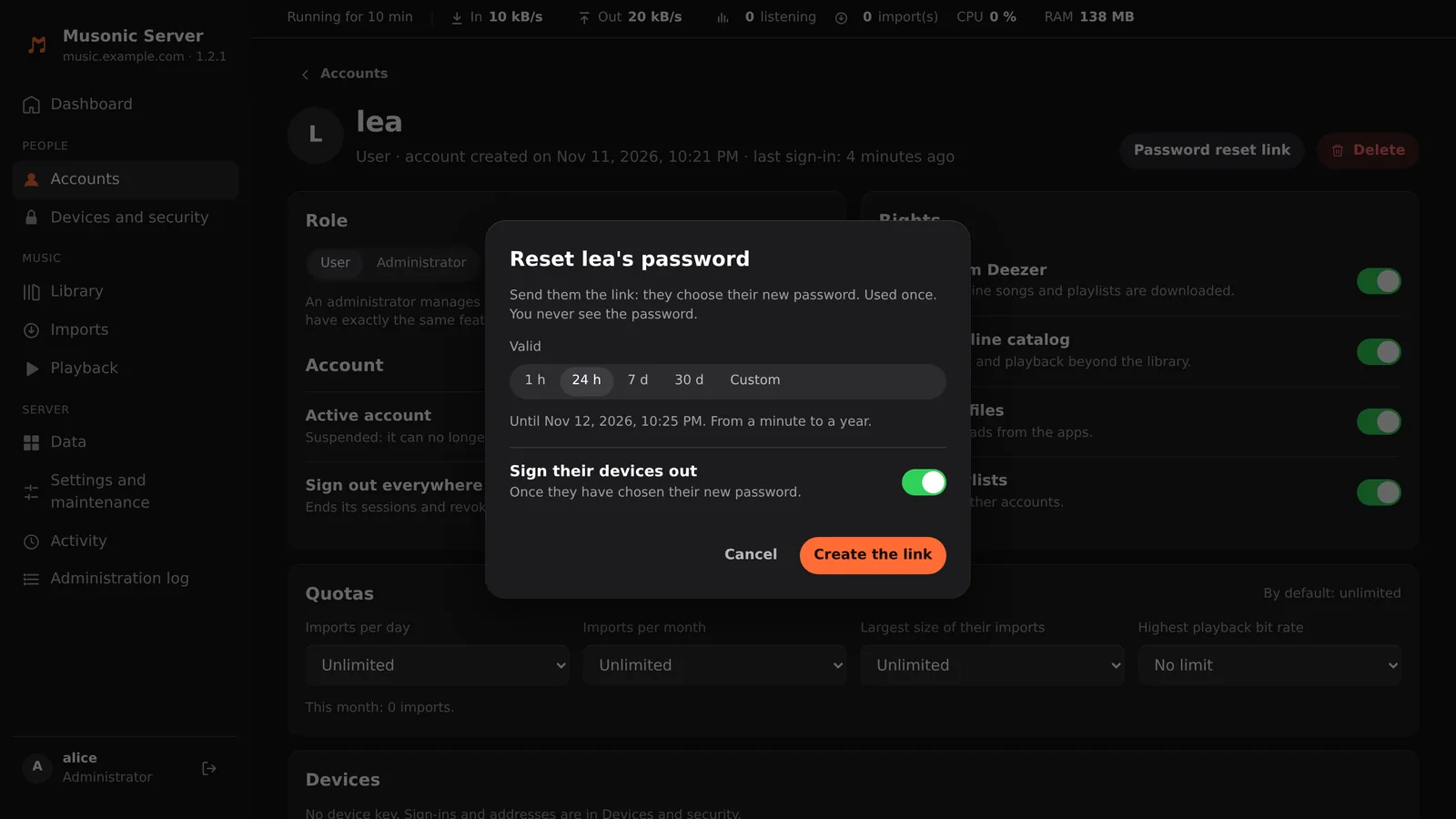
Choose how long the link is valid, and whether to sign the person’s devices out.
The choices are 1 h, 24 h (the default), 7 d, 30 d or Custom; the window shows the end date. “Sign their devices out” revokes the device keys once the new password is chosen.
-
Click “Create the link”, then “Copy”, and send it to the person. Like invitations, it is shown only once.
-
The person opens the link, types the new password twice and taps “Save”.
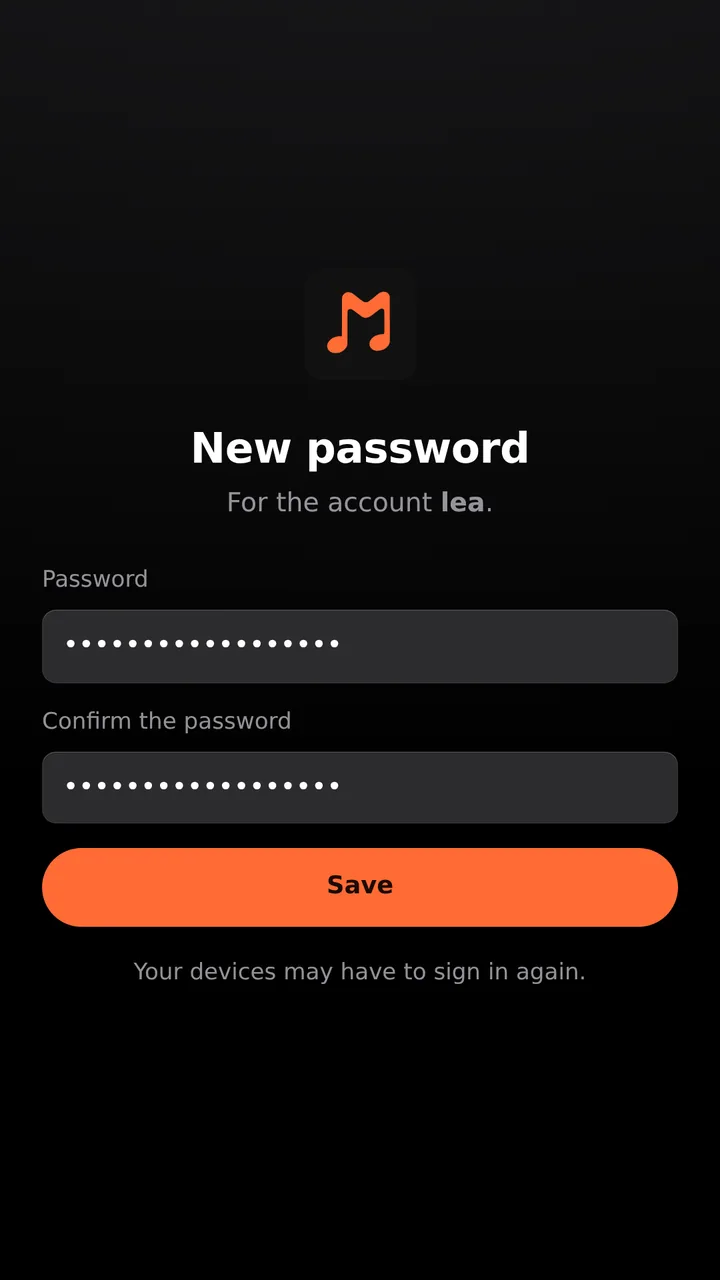
- The link is single use and valid from 1 minute to 1 year.
- Creating a new link for an account cancels its earlier unused ones.
- Links not used yet are listed in Accounts → Password resets in progress, where they can be cancelled.
- A new password always ends the account’s other sessions (Musonic Web, console). With “Sign their devices out”, its device keys are revoked too, and the apps must sign in again.
- To change your own password, do the same on your own account page: create the link and open it yourself. Musonic Web and the app have no password field of their own.
Devices and API keys
Section titled “Devices and API keys”The Musonic apps sign in once with the password, then get a key of their own per device (it starts with msk_). The password itself is not kept on the phone.
- One account’s devices: on its page, under Devices, with the date each key was created and last used.
- Every device: Devices and security in the menu.
- Revoke signs that device out at once. To come back, it signs in again with the password.
- Lost phone: revoke its key. To be safe, also send a password reset link.
Subsonic clients that send the password with each request have no key: they are not listed. To lock them out, change the password or suspend the account.
Sessions and “Sign out everywhere”
Section titled “Sessions and “Sign out everywhere””- A sign-in in Musonic Web or the console creates a session that lasts 30 days and is extended each time it is used.
- Sign out everywhere, on an account’s page, ends all its sessions and revokes all its device keys: every app must sign in again.
- Suspending an account also ends its sessions.
Delete an account
Section titled “Delete an account”-
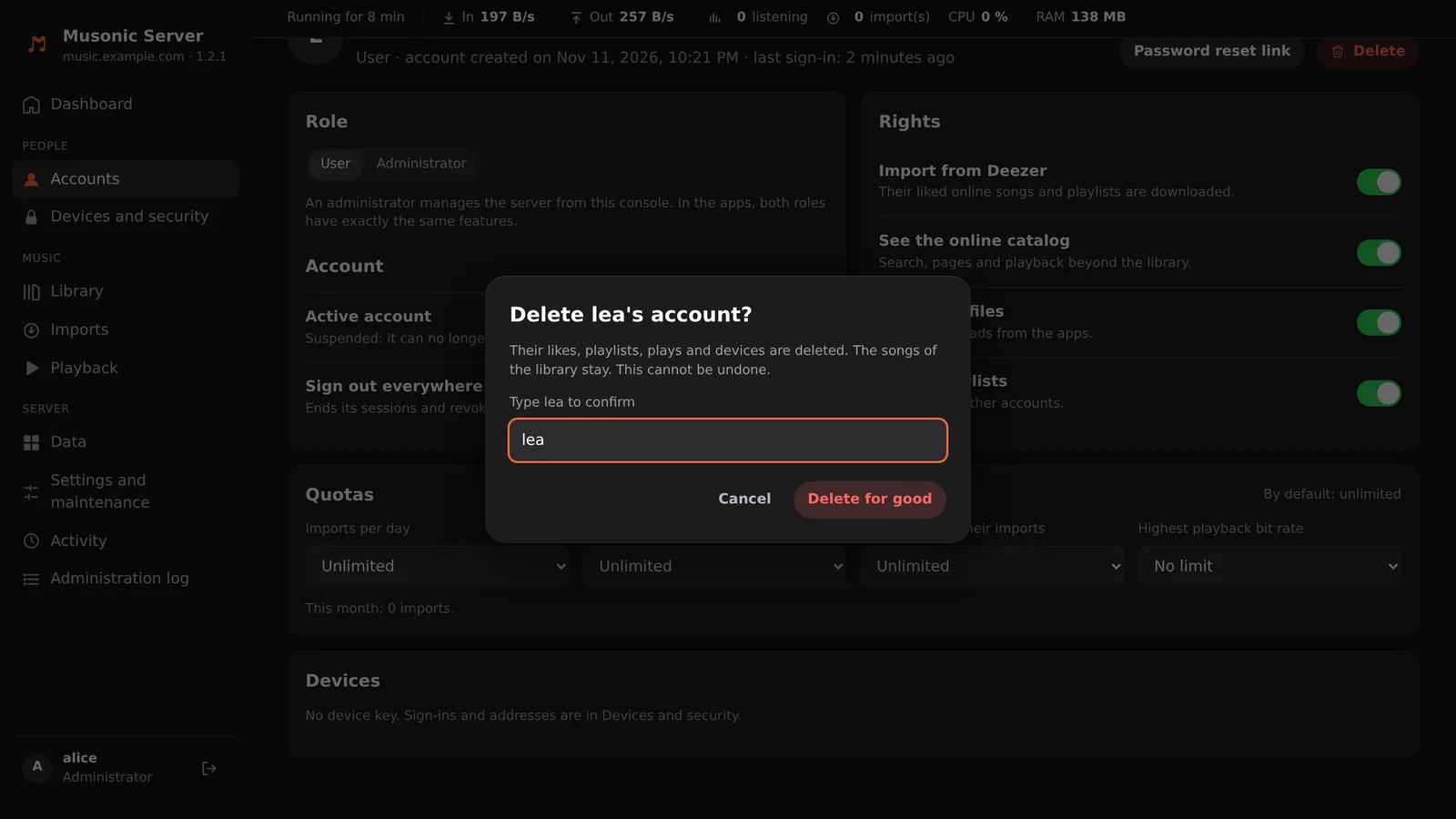
Open the account and click “Delete”.
-
Type the account’s name in the box.
-
Click “Delete for good”.
What goes: its likes and ratings, playlists, plays, play queue, podcast subscriptions and listening positions, playlist imports, rights and quotas, sessions and devices. What stays: every song of the library, including the files imported because this person liked them. Its imports and invitations keep their line, without the name.
You cannot delete your own account from the console, nor the last administrator.