Update the server
This page updates Musonic Server to a newer version, and explains what happens to your data and how to go back if needed. It is for the person who runs the server. The apps are updated separately, see the end of this page.
Know when a new version is out
Section titled “Know when a new version is out”The server looks for new versions on GitHub every 6 hours (setting update_check, environment variable MUSONIC_UPDATE_CHECK, on by default). It never installs anything on its own: it tells you.
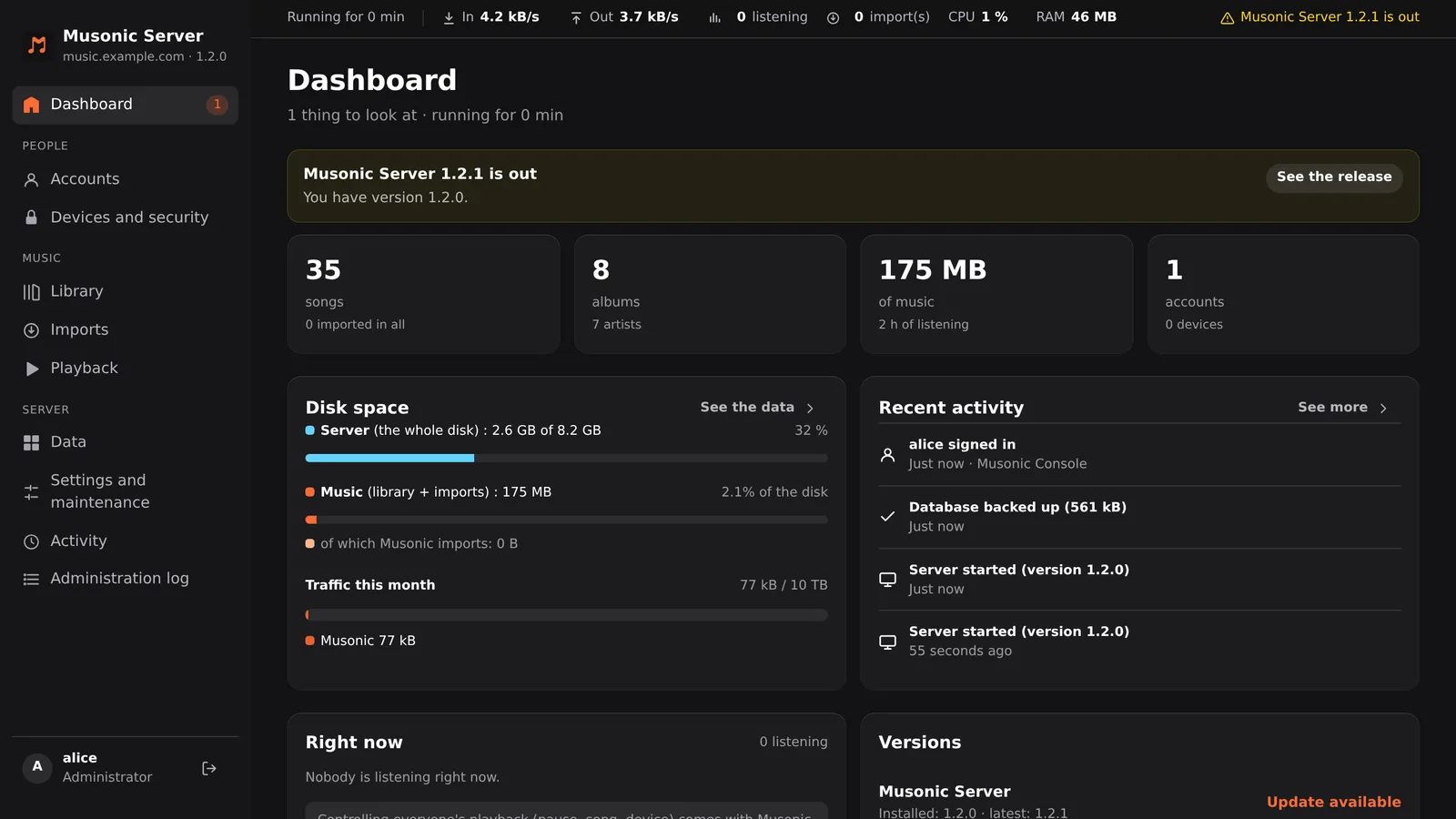
- The console shows an alert “Musonic Server X is out” at the right end of the bar at the top. The Dashboard repeats it in a banner, “You have version …”, with a See the release button, and a counter appears next to Dashboard in the menu.
- The Dashboard’s Versions card shows the installed version, the latest one, and Update available or Up to date. The same card covers the web player installed on the server.
Read the changes before you update: the release notes on the releases page (tags server-v…), or the list of versions.
Update
Section titled “Update”-
Go to the folder of the server.
Terminal window cd ~/musonic-server -
Download the new image.
Terminal window docker compose pull -
Start the server again with it.
Terminal window docker compose up -dDocker replaces the container; your
datafolder stays. Music stops for a few seconds, the apps reconnect on their own. -
Check the version in the logs.
Terminal window docker compose logs --tail 50 musonic-serverThe line
musonic-server startingshows the newversion. -
Remove the old image (optional).
Terminal window docker image prune
With the tag :1 of the example compose file, pull takes the newest 1.x version: it never jumps to a 2.0 on its own. A 2.0 would say in its notes what to change first.
-
Download and unpack the new version.
Terminal window cd /tmpcurl -LO https://github.com/DoodzDev/Musonic/releases/download/server-v<version>/musonic-server-<version>-linux-$(uname -m).tar.gztar -xzf musonic-server-<version>-linux-$(uname -m).tar.gz<version>is the new version, for example1.2.1. -
Stop the server.
Terminal window sudo systemctl stop musonic-server -
Keep the old version, put the new one in place.
Terminal window sudo rm -rf /opt/musonic-server.oldsudo mv /opt/musonic-server /opt/musonic-server.oldsudo mkdir /opt/musonic-serversudo cp -r musonic-server-<version>-linux-$(uname -m)/. /opt/musonic-server/ -
Start it.
Terminal window sudo systemctl start musonic-server -
Check the version in the logs.
Terminal window journalctl -u musonic-server -n 50The line
musonic-server startingshows the newversion.
Replace the whole folder, not only the program: the console in admin/ goes with its version of the server. Your configuration (/etc/musonic-server) and your data (/var/lib/musonic-server) are not touched.
What happens to the database
Section titled “What happens to the database”You have nothing to do: the server updates its database itself when it starts.
- The database has a schema version. Each new version of the server brings the changes it needs (migrations), applied in order at start, each one entirely or not at all. The logs show
database migrated to <n> (<name>)for each. - Before changing the database, the server copies it as it was, next to it:
musonic.db.before-schema-<n>in the data folder (<n>is the first migration about to be applied). This copy is made once, and is there to go back by hand. - Many updates change nothing in the database: then no copy is made.
- An older server refuses to open a database that a newer one has changed: it stops with
database schema … is newer than this server …: update the server. Your data is not touched.
The daily backups
Section titled “The daily backups”Besides that copy, the server backs up its database every day in backups/ inside the data folder (musonic-YYYY-MM-DD.db), the first time just after it starts. It keeps the last 14 (setting backup_days, MUSONIC_BACKUP_DAYS; 0 turns them off).
In the console, Settings and maintenance → Backups lists them, makes one now (Back up now) and downloads them. The console warns you when no backup was made for more than 2 days.
Go back to an older version
Section titled “Go back to an older version”If a new version does not suit you, you can go back to the one you had.
If the update did not change the database (no database migrated line in the logs, no new musonic.db.before-schema-… file): put the old version back, that is all.
In compose.yml, write the exact version you had instead of 1, for example:
image: ghcr.io/doodzdev/musonic-server:1.2.0then docker compose up -d. Put 1 back later to get updates again.
sudo systemctl stop musonic-serversudo mv /opt/musonic-server /opt/musonic-server.newsudo mv /opt/musonic-server.old /opt/musonic-serversudo systemctl start musonic-serverIf the update changed the database, the old version refuses it. Go back to the copy made before the migration. What was done in the meantime (likes, plays, playlists since the update) is lost.
-
Stop the server.
Docker:
docker compose down. Without Docker:sudo systemctl stop musonic-server. -
Move the current database aside, with its two companion files.
In the data folder (
~/musonic-server/data, or/var/lib/musonic-server):Terminal window mkdir newermv musonic.db musonic.db-wal musonic.db-shm newer/(
musonic.db-walandmusonic.db-shmmay not exist: that is fine.) -
Put the copy made before the migration back.
Terminal window cp musonic.db.before-schema-<n> musonic.dbTake the newest one, the file with the highest
<n>: it is the one this update made (older ones come from earlier updates). Without Docker, run the commands as the user of the service, or give the file back to it withchown. -
Start the old version (see above).
Updating the apps
Section titled “Updating the apps”The apps are updated separately from the server: each has its own version and its own releases.
| App | How it learns about a new version | How to update |
|---|---|---|
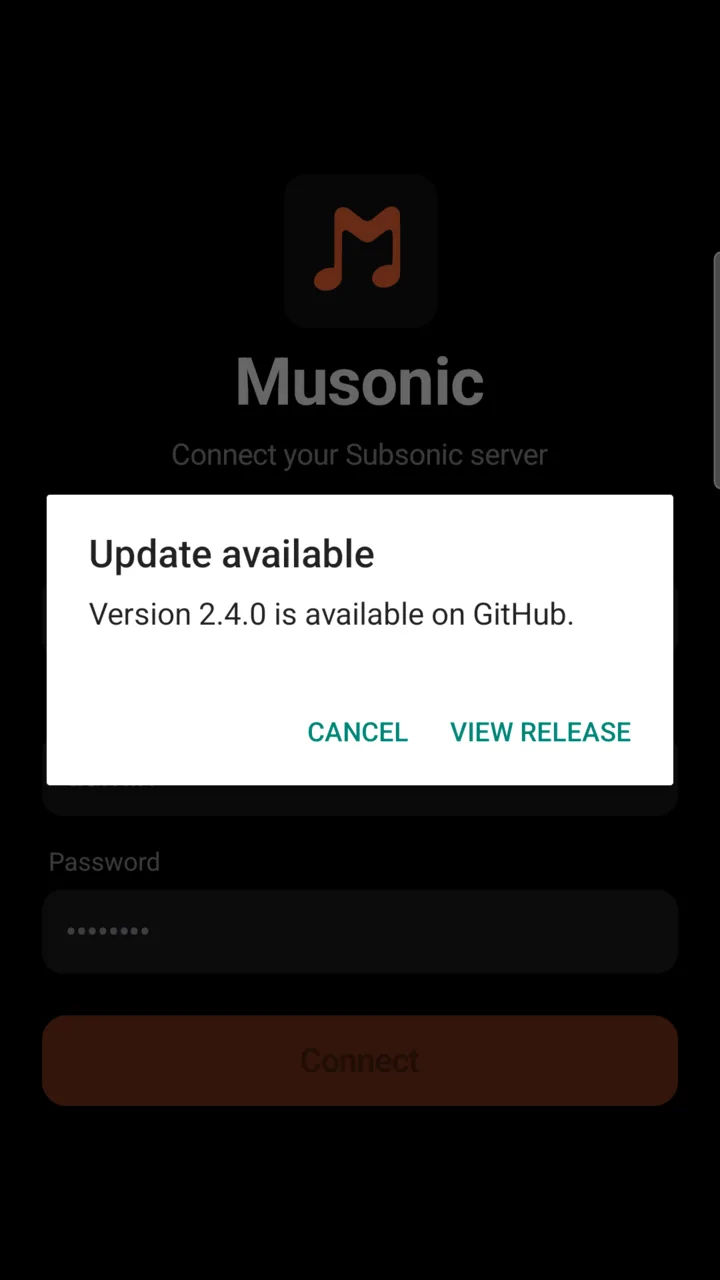
| Android | A few seconds after it starts, the app checks GitHub for a newer Musonic release for Android. If there is one, a window says “Update available”, “Version X is available on GitHub”, with View release (opens the release page) and Cancel. You can also check yourself: the round button with your initial, at the top left of the main screens → About → Check for updates. | Download and install the new APK from the release, over the old one: your accounts and downloads stay. See Install the Android app. |
Web player on your server (/app/) |
The console’s Dashboard (Versions) and Settings and maintenance (Musonic Web on this server) show the latest version. | Settings and maintenance → Musonic Web on this server → Update. Then reload the page in the browsers. |
| Web player of this site | Nothing to do. | It is updated with each new version of the web player: reload the page. |
| iPhone, iPad | They use the web player: see the two lines above. | Same. |