The administration console
The administration console is the web page that comes with Musonic Server. It is where you invite people, set their rights, watch the library and the imports, and look after the server. This page is for the person who runs the server.
What you need
- Musonic Server running (see Install with Docker).
- An administrator account on it.
- A computer browser. The console also works on a phone, but its tables are made for a wide screen.
Open the console
Section titled “Open the console”-
Open your server’s address in a browser.
It is the same address you give the apps, with nothing after it: for example
https://music.example.com/. On the server machine itself,http://127.0.0.1:4533/works too. -
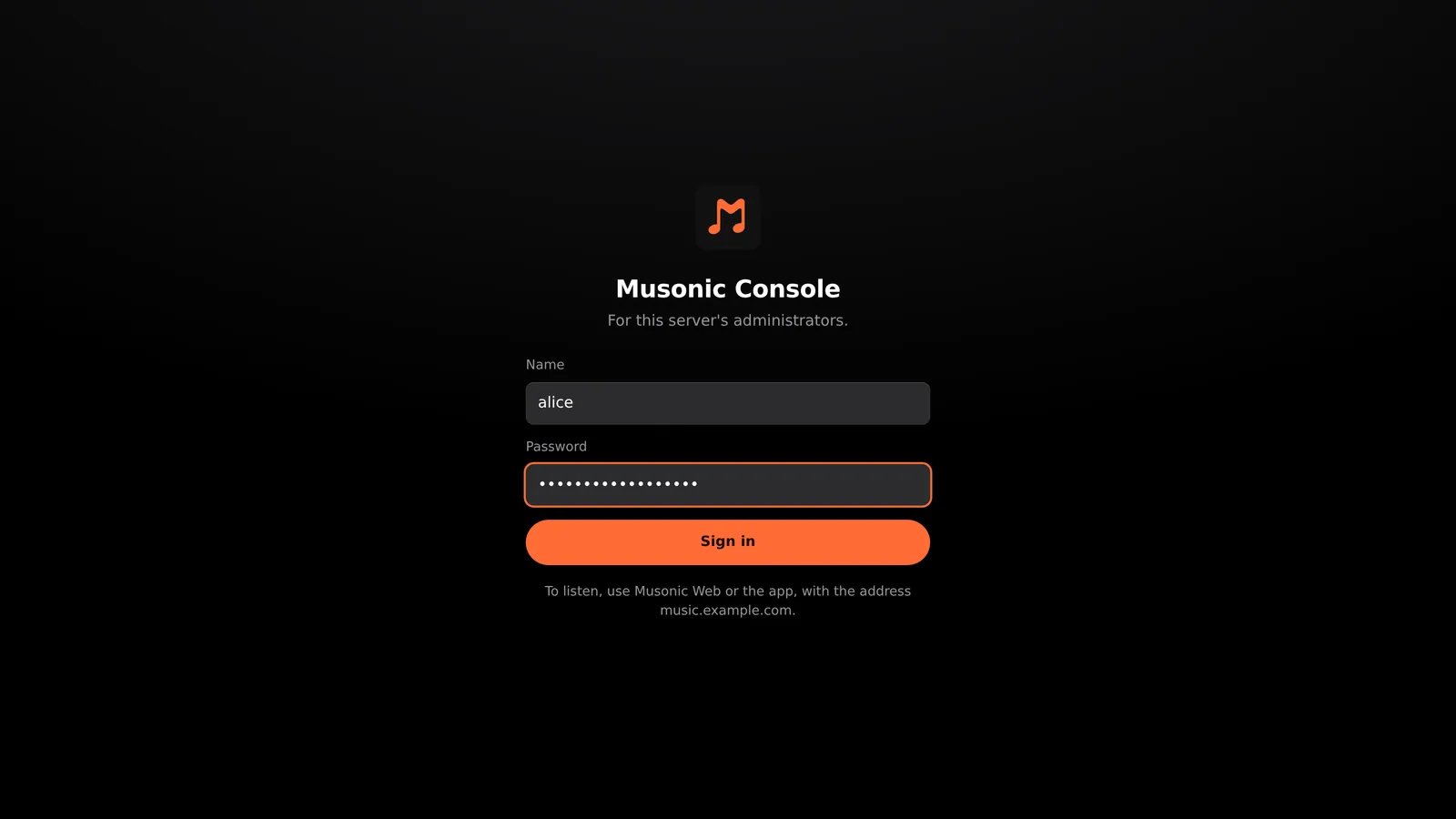
Type the name and password of an administrator account, then click “Sign in”.
-
You are on the dashboard. The menu on the left leads to every other screen.
Good to know
Section titled “Good to know”-
The console is for administrators only. A user account that signs in sees the page “You are not an administrator”, with a button to open Musonic Web instead. Listening is done in the apps, never in the console.
-
The console and the player are separate. The console is at the root of the server’s address (
/). Musonic Web, when you install it on the server, is at/app/. The apps and Subsonic clients use/rest/…and/v1/…. The same address therefore serves everything.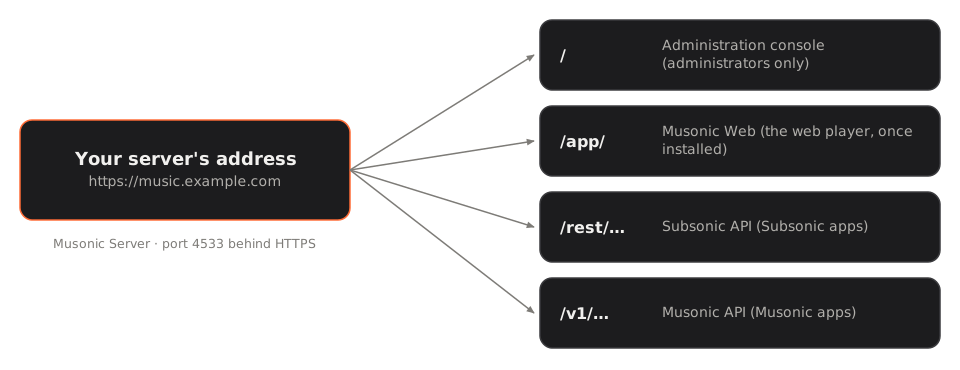
-
An administrator also listens like everybody else. In the apps, administrators and users have exactly the same features. The administrator role only adds the console.
-
The sign-in lasts 30 days and is extended each time you use the console. The button at the bottom left, next to your name, signs you out.
-
Language. The console follows your browser’s language (English or French). You can change it in Settings and maintenance; the choice is kept for this browser only.
-
No console? If the address shows a short page “Musonic Server is running” instead of the sign-in, the console files are missing: see Troubleshooting.
The frame of every page
Section titled “The frame of every page”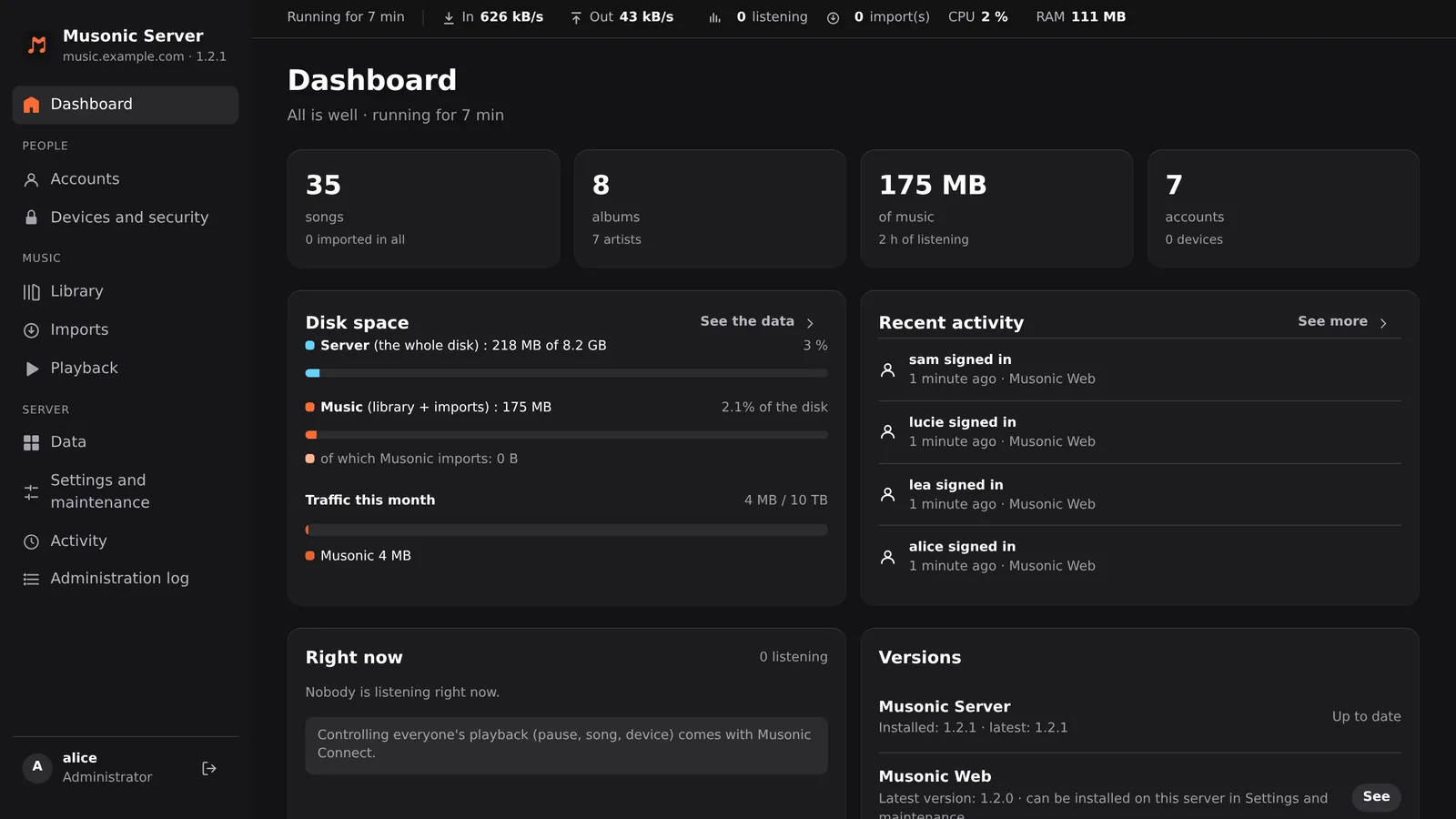
The menu, on the left, groups the screens:
| Group | Screens |
|---|---|
| — | Dashboard |
| People | Accounts · Devices and security |
| Music | Library · Imports · Playback |
| Server | Data · Settings and maintenance · Activity · Administration log |
Under the logo: the server’s address and its version. At the bottom: your name and the Sign out button.
The live bar, at the top, refreshes on its own. Each figure is a link to the screen with the detail:
| Figure | Meaning | Opens |
|---|---|---|
| Running for … | Time since the server started. “Offline” when it does not answer. | — |
| In / Out | Network traffic right now, received and sent. | Data |
| … listening | How many people are playing something now. | Activity |
| … import(s) | Imports running or waiting. | Imports |
| CPU / RAM | Processor and memory used by Musonic Server. | Data |
| Alerts | One red or orange label per problem (see below). | Dashboard |
Dashboard
Section titled “Dashboard”The first screen: is everything fine, and what is happening.
-
Alerts. “All is well”, or “N things to look at” with one line per problem. The possible alerts are:
Alert Why What to do The “…” provider is signed out Its credentials expired: online songs play as previews and imports wait. Imports → Providers → Change the … N imports given up They failed after several tries. Imports → Retry Disk almost full Less than 10 % of the disk is free. Free space, or move the music. No backup for more than 2 days The daily backup did not run. Look at the server logs. Musonic Server X is out A newer version is on GitHub. Update when you want. Nothing is installed on its own. -
Figures. Songs (and how many were imported in all), albums and artists, hours of music, and accounts with their number of devices.
-
Disk space. The whole disk of the server, then what Musonic uses: music (library and imports, with the share of Musonic imports), database, backups (with the date of the last one) and caches.
-
Traffic this month. What the server sent and received since the 1st. See the data opens the Data screen.
-
Right now. Who is playing which song, and for how long.
-
Recent activity. The last events (sign-ins, accounts, imports, backups). See more opens Activity.
-
Versions. The installed version of Musonic Server and of Musonic Web, the latest one on GitHub, and when it was last checked.
Accounts
Section titled “Accounts”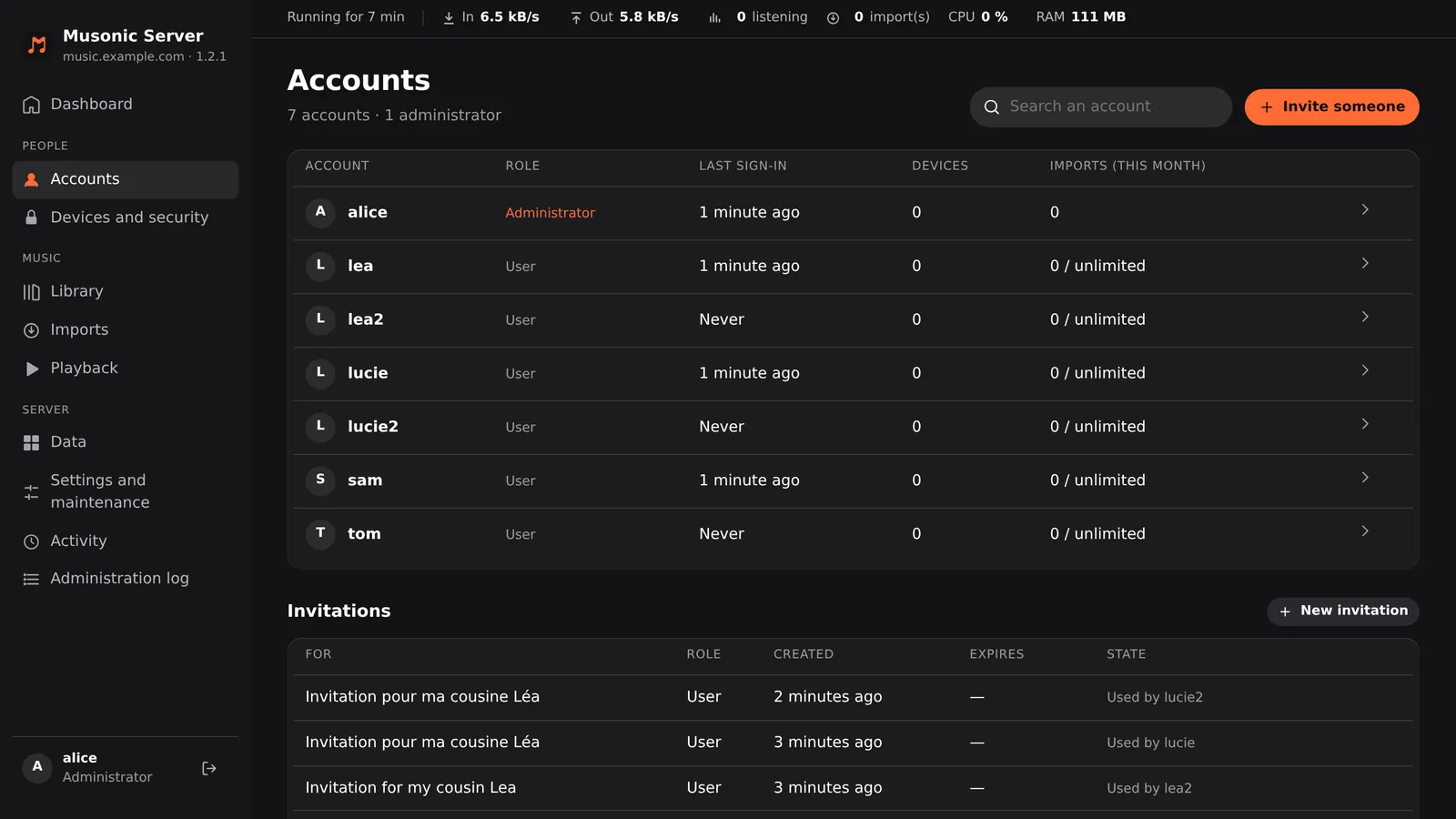
- The list of accounts, with a search field. Columns: account, role (Administrator or User), last sign-in, number of devices, imports this month (with the monthly quota when there is one). A suspended account says “Suspended”. Click an account to open its page.
- Invite someone creates an invitation link. People choose their name and password themselves: you never see them.
- Invitations: every invitation with its note, role, creation date, expiry and state (Pending, Used by …, Expired, Cancelled). An invitation link is shown only once, when it is created. If it is lost, cancel the invitation and create a new one.
- Password resets in progress: the reset links not used yet, with their expiry.
The page of an account
Section titled “The page of an account”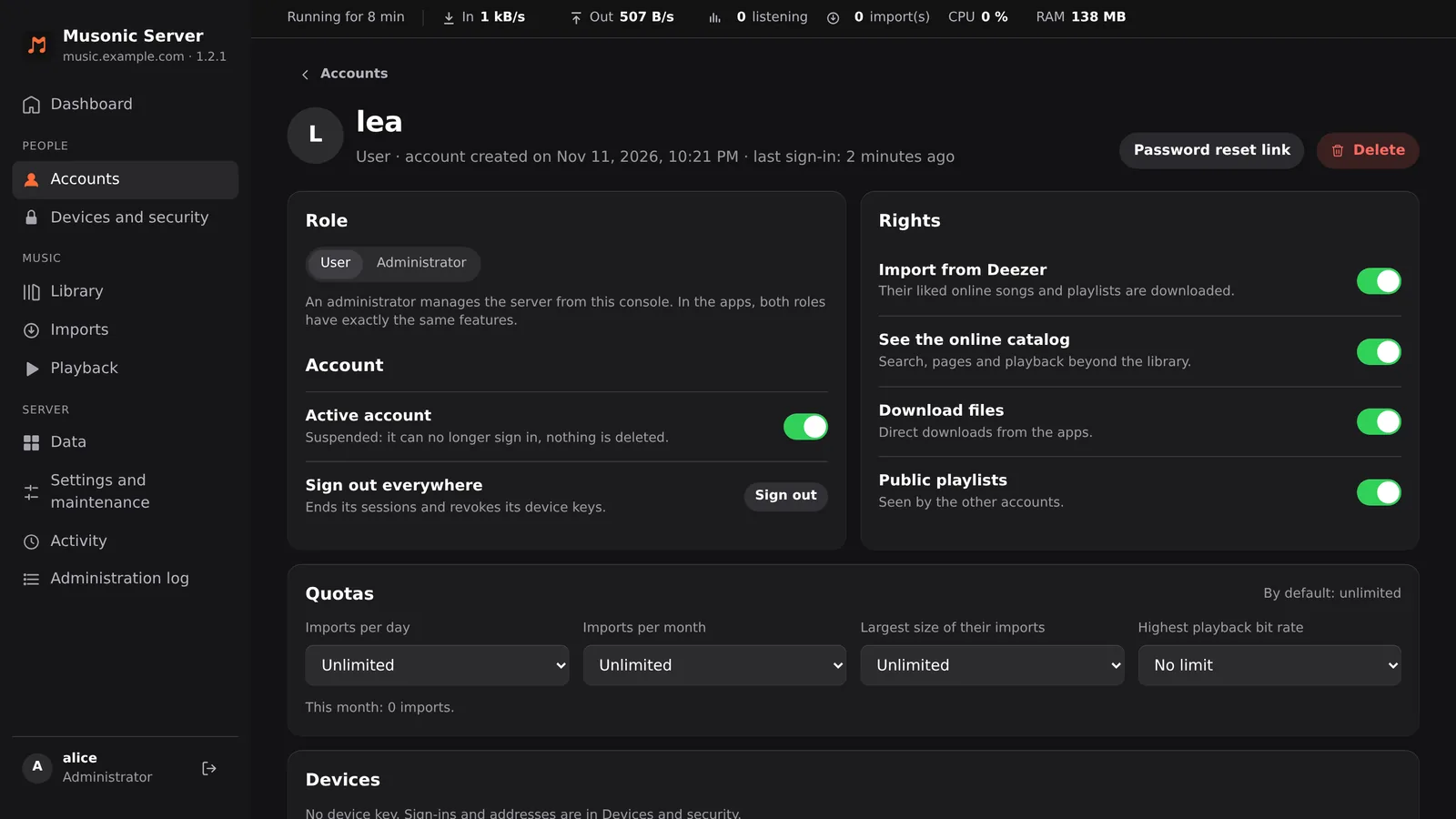
- Password reset link: creates a link the person opens to choose a new password.
- Delete: deletes the account after you type its name. Not shown on your own account.
- Role: User or Administrator.
- Active account: off = suspended. The account can no longer sign in; nothing is deleted.
- Sign out everywhere: ends its sessions and revokes all its device keys.
- Rights and Quotas: what a user may do. Administrators are never limited.
- Devices: its device keys, with the date each was created and last used, and a Revoke button.
Everything on this page is explained step by step in Accounts and roles.
Devices and security
Section titled “Devices and security”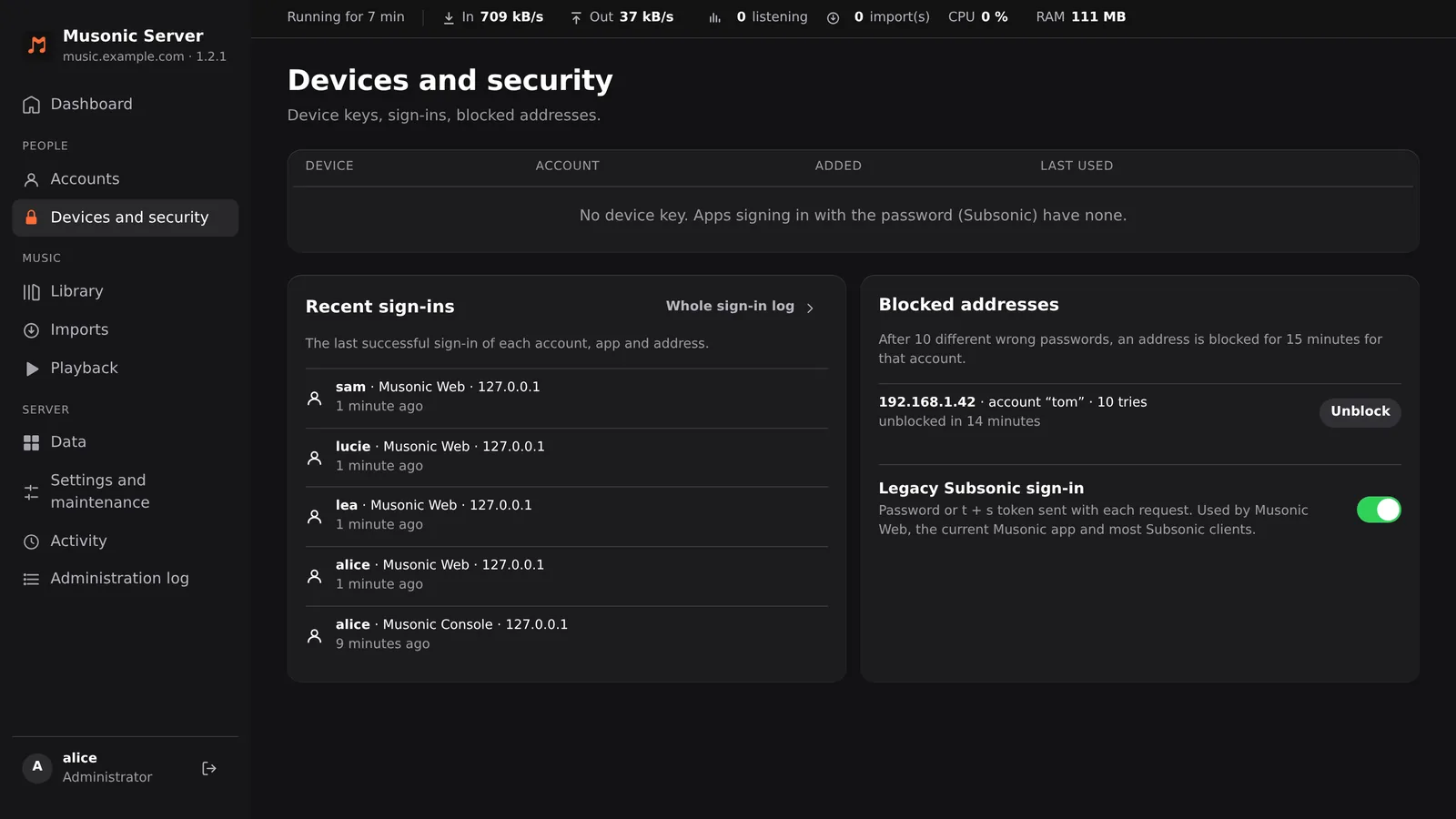
- Devices: every device key of every account (device name, account, date added, last used). Revoke signs the device out at once; to come back, it must sign in again with the password. Apps that sign in with the password only (most Subsonic clients) have no key and are not listed here.
- Recent sign-ins: the last successful sign-in of each account, app and address. Whole sign-in log opens Activity filtered on sign-ins.
- Blocked addresses: after 10 different wrong passwords for an account, an address is blocked for 15 minutes for that account. Unblock lifts it early.
- Legacy Subsonic sign-in: lets apps sign in with a token made from the password (
t+s), as many Subsonic clients do (Substreamer, Symfonium…). The password is then kept encrypted next to its hash, and only passwords set while it is on work this way. Musonic Web and the Musonic app use device keys and do not need it. Turned off, apps that use the token no longer sign in; apps that send the password itself still do. It takes effect after a restart.
Library
Section titled “Library”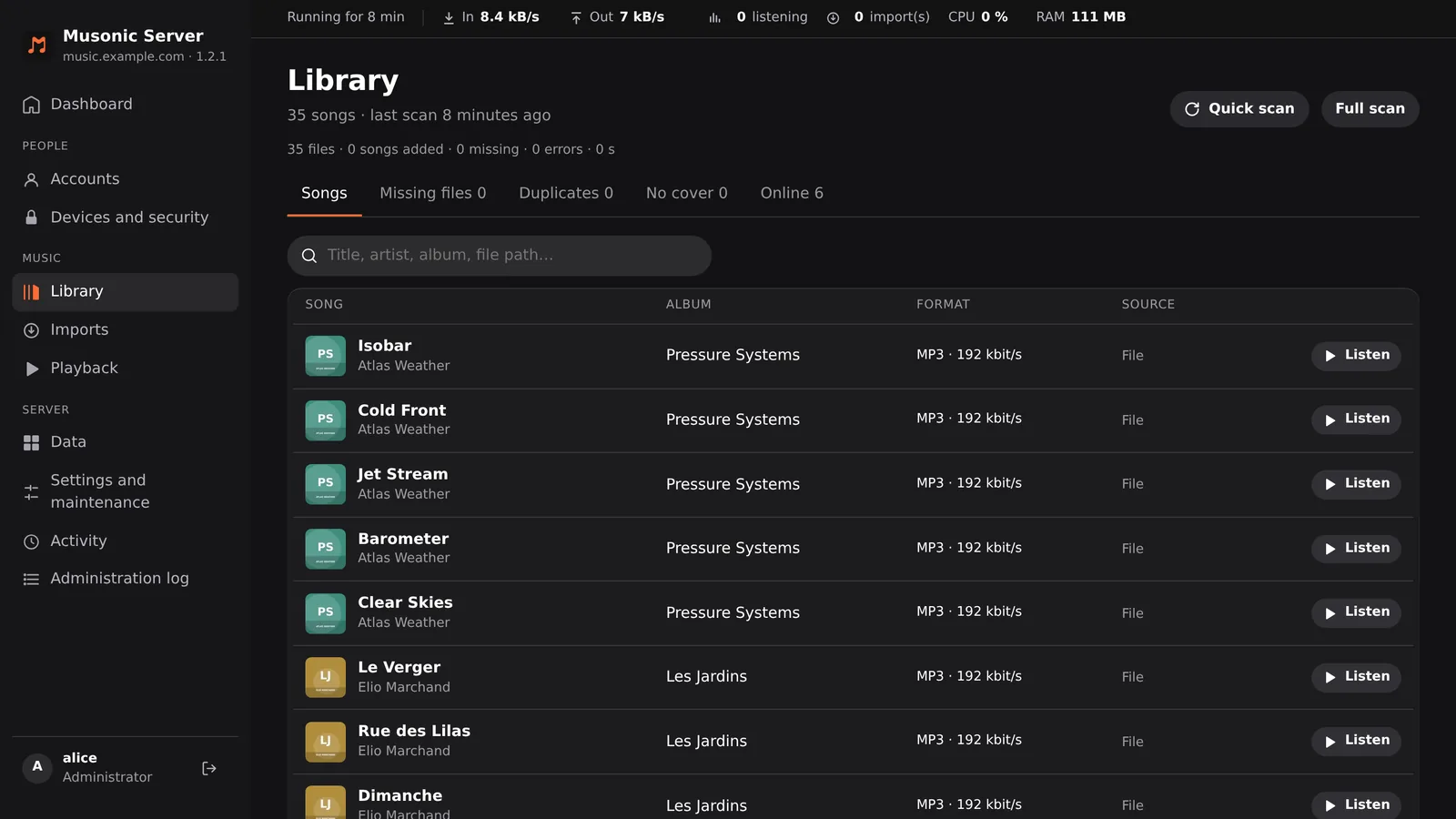
- The last scan: how many files, songs added, missing files, errors and how long it took.
- Quick scan reads only the folders that changed. Full scan reads every file again.
- Automatic scan: changes in the music folder are seen as they happen; a regular scan catches the rest. Choose “On changes only”, every hour, every 6 hours or once a day. Applied after a restart.
- Tabs:
- Songs: the whole library, with a search on title, artist, album or file path.
- Missing files: songs whose file is no longer in the music folder (moved or deleted).
- Duplicates: the same song twice (two files, or the same title and artists).
- No cover: no picture in the file, in its folder or online.
- Online: online songs liked or put in a playlist that have no file yet.
- The table: song and artist, album, format and bit rate, and source (File, Missing file or Online). Each tab shows how many songs it holds.
- Listen plays a song in the console, to check it. Click a song to see its files, format, ISRC, genres, plays and likes.
Imports
Section titled “Imports”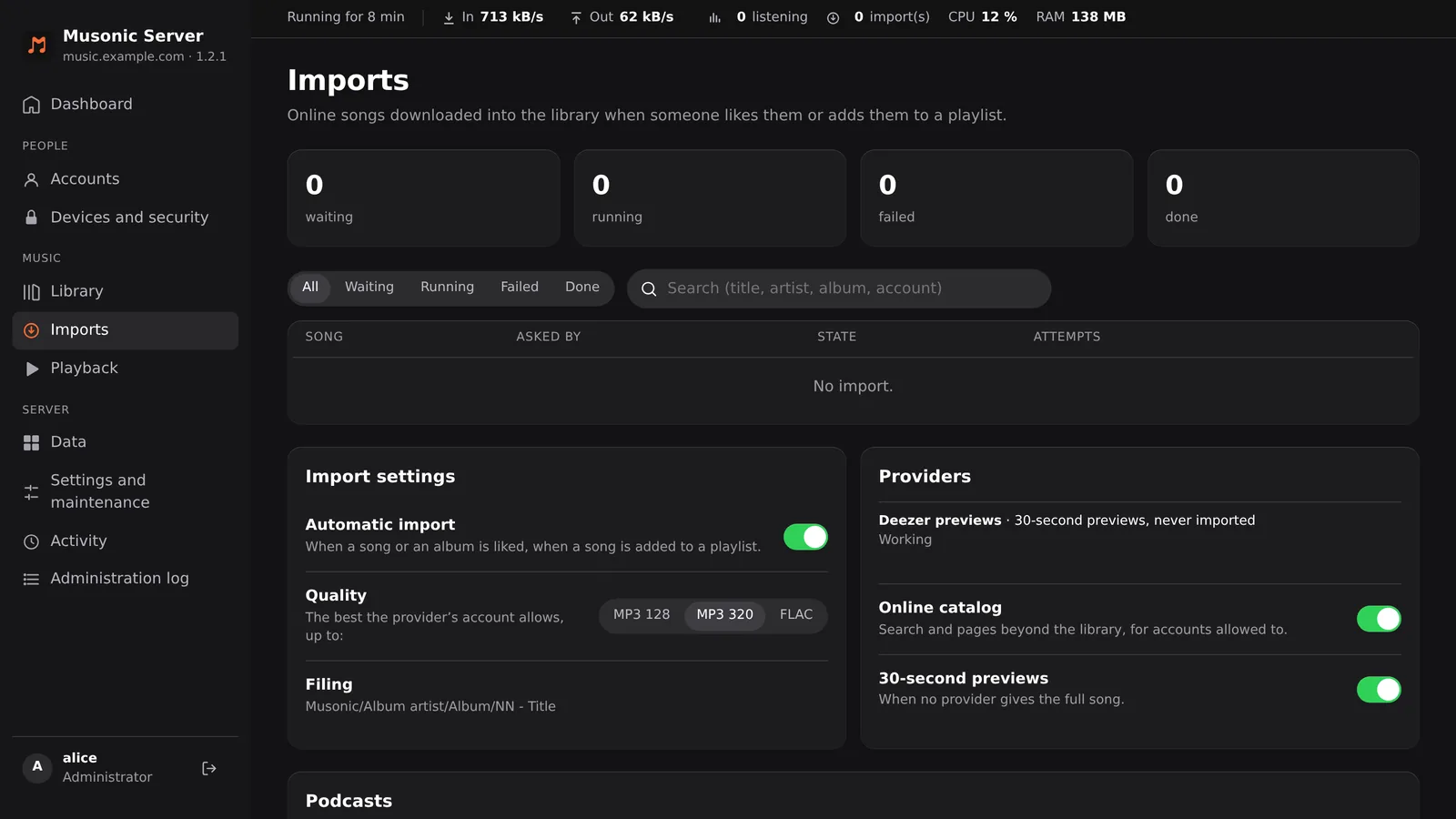
When someone likes an online song, likes its album or adds it to a playlist, the server can import it as a file into your music folder, through an audio provider you have plugged in.
- Counters and table: four counters (waiting, running, failed, done), filters All, Waiting, Running, Failed and Done, and a search on title, artist, album or account. The table lists every import with the song, who asked for it, its state (Waiting, Running, Done, Given up) and the number of attempts. A failed import is tried again after 5 minutes, 30 minutes, 2 hours and 12 hours, then given up.
- Retry tries one again; Retry the N failed tries them all.
- Remove takes a song out of the queue. It stays liked or in its playlists, online.
- Import settings:
- Automatic import: on or off.
- Quality: MP3 128, MP3 320 or FLAC, the best the provider allows up to this.
- Filing: imported files go to
Musonic/Album artist/Album/NN - Title. - Online catalog: search and pages beyond the library, for the accounts allowed to.
- 30-second previews: what plays when no provider has the full song.
- Providers: every audio provider the server runs, in the order they are tried, with what it gives (“Full songs and imports” or “30-second previews, never imported”) and whether it works. When a provider signs in with a token or a key, a Change the … button lets you paste a new one; the server checks it before keeping it. It is stored in the database, so in its backups too.
- Podcasts: the number of shows followed and episodes. Add the key stores a free Podcast Index key (search by person, shows the iTunes directory misses).
- YouTube Music import: Add the key stores a YouTube Data API key, needed to import public YouTube and YouTube Music playlists. The server tests it before keeping it.
Without a provider that imports, only the library’s files play in full: see Audio providers.
Playback
Section titled “Playback”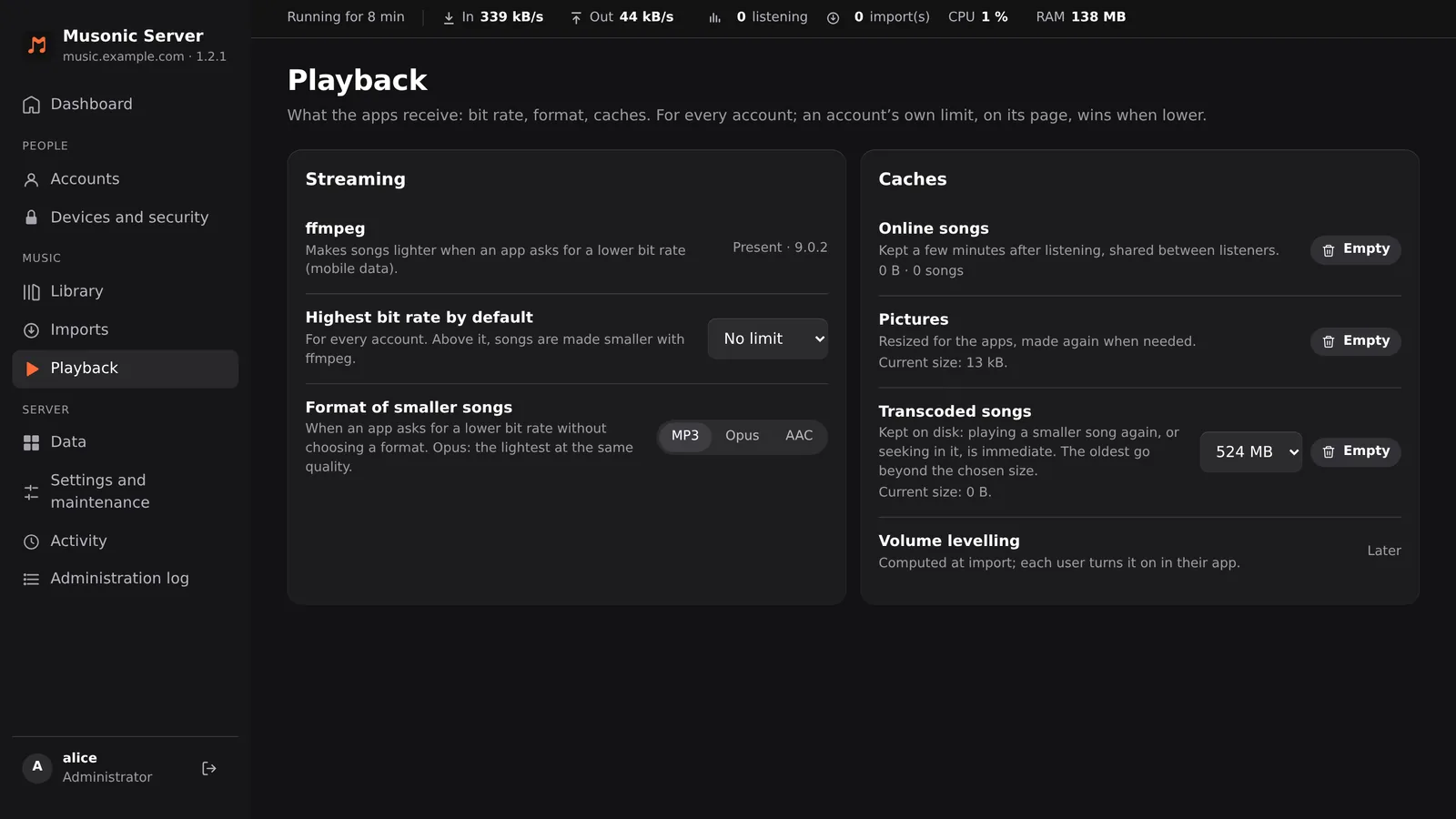
What the apps receive. These settings are for every account; an account’s own bit rate limit, on its page, wins when it is lower.
- Streaming: whether ffmpeg is present (with its version) or missing. Without it, files are sent as they are, without lowering the bit rate.
- Highest bit rate by default: no limit, 320, 256, 192, 128 or 96 kbit/s. Above it, songs are made smaller with ffmpeg.
- Format of smaller songs: MP3, Opus or AAC, used when an app asks for a lower bit rate without choosing a format. Opus is the lightest at the same quality.
- Caches, each with an Empty button:
- Online songs: kept a few minutes after listening, shared between listeners.
- Pictures: covers resized for the apps, made again when needed.
- Transcoded songs: kept on disk so that playing a smaller song again, or seeking in it, is immediate. Choose the size (none, 250 MB to 5 GB, 500 MB by default); the oldest go first.
- Volume levelling is marked Later: it is not available yet.
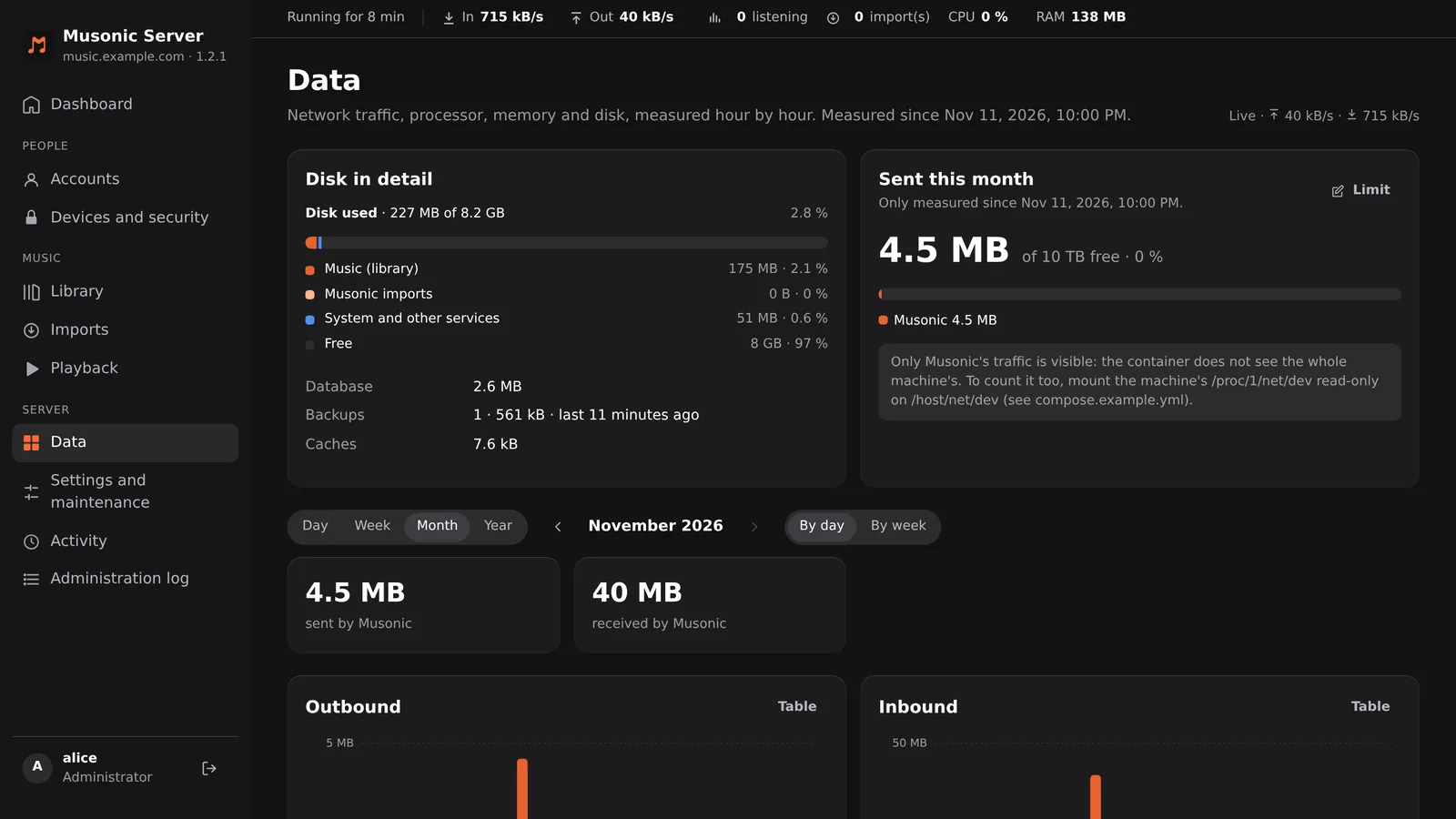
Network traffic, processor, memory and disk, measured hour by hour since the server first started.
- Sent this month, against the monthly outbound limit of your host when you set one (Limit), with a projection to the end of the month. It starts again on the 1st.
- Disk in detail: the disk used, split into music (library), Musonic imports, system and other services, and free space, then the size of the database, of the backups (with the last one) and of the caches.
- Periods: day, week, month or year, with arrows to go back and Now to come back, grouped by hour, day, week or month. Each chart can be shown as a Table.
- Traffic: inbound and outbound, the machine’s total and the share of Musonic.
- Processor (Musonic) and Memory (Musonic, peak).
- Disk: used, music, Musonic imports, system and other services, free, and an estimate of when the disk will be full.
Settings and maintenance
Section titled “Settings and maintenance”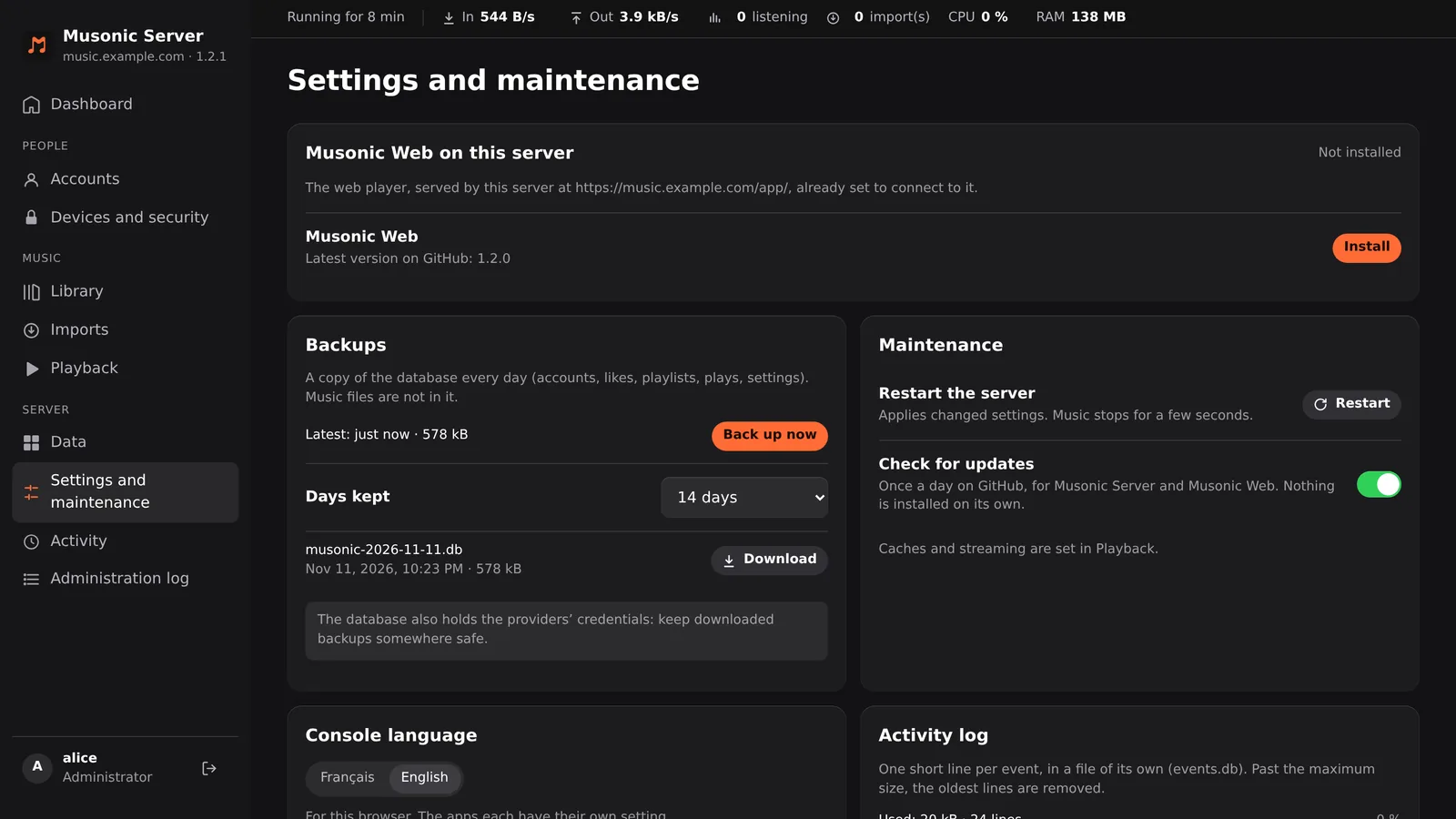
- Musonic Web on this server: installs or updates the web player from the latest release on GitHub. It is then served at
/app/on your server, already set to connect to it. Open opens it. - Backups: a copy of the database every day (accounts, likes, playlists, plays, settings); music files are not in it. Days kept (none, 3, 7, 14, 30 or 90; 14 by default), Back up now, and the list of backups with a Download button. See Backups. The database also holds the providers’ credentials: keep downloaded backups somewhere safe.
- Maintenance:
- Restart the server: applies changed settings. Music stops for a few seconds, then the apps reconnect on their own.
- Check for updates (a switch, on by default): every 6 hours, looks on GitHub for newer versions of Musonic Server and Musonic Web. Nothing is installed on its own.
- Activity log: its size, number of lines and oldest line, and its Maximum size (10 MB to 5 GB, 50 MB by default). Past it, the oldest lines go.
- Server logs: the last 2,000 lines kept in memory since the last start, filtered on All, Warnings or Errors.
- Console language: English or French, for this browser.
Activity
Section titled “Activity”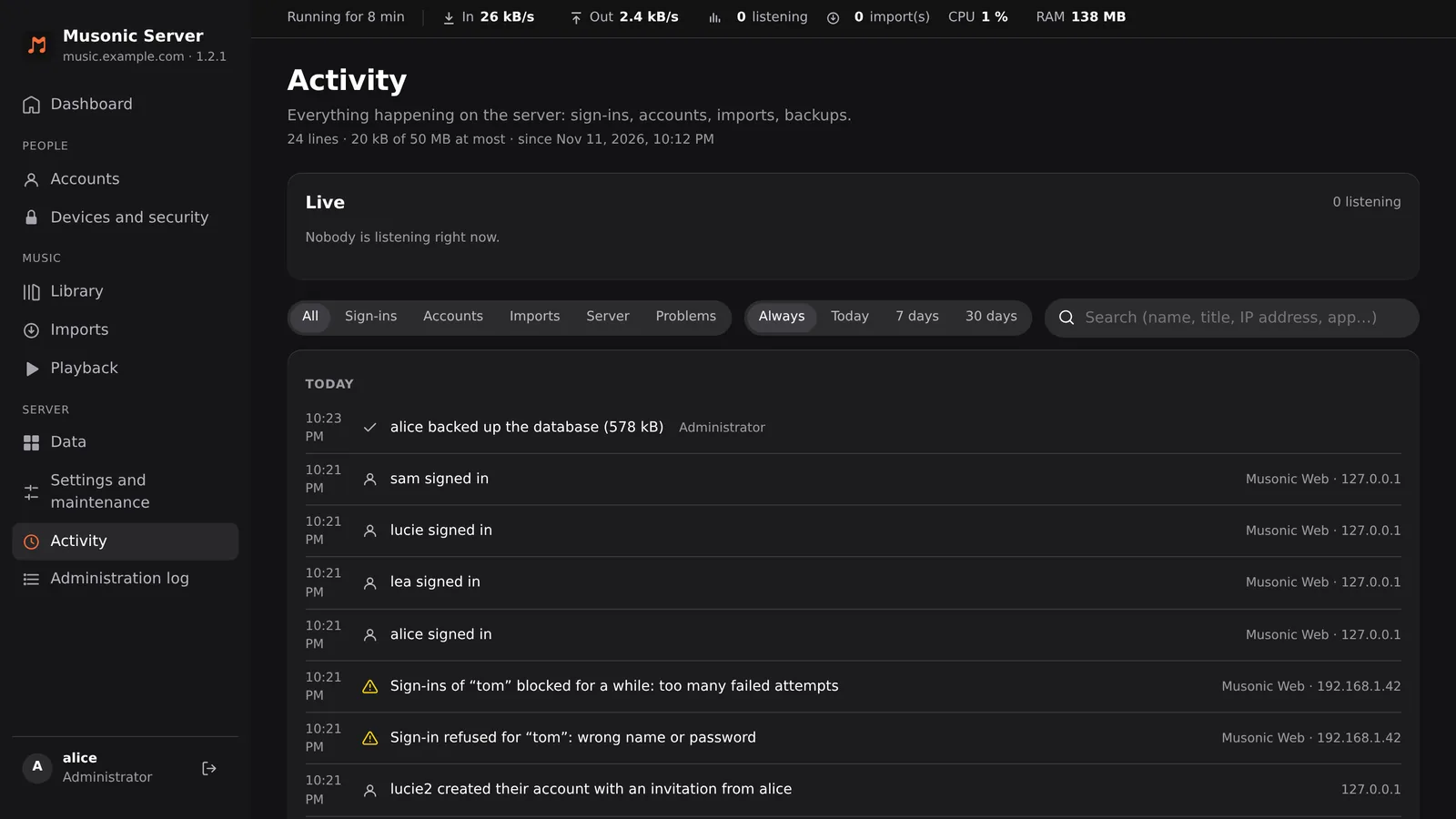
Everything that happens on the server, one short line per event: sign-ins (and refused ones), accounts, imports, backups, providers, restarts.
- Filters: All, Sign-ins, Accounts, Imports, Server, Problems; and Always, Today, 7 days or 30 days.
- Search on a name, a title, an IP address or an app.
- Live: a card at the top shows who is listening now, and new lines appear on their own.
- At the top, the size of the log (lines, size against its maximum, date of the oldest line). Each line gives its time and, on the right, the app and IP address when there is one.
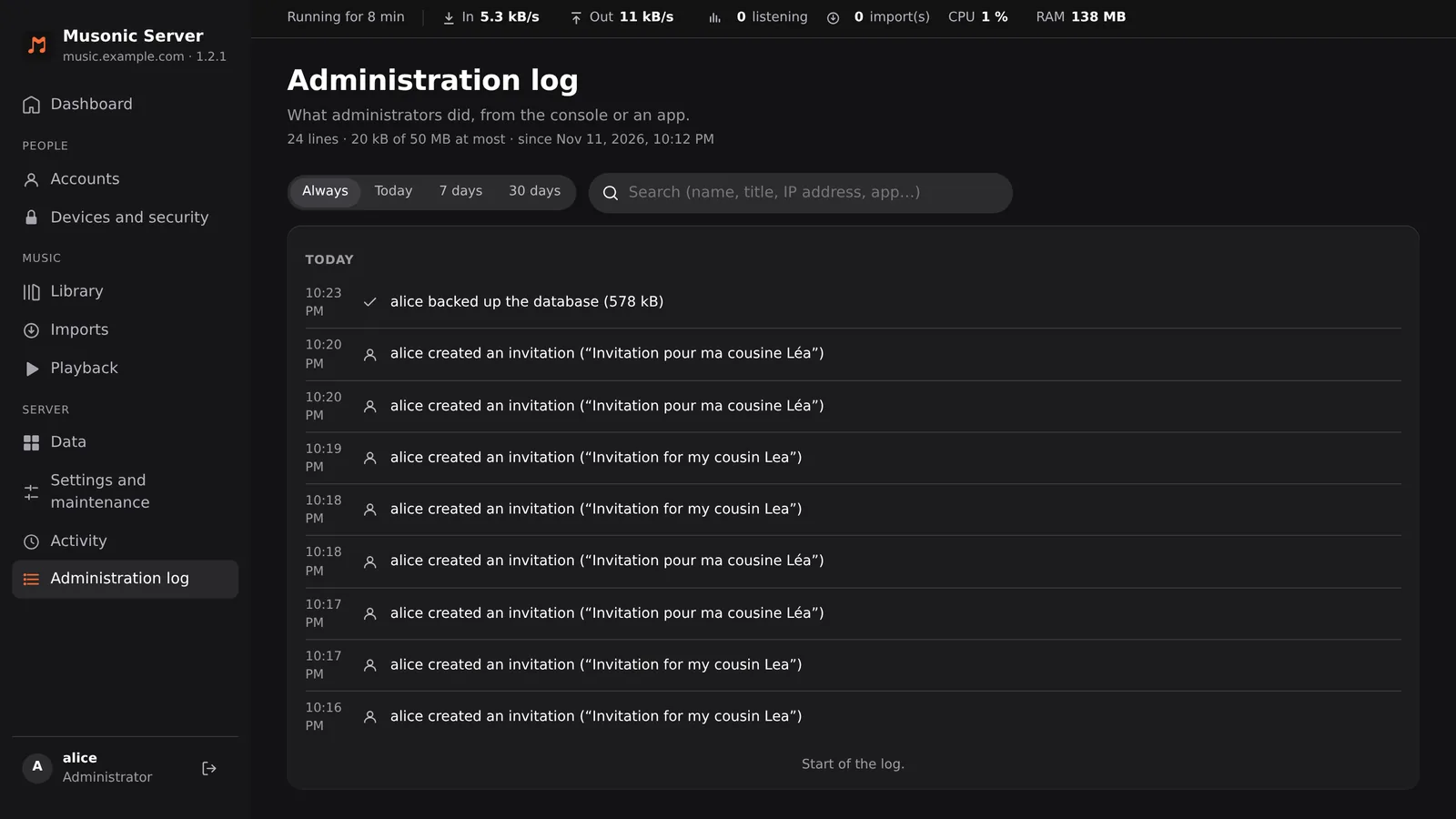
Administration log
Section titled “Administration log”The same list, limited to what administrators did, from the console or from an app: accounts created or deleted, roles, rights, settings, backups downloaded, caches emptied, restarts. It has the same period filters (Always, Today, 7 days, 30 days) and the same search.