
Import your playlists
This page shows how to bring a playlist you made on another service into Musonic. You paste its address; your server makes the same playlist again with songs from your library and from the online catalogue. It is written for listeners: no setting to change, only a link to copy.
What you need
- An account on a Musonic Server (imports do not exist with Navidrome or other Subsonic servers).
- A public playlist on Deezer, YouTube Music or Spotify, and its share link.
- For YouTube Music: the administrator of your server must have added a YouTube key in the console (see Limits).
- For Spotify: your server must offer it. If it does not, Musonic tells you “Spotify is not available on this server.”
1. Copy the playlist’s address
Section titled “1. Copy the playlist’s address”In the Deezer app or website, open the playlist, then Share → Copy link. Both forms work:
https://www.deezer.com/en/playlist/<number>(any language in the address)- a short link starting with
https://link.deezer.com/…,https://deezer.page.link/…orhttps://dzr.page.link/…
In YouTube Music or YouTube, open the playlist, then Share → Copy link. These forms work:
https://music.youtube.com/playlist?list=<id>https://www.youtube.com/playlist?list=<id>(alsom.youtube.com)- a video link opened from the playlist, which carries
&list=<id> https://music.youtube.com/browse/VL<id>
These are refused, with the reason:
- an album of YouTube Music: import a playlist instead;
- your liked songs and Watch later: they are private, copy them into a public playlist first;
- a mix or a radio (they change every time): save the songs into a playlist first;
- a single video (for example a
youtu.be/…link): share the playlist itself.
In Spotify, open the playlist, then Share → Copy link to playlist. The address looks like https://open.spotify.com/playlist/<id>. Spotify is only available on servers that offer it.
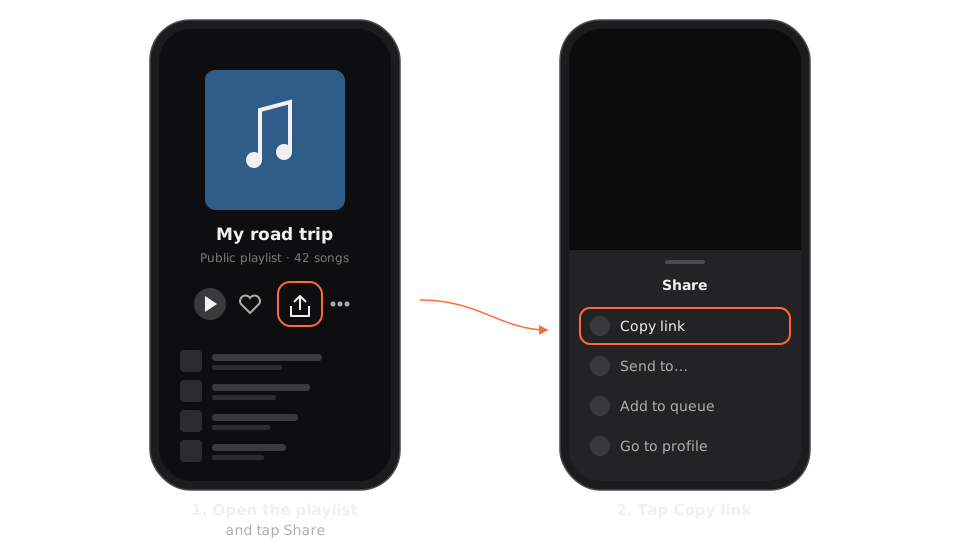
The words and icons vary a little between Spotify, Deezer and YouTube Music.
The playlist must be public: a private playlist gives “Playlist not found or private: it must be public.”
2. Import it
Section titled “2. Import it”-
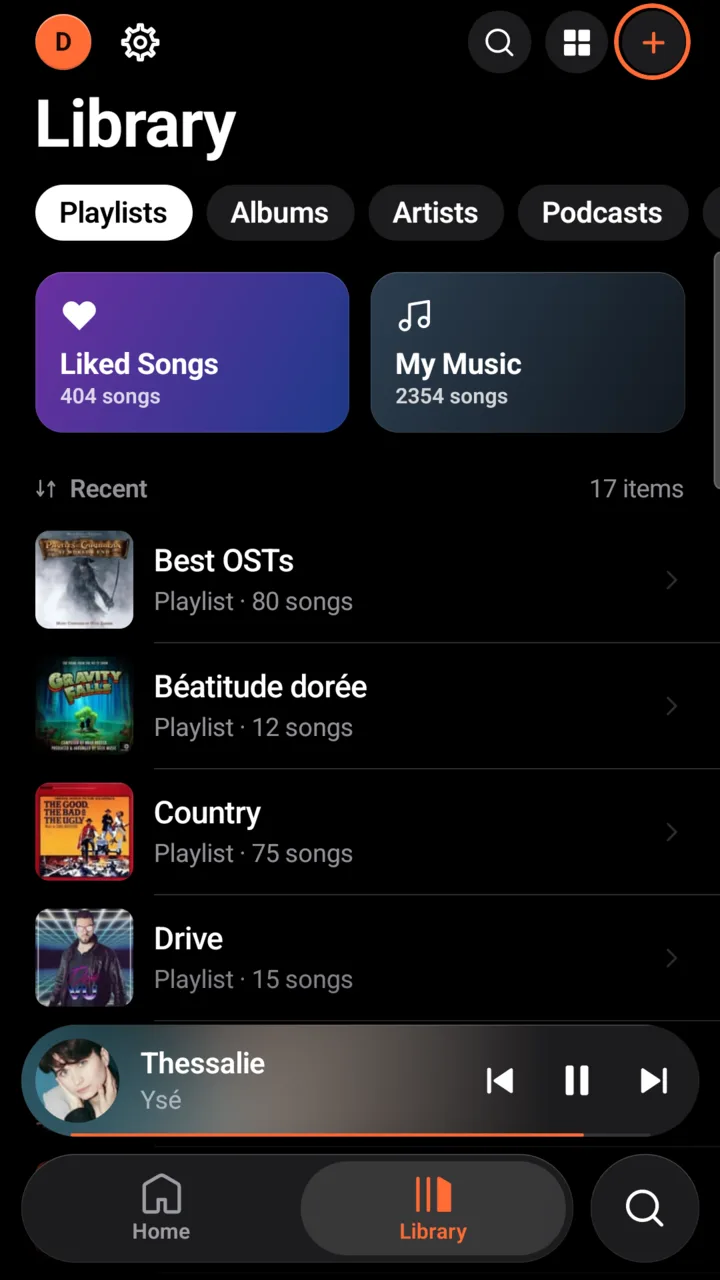
Open the Library tab, then tap “+” at the top right.
The “New playlist” window opens.
-
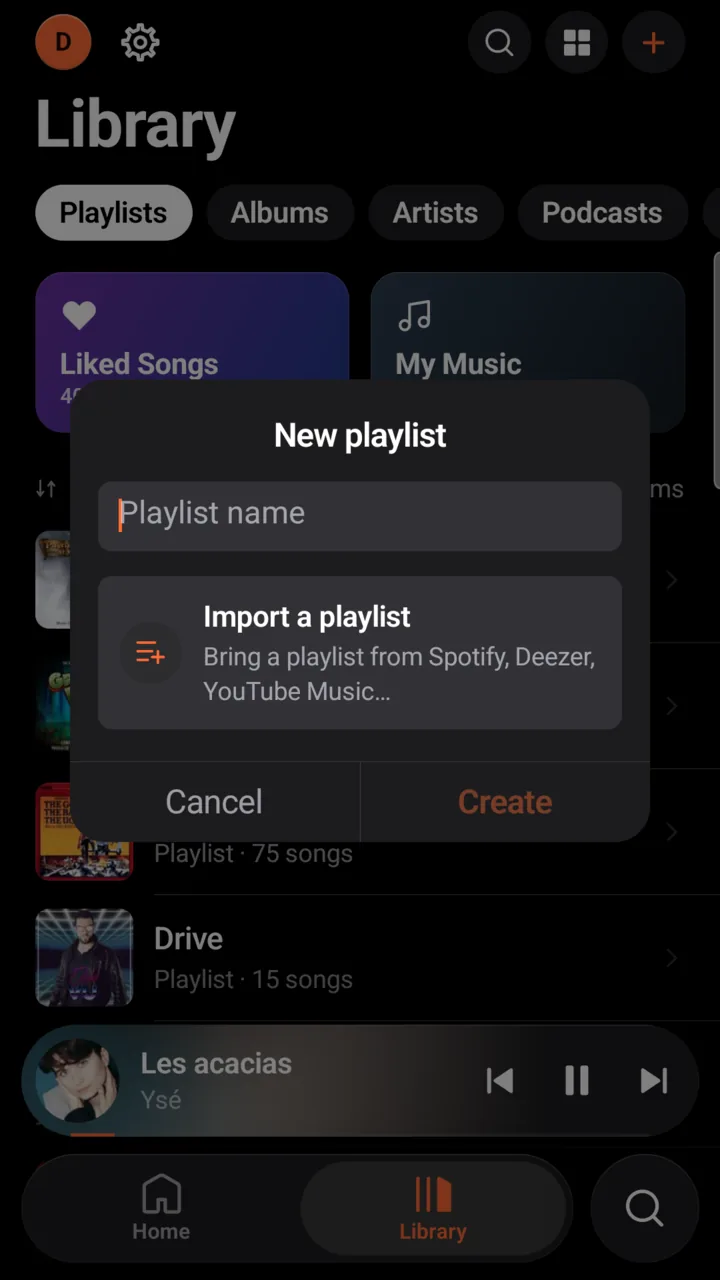
Tap “Import a playlist”.
It sits under the “Playlist name” field, above Cancel and Create: “Bring a playlist from Spotify, Deezer, YouTube Music…”. If you do not see it, you are not signed in to a Musonic Server.
-
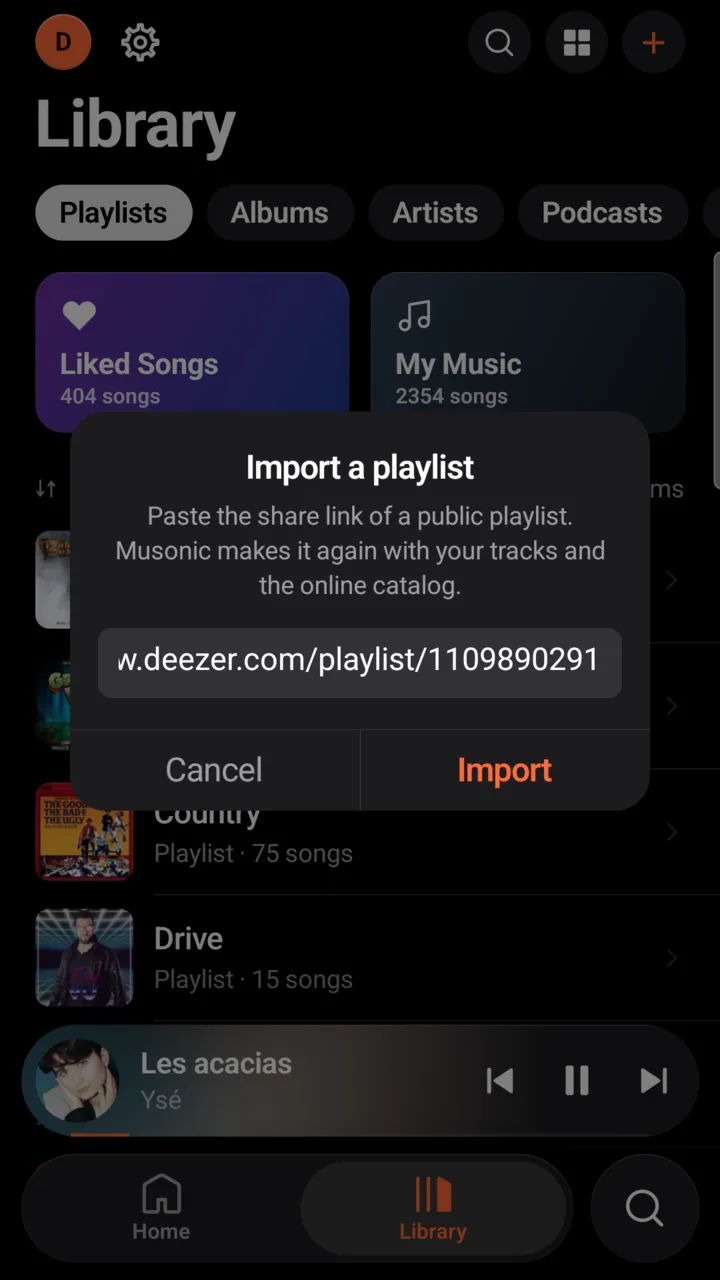
Paste the link in the “Playlist link” field, then tap “Import”.
The window is called “Import a playlist”. Press and hold the field, then tap Paste. Cancel closes it without importing.
-
Wait: the import runs on the server.
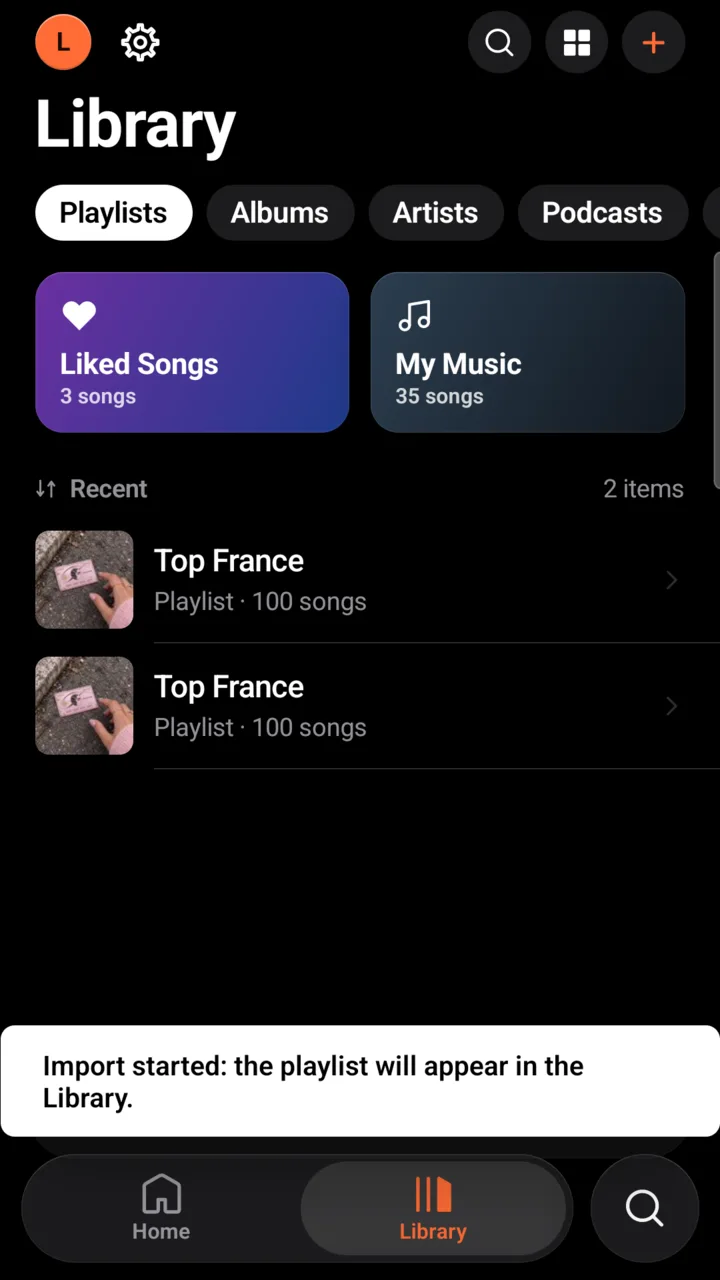
The app first says “Import started: the playlist will appear in the Library.” For a long playlist, a small pill at the top then shows the progress (“Playlist import: 15/100”). You can use the app, or even close it.
-
When “Playlist imported: …” shows, open the playlist in the Library.
It has the name of the original playlist.

The app does not show the import report: open it from the web player (see Read the report).
-
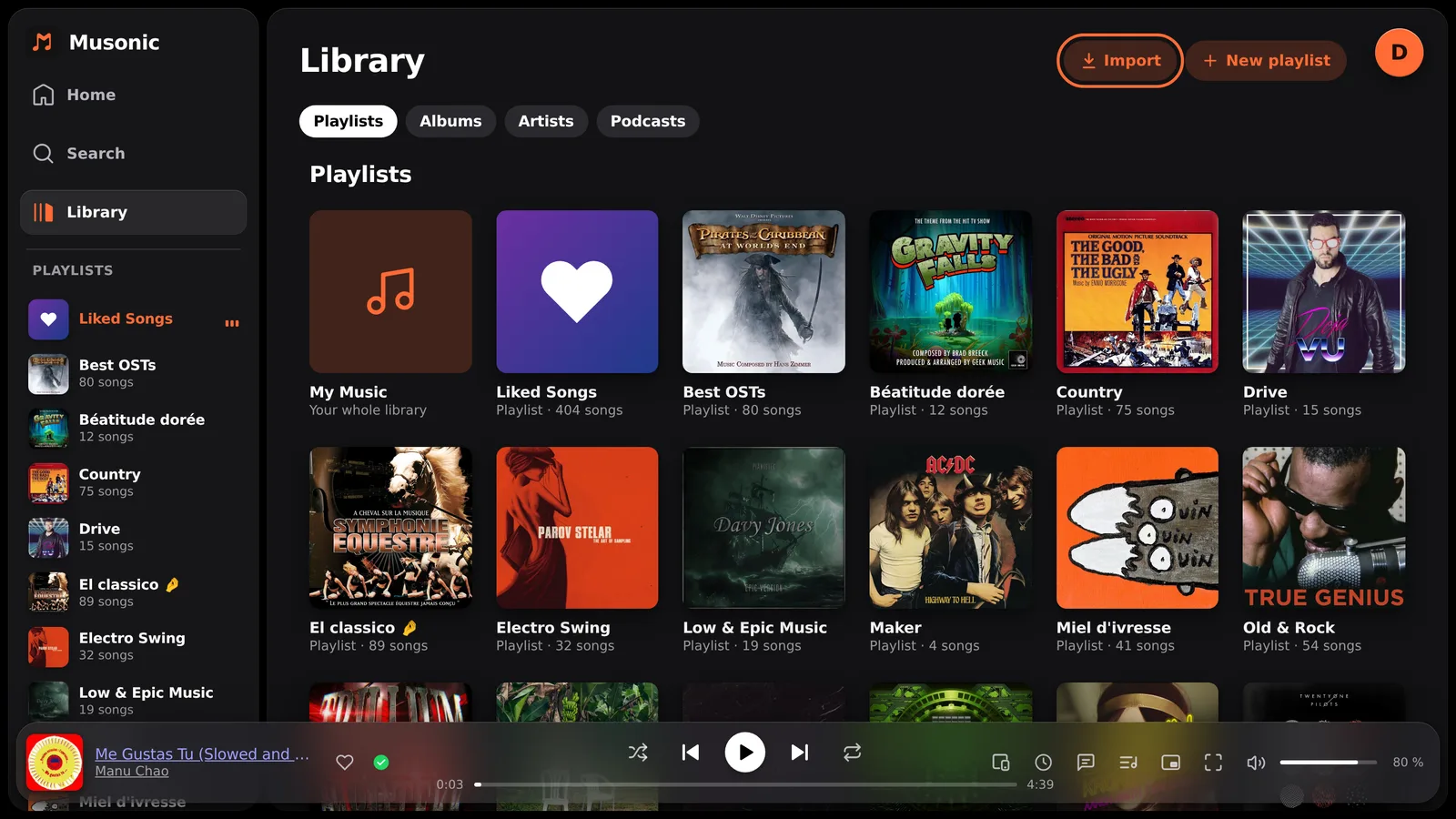
Open Library, then click “Import” at the top right.
The button only shows on a Musonic Server.
-
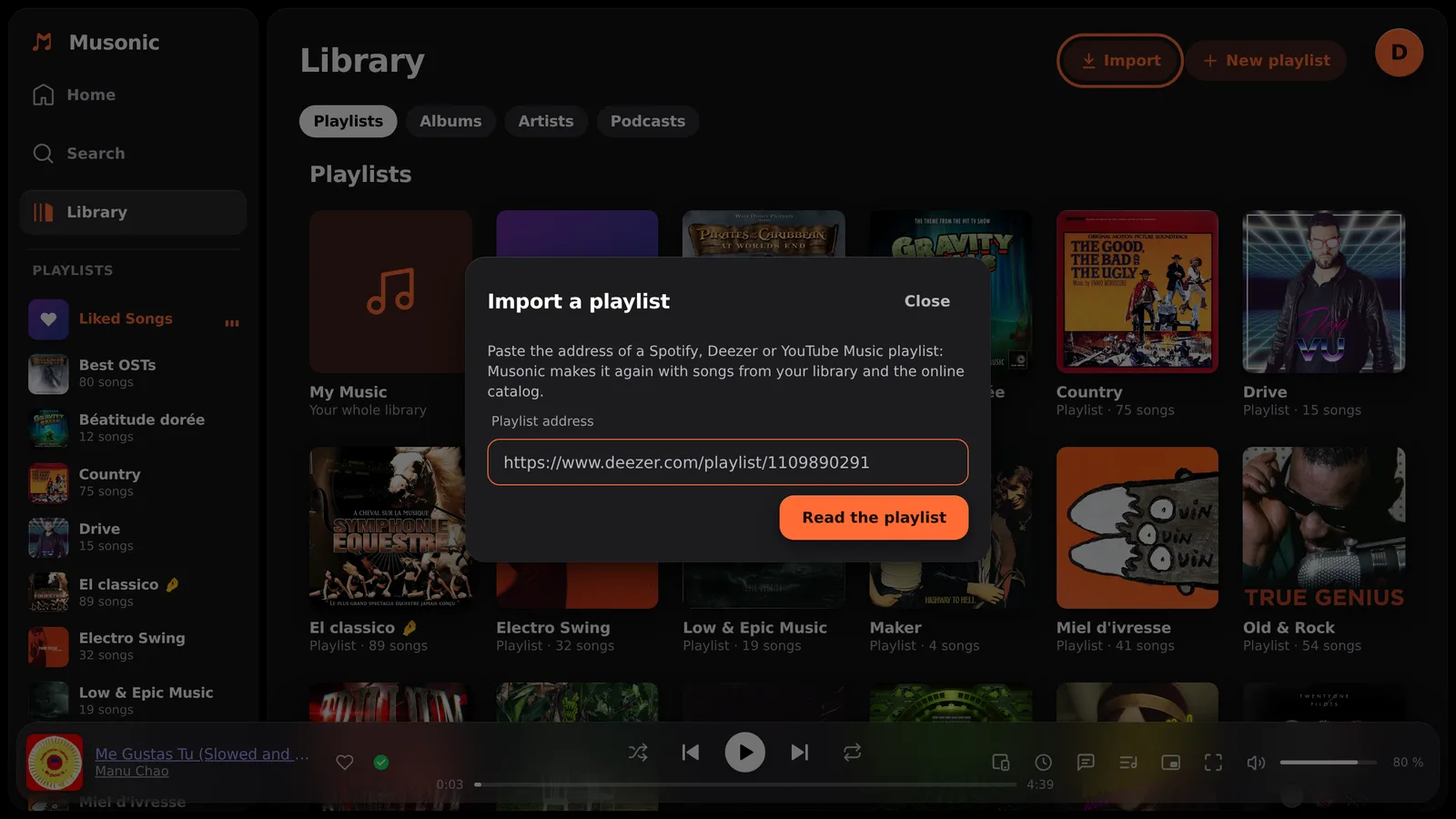
Paste the address in “Playlist address”, then click “Read the playlist”.
The window is called “Import a playlist”; Close, at its top right, cancels.
-
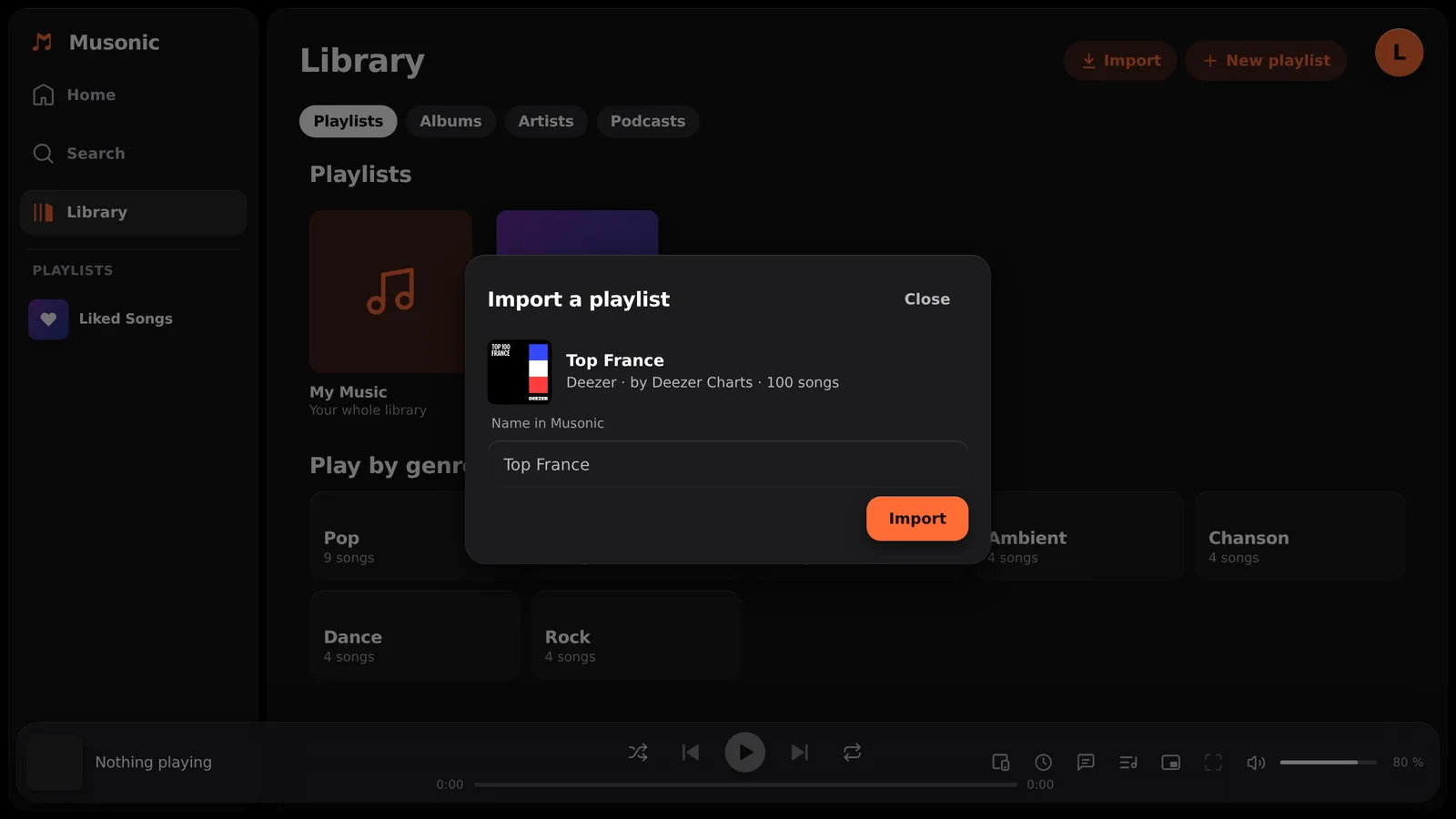
Check the name, the cover and the number of songs, then click “Import”.
The window shows the service, the owner and the number of songs. You can change Name in Musonic. If some songs are no longer available on the service (deleted or private), it says how many and that they will not be imported.
-
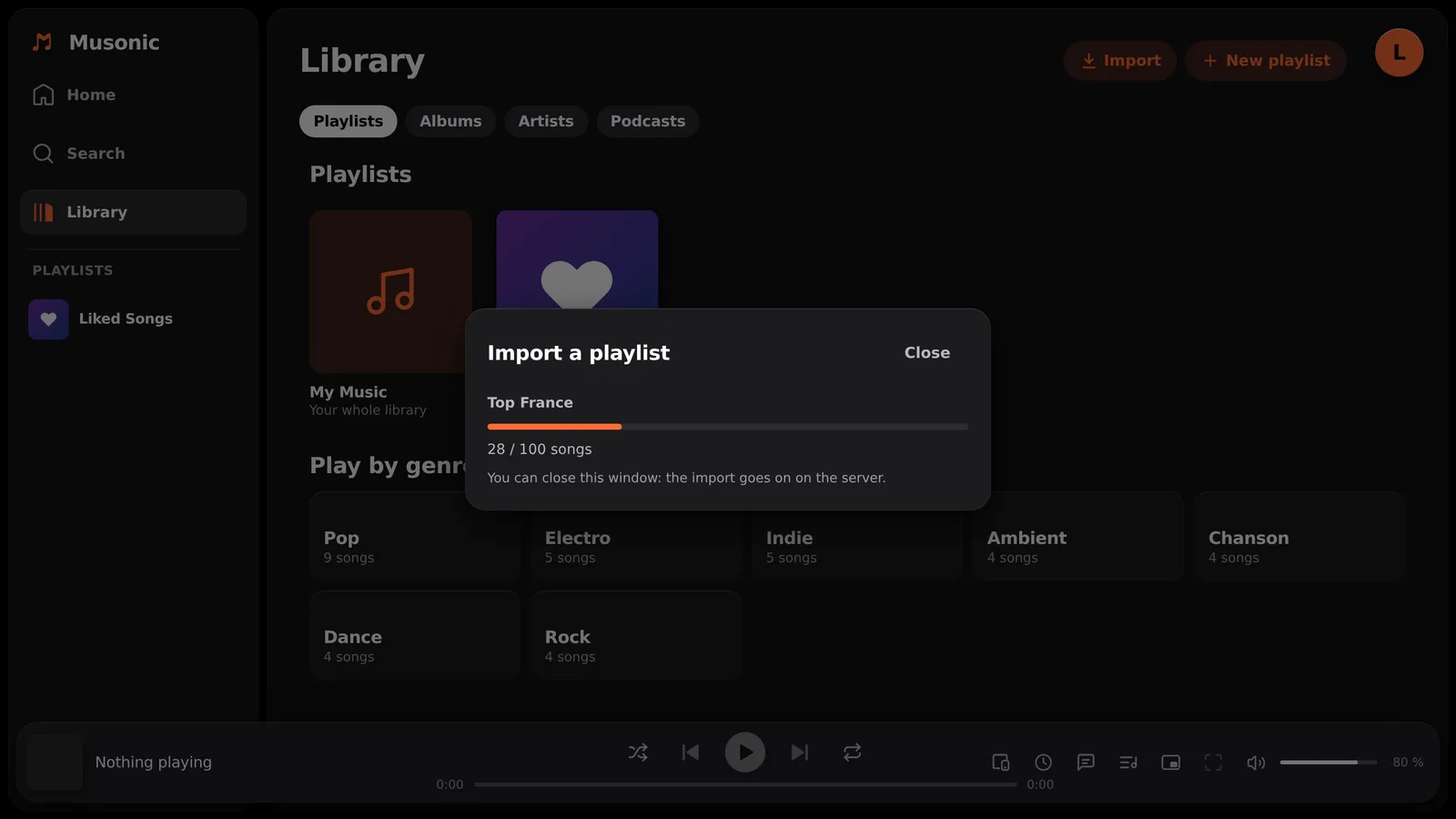
Watch the progress, or close the window.
“12 / 87 songs”. “You can close this window: the import goes on on the server.”
-
Read the report, then click “See the playlist”.
See below.
3. Read the report
Section titled “3. Read the report”When the import is over, the web window shows the report. You can open it again at any time: on the page of the imported playlist, click Import report.
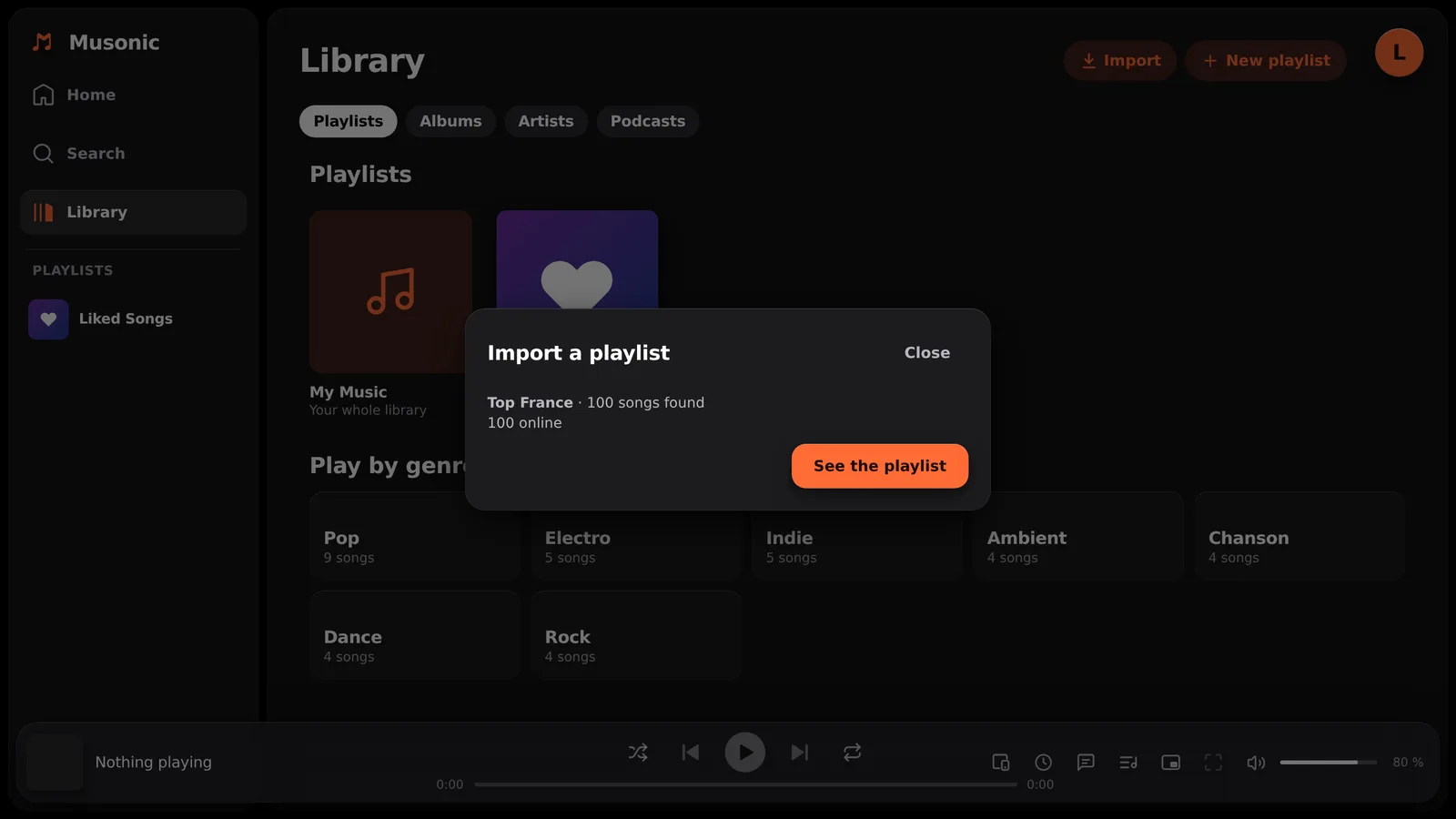
The first line gives the playlist’s name and the number of songs found, then splits them (for example “100 songs found”, then “100 online”). When songs are uncertain or missing, a To check list follows, each song tagged with its state:
| In the report | What it means |
|---|---|
| in your library | The song was already in your library. Nothing is downloaded again. |
| online | The same recording was found in the online catalogue and put in the playlist. |
| uncertain | A close stand-in was used: another recording of the same song or work, or another length. It is in the playlist; check it. |
| not found | The song is not in the playlist. The reason is shown: Not found, Online catalog not allowed for your account, or Service unavailable during the import. |
How each song is looked for: first in your library, by its ISRC (a code that identifies a recording) when the service gives one, otherwise by title, artists and length; then, the same way, in the online catalogue.
What happens to the songs found online: if your server can import songs, they are added to your library like any song you put in a playlist; otherwise they stay online and play as 30-second previews. See Online catalogue and imports.
4. Fix what is missing or uncertain
Section titled “4. Fix what is missing or uncertain”-
Click “Look for the missing songs again”.
Useful when the reason was “Service unavailable during the import”. The button only shows when songs are missing.
-
For a song still missing, search it and add it to the playlist yourself.
Search it (try fewer words, or another spelling of the title), then Add to a playlist from its menu.
-
For an uncertain song you do not want, remove it from the playlist.
Open the playlist, then the song’s menu, then Remove from this playlist.
Limits
Section titled “Limits”| Limit | Detail |
|---|---|
| Server | Musonic Server only. |
| Public playlists only | Private playlists, liked songs and “Watch later” cannot be read. |
| Size | At most 2,000 songs are read from one playlist. |
| Waiting imports | At most 5 imports waiting or running per account; beyond: “Too many imports waiting: wait for them to finish.” Imports run one after the other, in the order asked, and go on after a server restart. |
| YouTube Music | The administrator must add a YouTube Data API key in the console (Imports page, YouTube Music import → Add the key). Without it: “YouTube import is not enabled yet: the administrator must add a YouTube key in the console.” |
| Online catalogue | If the administrator turned it off, Deezer playlists cannot be imported (“The online catalog is off on this server.”). If your account may not use it, only the songs already in your library are found; the others show “Online catalog not allowed for your account”. |
| Quotas | The administrator can limit, per account, how many songs are imported into the library per day or per month, or their total size. Beyond a quota, songs found online stay online. |
Errors
Section titled “Errors”| Message | What to do |
|---|---|
| This is not the address of a Spotify, Deezer or YouTube Music playlist. | Copy the playlist’s share link again. |
| Playlist not found or private: it must be public. | Make the playlist public on the service, or copy it into a public one. |
| Spotify is not available on this server. | Your server does not offer Spotify imports. |
| The service does not answer. Try again in a moment. | The other service did not answer: try again later. |
| The online catalog is off on this server. | Deezer imports need the online catalogue: ask your administrator. (The app shows “The service does not answer” in this case.) |