
Podcasts
This page shows how to listen to podcasts in Musonic: find a show, follow it, play its episodes and pick up where you stopped, on any of your devices.
What you need
- An account on a Musonic Server (podcasts are not available with Navidrome or other servers).
- The Android app or the web player.
Shows are read by your server from their public RSS feed; the episode audio also goes through your server, so the podcast host never sees you.
Find a show
Section titled “Find a show”-
Open the Search tab and type the name of a show, or of a person.
-
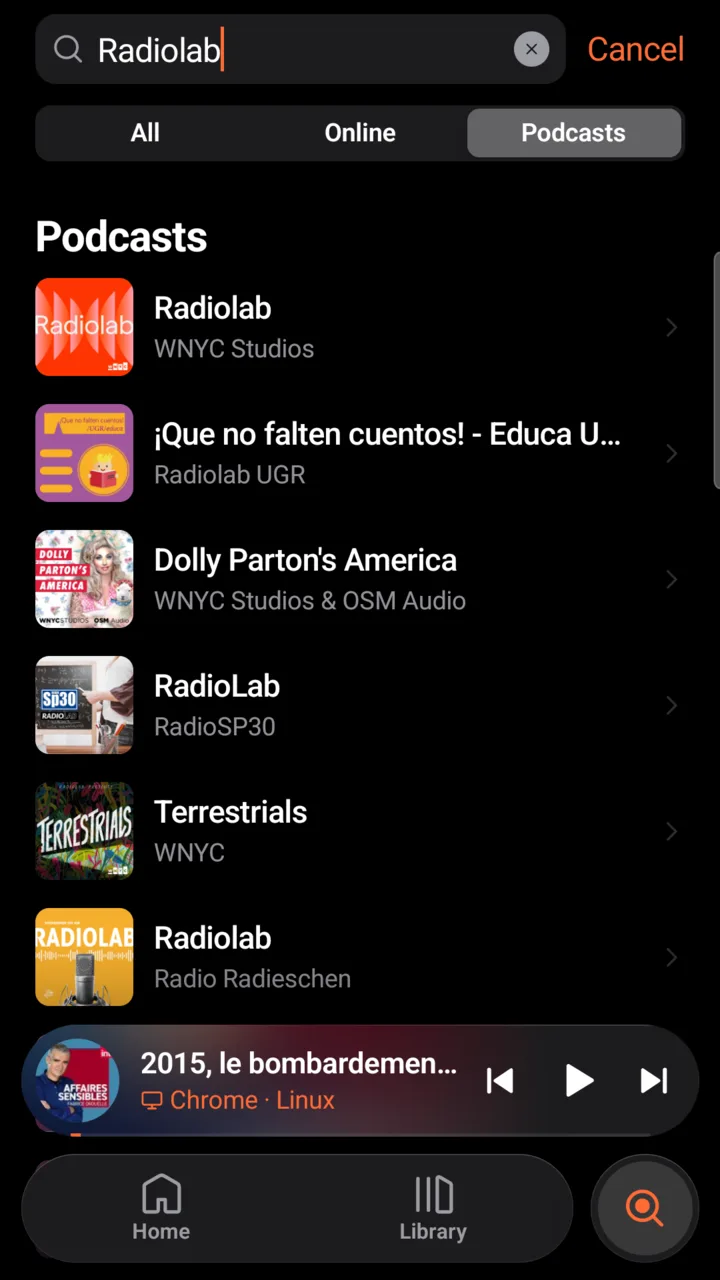
Tap the “Podcasts” filter.
You get the shows found under Podcasts, each with its cover, its name and its author, then Episodes with this person when the server can search by person (see below).
-
Tap a show to open its page.
An episode found by person opens its show, scrolled to that episode, and plays it.
-
Open Search and type the name of a show, or of a person.
Shows also appear under All.
-
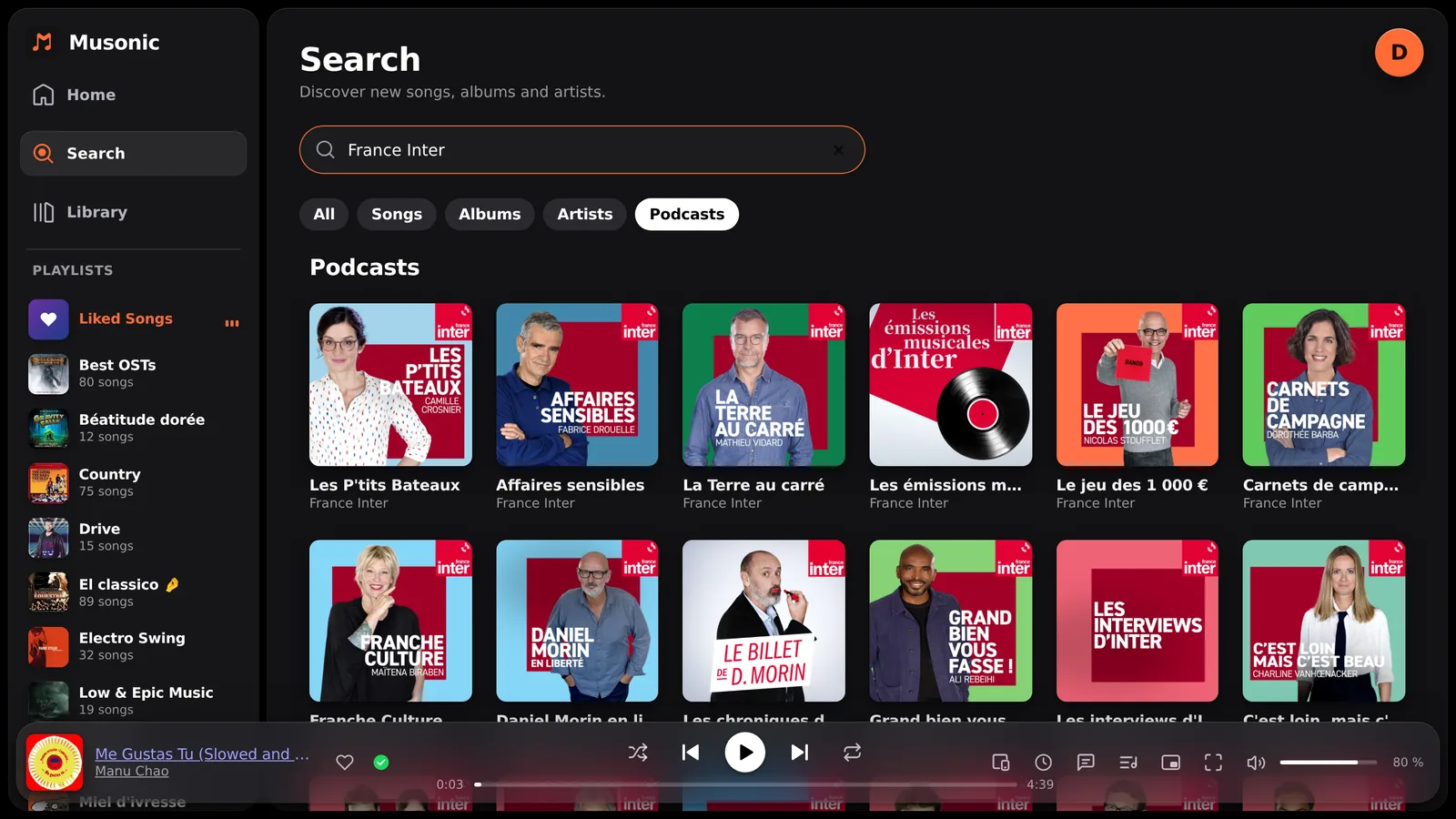
Click the “Podcasts” filter.
-
Click a show to open its page.
You can also paste the address of an RSS feed (starting with https://) in the search field: an RSS feed card, Open this feed, opens that show.
Where results come from. Shows are searched in the Apple Podcasts (iTunes) directory, in the country of your language (France for French, United States otherwise in the app). If the administrator added a Podcast Index key in the console, search also finds the shows that directory misses, and the episodes where a person (host or guest) speaks. Without it, Episodes with this person does not show.
Follow a show
Section titled “Follow a show”-
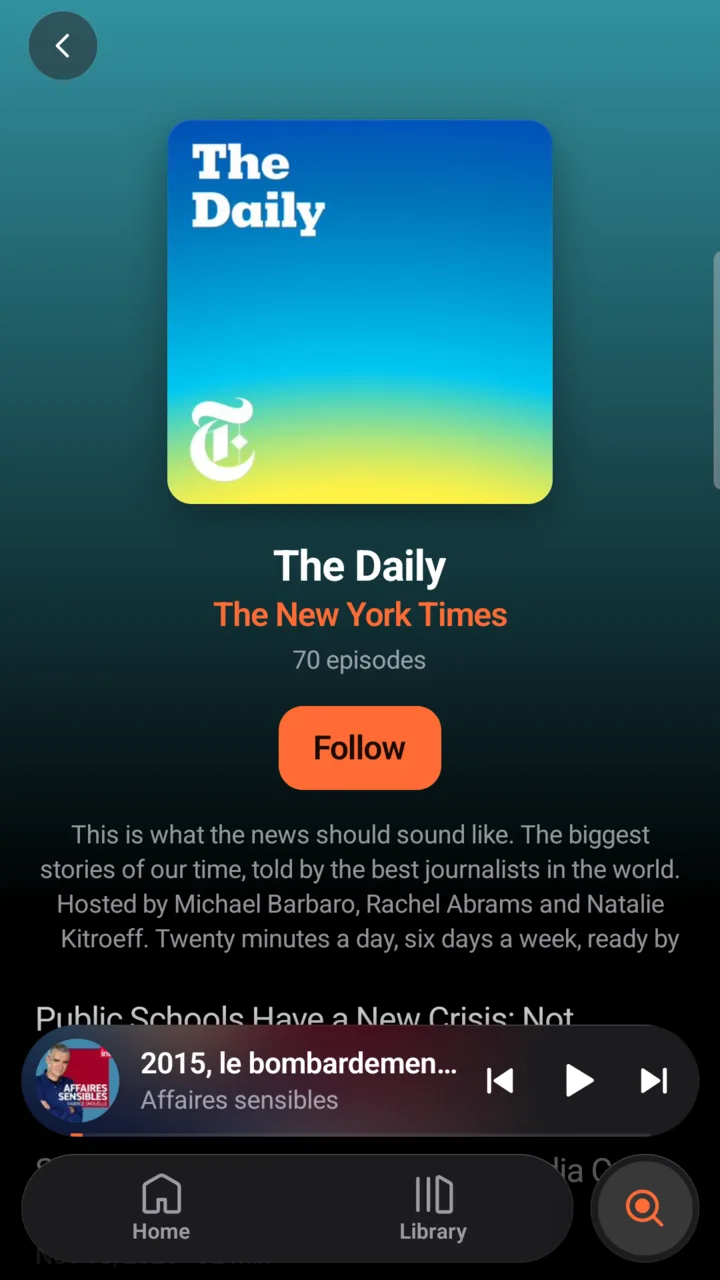
On the show’s page, tap or click “Follow”.
The button sits under the cover, the show’s name, its author and its number of episodes, above the description. It becomes Following. The show is now in your Library.
-
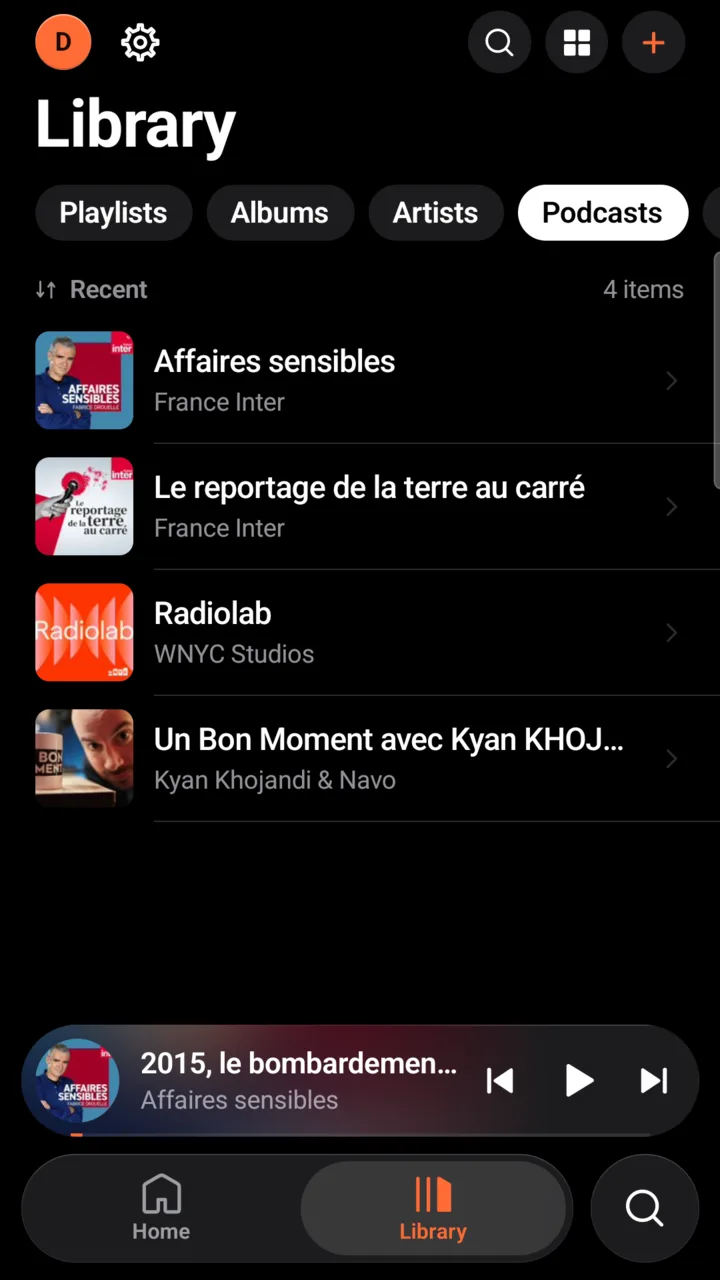
Find it later in Library → Podcasts.
You can open a show and play its episodes without following it. Your server reads the feeds of followed shows every hour: new episodes appear on the show’s page by themselves. Musonic does not send notifications for new episodes.
Listen to an episode
Section titled “Listen to an episode”Tap or click an episode on the show’s page. Episodes are listed newest first, each with its date and its length, or “12 min left” when you started it, or Played once you listened past 95 %.
In the full player, an episode has:
- −15 and +30, on each side of the controls (left of Previous, right of Next): back 15 seconds, forward 30 seconds;
- the speed button in the bottom row, in place of Shuffle and Repeat. It shows the current speed; each tap moves to the next one: 1×, 1.25×, 1.5×, 1.75×, 2×, 0.75×.

Podcasts are also in Android Auto: Library → Podcasts lists the shows you follow, then their episodes (see Android Auto).
In place of shuffle and repeat, the player bar shows −15 and +30 around the controls, and the speed button (it shows 1× at first) left of −15, with the same steps (1×, 1.25×, 1.5×, 1.75×, 2×, 0.75×). The speed is remembered by the browser. On a show’s page, Play starts the newest episode you have not listened to yet.

Resume where you stopped. Your place in each episode is saved by your server every few seconds and at pause, for your account. Start the episode again on your phone, in the browser or in the car: it goes on from there. An episode marked Played starts again from the beginning.
Transcripts. When the show publishes a transcript, the Lyrics button shows it, line by line, like synced lyrics. An episode never shows song lyrics.
No crossfade between episodes, even when crossfade is on.
Stop following a show
Section titled “Stop following a show”-
Open the show’s page (Library → Podcasts).
-
Tap or click “Following”.
The show leaves your Library. Its page can still be found by search.
Next steps
Section titled “Next steps”- Listen to music
- Android Auto
- Podcasts on the server (for administrators)