
Backups and restore
This page is for the person who runs the server: what to save so that nothing is lost if a disk dies, and how to bring everything back.
What to back up
Section titled “What to back up”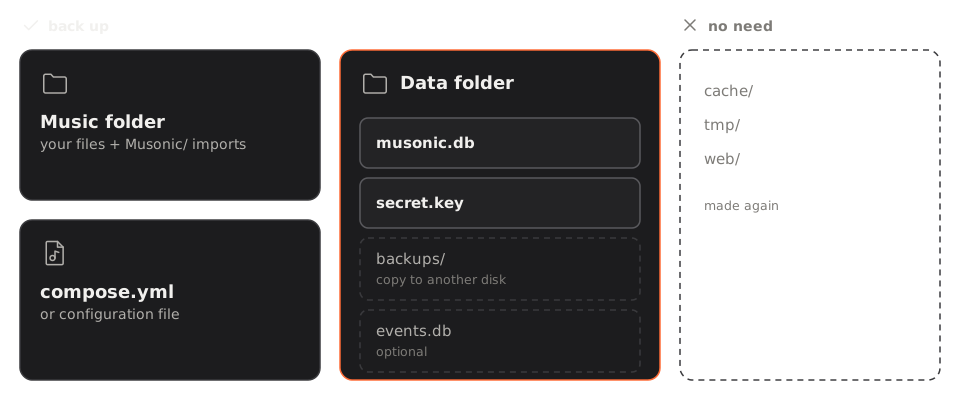
| What | Where (Docker example) | Why |
|---|---|---|
The database musonic.db |
./data/ |
Accounts, likes, playlists, plays, play queues, settings, providers’ credentials. The heart of the server. |
The key secret.key |
./data/ |
Decrypts the passwords kept for the Subsonic token sign-in. Not needed if you set MUSONIC_SECRET_KEY yourself (then keep that value). |
| The music folder | the folder mounted on /music |
Your files, and the songs imported into its Musonic/ folder. The database does not contain any music. |
| Your setup | compose.yml (or your configuration file) |
Paths, user, environment variables. |
The activity log events.db |
./data/ |
Optional: the history of sign-ins and events. |
Caches (cache/, tmp/) and Musonic Web (web/) are made again on their own: no need to save them.
The server’s own daily backups
Section titled “The server’s own daily backups”The server copies its database every day by itself:
- Where:
backups/in the data folder (./data/backups/with Docker), one file per day namedmusonic-YYYY-MM-DD.db(the date is in UTC). - When: a few moments after the server starts, then every 24 hours. A restart on a day that already has its backup does not make another one.
- How many: the 14 most recent by default. Change it in the console (Settings and maintenance → Backups → Days kept: none, 3, 7, 14, 30 or 90) or with
MUSONIC_BACKUP_DAYS(0 to 365,0= none). - Each backup is a complete, consistent database you can open or put back as it is. The files are readable by the server’s user only.
- If no backup was made for more than 2 days, the dashboard shows the alert “No backup for more than 2 days”.
Back up now and download
Section titled “Back up now and download”-
In the console, open “Settings and maintenance”.
-
Under “Backups”, click “Back up now”. Today’s backup is made, or replaced.
-
Click “Download” next to a backup to save it on your computer.
Each backup is listed with its file name (
musonic-YYYY-MM-DD.db), date, time and size.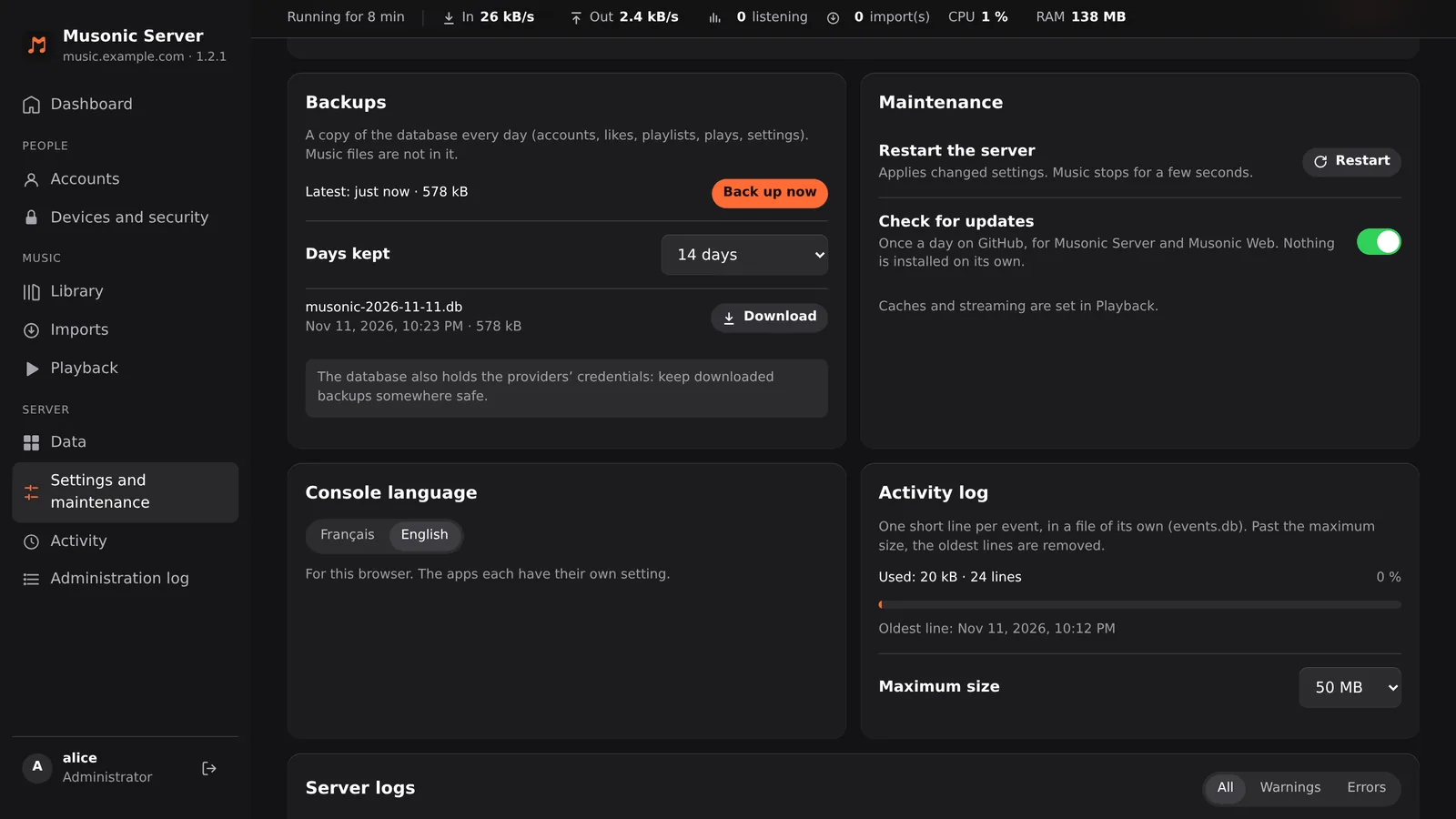
Copy the backups to another machine
Section titled “Copy the backups to another machine”From another computer, an rsync of the folder is enough, for example once a day:
rsync -a <user>@<server>:<folder>/data/backups/ ~/musonic-backups/<user>@<server> is how you connect to the server with SSH; <folder> the folder holding compose.yml. The backup files belong to the server’s user (UID 1000 in the example): connect as that user, or adapt the rights.
Copy the database safely while it runs
Section titled “Copy the database safely while it runs”Settings and maintenance → Back up now, then take the new file from data/backups/ or click Download. This is the simplest way.
On the server machine, with the sqlite3 tool installed (it is not in the Docker image):
sqlite3 data/musonic.db ".backup 'musonic-copy.db'"This gives a consistent copy, even while the server writes. Run it as a user who can read data/.
Stop the server (docker compose stop), copy the whole data/ folder, then start it again (docker compose start). The music stops meanwhile.
Restore a backup
Section titled “Restore a backup”Use this after a mistake (an account deleted, playlists lost) or a damaged database. Everything that changed after the backup’s date is lost.
-
Go to the folder of
compose.ymland stop the server.Terminal window cd <folder>docker compose stop -
Put the current database aside, without deleting it.
Terminal window mkdir data/before-restoremv data/musonic.db data/musonic.db-wal data/musonic.db-shm data/before-restore/Some of these files may not exist: that is normal.
-
Copy the backup in its place.
Terminal window cp data/backups/musonic-2026-11-10.db data/musonic.dbReplace the date by the one you want. Use
sudoif your user cannot read the backups. -
Give the file back to the server’s user.
Terminal window sudo chown 1000:1000 data/musonic.db1000:1000is theuser:line of yourcompose.yml. -
Start the server and check.
Terminal window docker compose up -ddocker compose logs -f musonic-serverThe logs say
musonic-server startingthenlistening on …. Open the console: accounts and playlists are those of the backup’s date.
Good to know
- Keep the same
secret.key(orMUSONIC_SECRET_KEY). Without it, the Subsonic token sign-in fails for existing accounts until each one gets a new password; sign-ins with the password or with a device key still work. - An older backup can be put on a newer server: the server updates its structure at start, after keeping a copy named
musonic.db.before-schema-N. - A newer database cannot run on an older server: it refuses to start with “database schema … is newer than this server: update the server”. To go back to an older version after an update, restore the
musonic.db.before-schema-Ncopy made just before it. - Without Docker, it is the same procedure: stop the service, swap the file in your data folder, give it to the server’s user, start.
Move the server to a new machine
Section titled “Move the server to a new machine”-
On the new machine, install Docker. See Install with Docker.
-
On the old machine, stop the server.
Terminal window docker compose stop -
Copy the folder of
compose.yml(withdata/) and the music folder to the new machine.Terminal window rsync -a <folder>/ <user>@<new-machine>:<folder>/rsync -a <music>/ <user>@<new-machine>:<music>/<folder>is the folder ofcompose.yml,<music>your music folder,<user>@<new-machine>the SSH access to the new machine.-akeeps owners and dates. Run as a user who can read every file (withsudoif needed). -
On the new machine, check
compose.yml. The music path on the left of:/music, and theuser:line matching the owner of the folders there (id -uandid -ggive your numbers). -
Start the server.
Terminal window cd <folder>docker compose up -d -
Point your address to the new machine. Move your reverse proxy (or tunnel) and your domain name. If the address stays the same, the apps keep working without signing in again.
- The music folder may be at a different path on the new machine: with Docker it is still
/musicinside the container. Without Docker, set the new path inMUSONIC_MUSIC_DIR: the server finds its files again by their place inside the folder, and the logs saymusic folder moved from … to …. - Keep the old machine untouched for a few days, until everything works on the new one.