
The web player
Musonic Web is the Musonic player in your browser: the same home, mixes, lyrics, playlists and queue as on the phone, laid out for a computer screen. This page is for anyone who wants to listen on a computer, whether someone gave you an account or you run the server yourself.
What you need
- A computer with a recent browser (see Browsers).
- The address of your server, your username and your password.
Two ways to open it
Section titled “Two ways to open it”There are two copies of the same web player. They do the same things; only the address changes.
| Copy | Address | Use it when |
|---|---|---|
| Hosted copy | https://musonic.doodz.dev/app/ |
You want nothing to set up. It connects to any server you type, as long as that server has an https:// address. Always the latest version. |
| Your server’s copy | https://<your server>/app/ |
Your server’s administrator installed it from the console. Handy at home with an http:// address, or to keep everything on one address. |
<your server> is the address of your Musonic Server, the same one you type in the apps (for example music.example.com).
You can also host the web player on your own web server (Nginx, Caddy…): download Musonic-Web.zip from the latest web-v… release and follow its self-hosting guide.
Sign in
Section titled “Sign in”-
Open
https://musonic.doodz.dev/app/in your browser.Or your server’s copy,
https://<your server>/app/. The sign-in screen shows the Musonic logo and “Connect your music server”, then the fields Server address, Username and Password, the Remember me box and the Sign in button. Under the button, a line says it works with Musonic Server, Navidrome and Subsonic-compatible servers. English · Français, at the bottom, changes the language.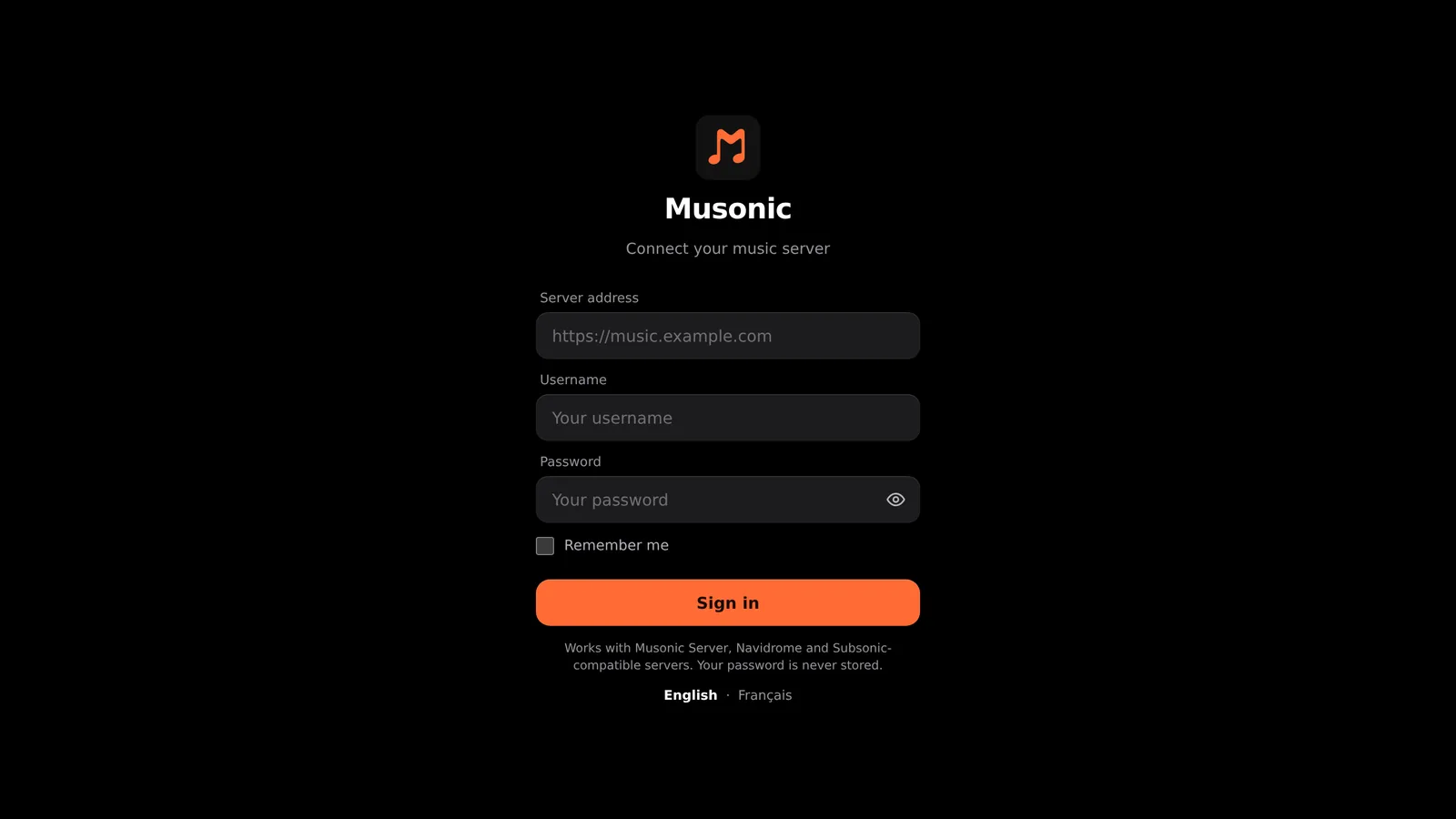
-
In “Server address”, type your server’s address.
For example
https://music.example.com. If you leave outhttps://, Musonic adds it. -
Type your username and your password.
The eye button in the password field shows what you typed.
-
Tick “Remember me” only on your own computer.
A warning opens first: click Turn on to confirm. Without it, you are signed out when you close the tab.
-
Click “Sign in”.
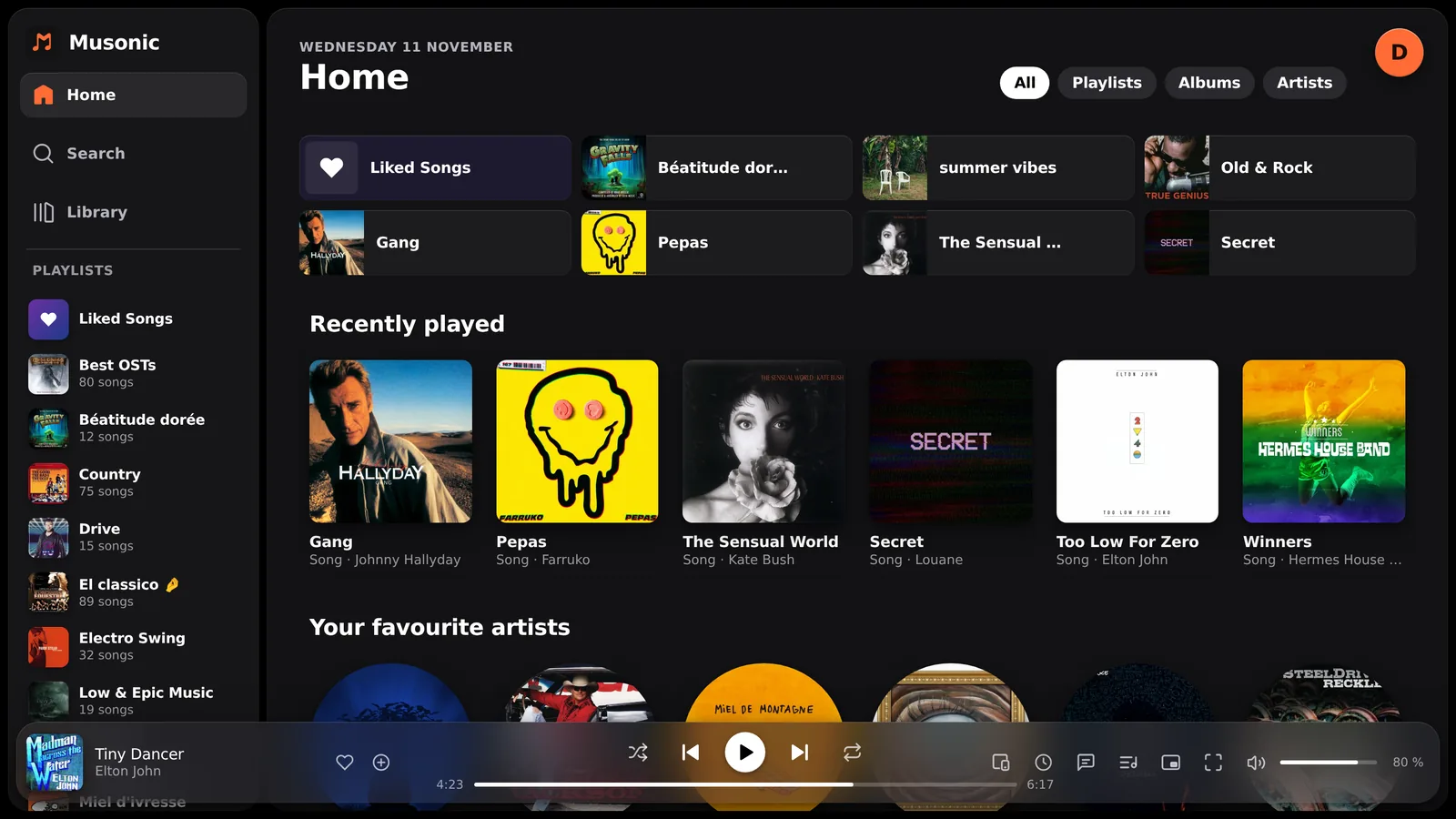
The button shows “Signing in…”, then the Home opens. The side menu on the left holds Home, Search, Library and your playlists, starting with Liked Songs. The middle shows the filters All, Playlists, Albums and Artists, quick access tiles, then shelves such as Recently played and Your favourite artists. The player bar runs along the bottom, and the round button with your initial, at the top right, opens your profile menu.
What happens when you sign in
Section titled “What happens when you sign in”- On a Musonic Server, your password is used once: the server gives this browser its own device key, named after it (for example “Musonic Web · Firefox (Linux)”). The key, not your password, is used afterwards. The administrator sees it in the console under Devices and security and can revoke it. Log out (profile menu, top right) revokes it too.
- On another Subsonic server (Navidrome…), the web player signs in with a token made from your password (
t+s). The password itself is never sent in clear and never stored. - Without “Remember me”, the key or token is kept only for the tab (
sessionStorage): closing the tab signs you out, and each new tab asks you to sign in. With it, it is kept in the browser (localStorage) until you log out. Anyone with access to this browser, or a browser extension, could reuse it: that is why the warning asks you first. - The address you last used is remembered (not a secret), so the field is filled in next time.
Sign-in errors
Section titled “Sign-in errors”| Message | What it means |
|---|---|
| Wrong username or password. | Check both. After 10 different wrong passwords, a Musonic Server blocks your address for that account for 15 minutes. |
| Server unreachable. Check the address and your connection. | The address is wrong, the server is off, or the browser was not allowed to reach it (see below). |
| Invalid address. Example: https://music.example.com | The address is not a web address. |
| Your account has been suspended. Ask the server’s administrator. | The administrator suspended the account. |
| This browser was signed out of your account. Please sign in again. | The device key was revoked (in the console, or by logging out). |
| Did your password change? Please sign in with the new one. | The password changed since this browser signed in. |
What it does
Section titled “What it does”| Part | What you find |
|---|---|
| Home | Quick access, recently played, your favourite artists, “More like…”, “Because you liked…”, eight Magic Mixes a day from your favourite genres, Rediscover, New in your library, Random. |
| Search | Songs, albums and artists of your library, with the filters All / Songs / Albums / Artists, and results that load as you scroll. On a Musonic Server with the online catalogue on, results from the catalogue come after your library’s, and a Podcasts filter appears. With the field empty: the Magic Mixes and Browse (recently added, most played, random, one tile per decade). |
| Library | Playlists (with Liked Songs and My Music), New playlist, Import, Play by genre, albums, artists, and the podcasts you follow. |
| Playlists | Create, delete, and Edit: the name and description become fields, each song gets a handle to drag it (or the up and down arrow keys) and a “−” to remove it; Done saves everything, Escape or Cancel drops the changes. Name and description are shared with every app. |
| Track rows | A heart for liked songs, a “+” / “✓” showing whether the song is in one of your playlists. Right click or “⋯”: play next, add to queue, add to a playlist, like, go to the album or the artist. |
| Player bar | Shuffle (off / on / Magic), previous, play, next, repeat (all / this song), progress, volume, the queue and lyrics panels, the sleep timer, Devices (Musonic Connect), the floating mini player and the full-screen player. |
| Queue | A side panel in zones: Now playing, Added by you, Next up, Autoplay. Play any entry, remove it, reorder by drag and drop, Clear all. |
| Lyrics | Synced lyrics from your server (embedded in the files), otherwise from LRCLIB. The line being sung is highlighted; click a line to jump to it. |
| Full-screen player | A blurred cover background, a large cover, lyrics beside it, like, controls and volume, and a button for the browser’s full screen. Opened by clicking the cover in the player bar. |
| Floating mini player | A small window that stays on top of every other window, even when the browser is minimised. Its layout follows its size, from one thin line to a large view with like and the next track. Chrome, Edge and Brave only. |
| Sleep timer | Pauses after a duration you pick, or at the end of the track. Reloading the page cancels it. |
| Imports | Library → Import: paste the address of a Spotify, Deezer or YouTube Music playlist and Musonic makes it again with songs from your library and the online catalogue. See Import your playlists. |
| Podcasts | Search shows, follow them, resume an episode where you stopped (on every device), speed from 0.75× to 2×, back 15 s and forward 30 s, transcripts shown like lyrics. |
| Musonic Connect (beta) | Devices lists your devices (each browser tab is one) and moves playback to any of them. While another device plays, the player bar becomes its remote. Your last listening comes back, paused, when the page opens. |
| Settings | Profile menu (top right) → Settings: Crossfade between tracks (Off to 12 s), Show the time left, Language (English / Français), and on a Musonic Server the name of this device for Musonic Connect. |
Import, podcasts, Musonic Connect and the return of your last listening need Musonic Server. With Navidrome or another Subsonic server, everything else works.
Panel widths are adjustable: drag the edge of the side menu or the queue panel, double-click it to go back to the default size. The volume, the panel widths, the crossfade and the time display are remembered in this browser.
Keyboard shortcuts
Section titled “Keyboard shortcuts”The shortcuts work in the main window and in the floating mini player, except while you type in a field.
| Keys | Action |
|---|---|
| Space | Play / pause |
| Ctrl + → | Next track |
| Ctrl + ← | Previous track (back to the start of the track after 3 seconds) |
| Media keys (play/pause, next, previous) | Same as the buttons; also the media controls of your desktop |
| Esc | Close the full-screen player (when the browser is not in full screen), a dialog, a menu, or the edit mode of a playlist without saving |
| ↑ / ↓ on a song’s handle | Move the song up or down while editing a playlist |
| ← / → on a panel edge | Make the side panel narrower or wider (10 px; 40 px with Shift) |
| ↑ / ↓ in the sleep timer | Change the selected value |
| Enter in “Name of this device” | Save the name |
On a Mac, the next and previous shortcuts also use Ctrl, not Cmd.
A right click on the page background opens Musonic’s menu (back, forward, the main pages, reload). A second right click opens the browser’s own menu.
Browsers
Section titled “Browsers”| Browser | Works | Floating mini player | Install as an app |
|---|---|---|---|
| Chrome, Edge, Brave (computer) | Yes | Yes | Yes |
| Firefox (computer) | Yes | No | Not offered by Firefox |
| Safari (Mac) | Yes | No | File → Add to Dock (macOS Sonoma and later) |
The floating mini player uses Document Picture-in-Picture, which only Chromium browsers have today. Use a recent version of your browser.
Musonic Web is laid out for a computer. On an Android phone, use the Android app; on an iPhone, see Use Musonic on iPhone or iPad.
Install it as an app on your computer
Section titled “Install it as an app on your computer”Installed, Musonic Web opens in its own window, with its icon in the taskbar or the dock, without the browser’s address bar.
-
Open
https://musonic.doodz.dev/app/(or your server’s copy). -
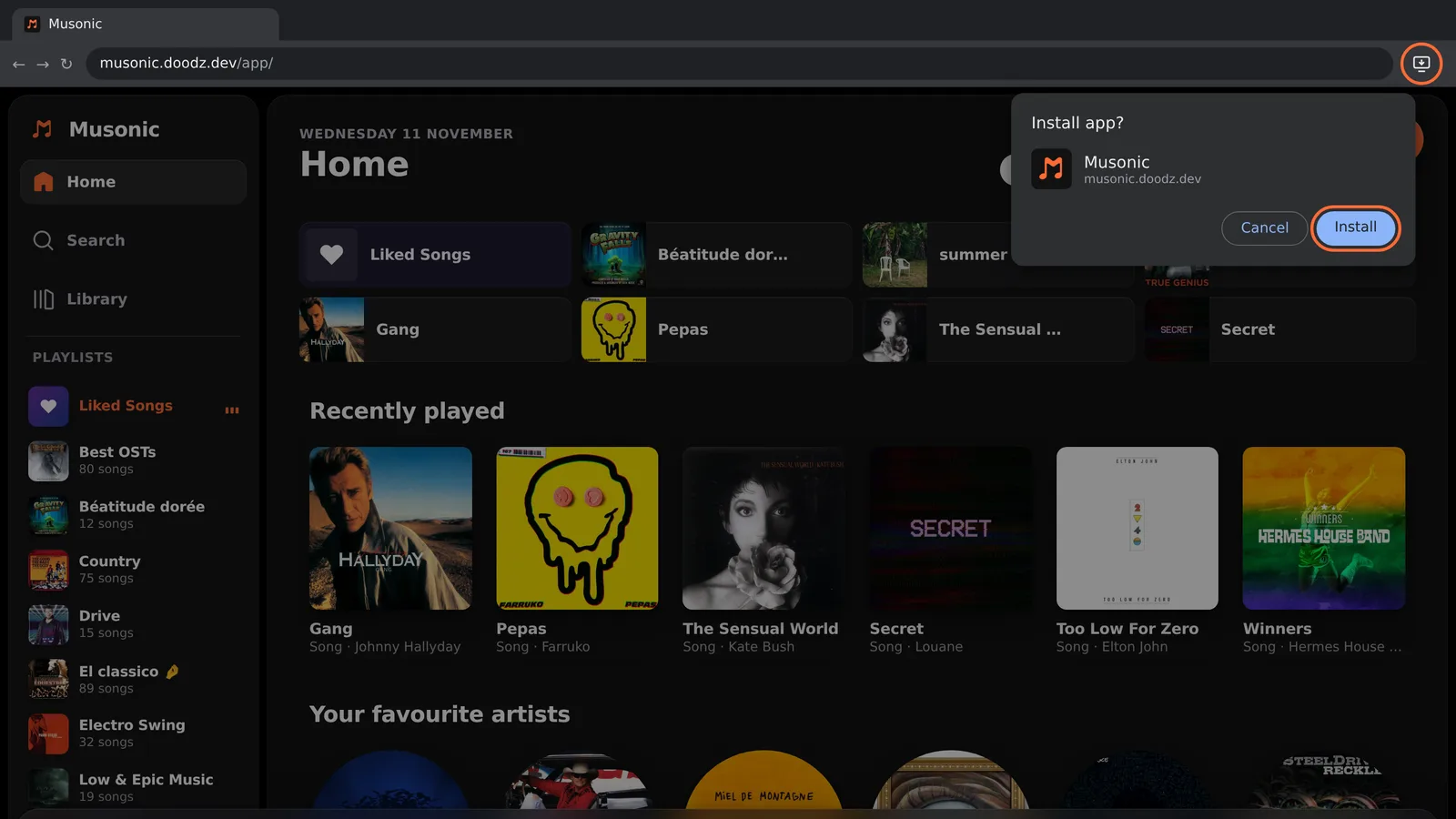
Click the install icon at the right of the address bar.
It looks like a screen with a down arrow. If you do not see it: menu ⋮ → Cast, save and share → Install page as app… (the wording changes a little between versions).
-
Click “Install”.
The box “Install app?” shows the Musonic icon and
musonic.doodz.dev(or your server’s address), with Cancel and Install. Musonic opens in its own window. Next time, open it from your applications menu, the taskbar or the desktop.
-
Open
https://musonic.doodz.dev/app/(or your server’s copy). -
Click the “App available” icon at the right of the address bar.
If you do not see it: menu … → Apps → Install this site as an app.
-
Click “Install”.
-
Open
https://musonic.doodz.dev/app/in Safari. -
In the menu bar, click “File” → “Add to Dock”.
-
Click “Add”.
Musonic appears in the Dock and opens in its own window.
Details. Browsers only offer to install a page served over https:// (or localhost). A server’s copy at http://192.168.…/app/ plays, but cannot be installed. The installed app is the same web page: it updates by itself with the hosted copy, and follows the administrator’s updates with a server’s copy. Without “Remember me”, you sign in each time you open its window. To remove it, open it and use the window’s menu (⋮ in Chrome, … in Edge) → Uninstall.
Limits compared with the Android app
Section titled “Limits compared with the Android app”| Android app | Web player | |
|---|---|---|
| Offline listening | Download playlists, albums, liked songs; automatic download | None: the web player streams everything and needs the connection to the server |
| Sound quality setting | Quality on Wi-Fi and on mobile data | None: you get the original file, unless the administrator set a lower limit for your account or the server |
| Android Auto | Yes | No |
| Crossfade | Yes | Yes (0 to 12 s), but it needs a server that sends CORS headers, and it is never applied to podcast episodes |
| Online tab in search | A separate “Online” tab | Online results come after your library’s in the same lists |
| Layout | Phone | Computer: on a narrow window (under about 760 px wide), the side menu is hidden |
| Floating mini player | — | Chrome, Edge, Brave |