
Install the server with Docker
This page installs Musonic Server with Docker Compose, from an empty Linux machine to a server that answers. It is the simplest way to run your own server: the image already contains the server, ffmpeg and the console.
What you need
- A Linux machine that stays on, 64-bit (x86_64, or ARM64 such as a Raspberry Pi 3, 4 or 5 with a 64-bit system). See How Musonic works.
- A terminal on that machine (directly, or through
ssh), and an account that can usesudo. - Your music in a folder on that machine.
- About 15 minutes, plus the time of the first scan of your library.
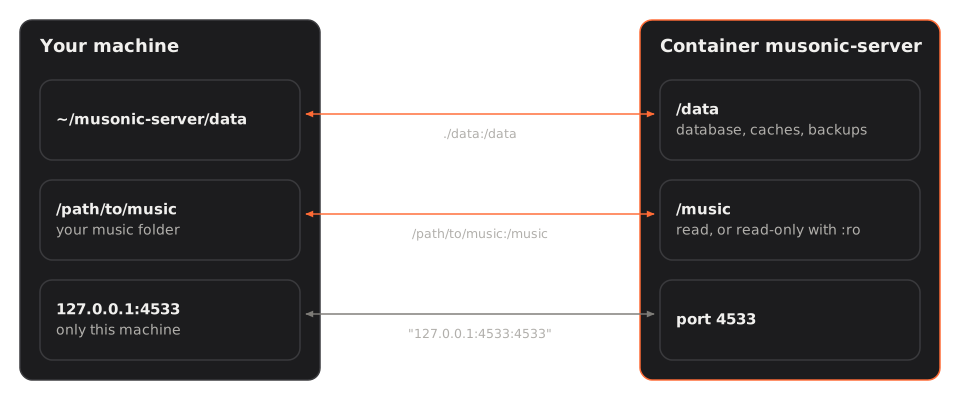
The server runs in a container named musonic-server. It sees your ~/musonic-server/data folder (database, caches, backups) as /data, and your music folder as /music (read-only if you add :ro). It listens on port 4533, reachable only from the machine itself at 127.0.0.1:4533.
Quick install
Section titled “Quick install”-
Install Docker and its Compose plugin.
Follow the official page for your system (details in Install Docker below), then check that it works:
Terminal window docker compose version -
Create a folder for the server and its data.
Terminal window mkdir -p ~/musonic-server/datacd ~/musonic-server -
Download the compose file.
Terminal window curl -o compose.yml https://raw.githubusercontent.com/DoodzDev/Musonic/main/apps/server/compose.example.yml -
Find your user and group numbers.
Terminal window idNote the numbers after
uid=andgid=(often1000and1000). -
Edit
compose.yml: set your music folder and your numbers.Terminal window nano compose.ymlReplace
/path/to/musicwith the real path of your music folder, and1000:1000with youruid:gidif they differ. Save with Ctrl+O, Enter, then quit with Ctrl+X. -
Start the server.
Terminal window docker compose up -d -
Check that it answers.
Terminal window curl http://127.0.0.1:4533/healthThe answer is
{"status":"ok"}. Go on with the first start: your administrator account.
The rest of this page explains each step in detail, and what to do when something goes wrong.
Install Docker
Section titled “Install Docker”Musonic needs Docker Engine with the Compose plugin (the docker compose command, with a space). Install them from the official instructions of your system:
| System | Official instructions |
|---|---|
| Debian, Raspberry Pi OS (64-bit) | docs.docker.com/engine/install/debian |
| Ubuntu | docs.docker.com/engine/install/ubuntu |
| Fedora | docs.docker.com/engine/install/fedora |
| Other systems | docs.docker.com/engine/install |
| Arch Linux | the docker and docker-compose packages (see the Arch wiki) |
Then, so you do not have to type sudo before every docker command, add yourself to the docker group, and sign out and back in (or reboot):
sudo usermod -aG docker $USERCheck it works, without sudo:
docker compose versiondocker run --rm hello-worldThe folder of the server
Section titled “The folder of the server”Choose one folder for the server: the compose file goes in it, and its data folder holds everything the server writes. This page uses ~/musonic-server (in your home folder); /srv/musonic-server or a folder on a NAS share works too.
mkdir -p ~/musonic-server/datacd ~/musonic-serverCreate data yourself, before the first start. If it does not exist, Docker creates it as root, and the server (which does not run as root) cannot write in it.
What the server keeps in data:
Inside data |
What it is |
|---|---|
musonic.db (with musonic.db-wal, musonic.db-shm) |
The database: accounts, library, likes, playlists, plays, settings changed in the console. |
secret.key |
The key that encrypts the passwords kept for older Subsonic apps. Created at the first start. Keep it with the database. |
backups/ |
One copy of the database per day (musonic-YYYY-MM-DD.db), the last 14 by default. |
events.db |
The activity and administration journal of the console. |
cache/, tmp/ |
Resized covers, transcoded songs, songs being streamed. Can be emptied. |
web/ |
The web player, when you install it from the console. |
The compose file
Section titled “The compose file”Download the example file of the repository. It is also attached to each server release as compose.yml.
curl -o compose.yml https://raw.githubusercontent.com/DoodzDev/Musonic/main/apps/server/compose.example.ymlHere it is, line by line:
services: musonic-server: image: ghcr.io/doodzdev/musonic-server:1 container_name: musonic-server restart: unless-stopped user: "1000:1000" ports: - "127.0.0.1:4533:4533" volumes: - ./data:/data - /path/to/music:/music - /proc/1/net/dev:/host/net/dev:ro environment: RUST_LOG: info # MUSONIC_ONLINE: "false" mem_limit: 512m read_only: true cap_drop: [ALL] security_opt: ["no-new-privileges:true"] logging: driver: json-file options: max-size: "10m" max-file: "3"| Line | What it does | Change it? |
|---|---|---|
image: ghcr.io/doodzdev/musonic-server:1 |
The published image, for x86_64 and ARM64. The tag 1 follows every 1.x version: an update never jumps to a 2.0 on its own. Other tags: latest, 1.2, 1.2.1 (an exact version). |
No. Use an exact version (:1.2.1) only to stay on it. |
container_name: musonic-server |
The name of the container, used by docker logs musonic-server. |
No. |
restart: unless-stopped |
Docker starts the server again after a crash, a reboot, or a restart asked from the console. | No: the console’s Restart button relies on it. |
user: "1000:1000" |
The user and group the server runs as, as numbers. They must be allowed to read your music and write in data. |
Yes, if id gives other numbers (see User and permissions). |
ports: "127.0.0.1:4533:4533" |
The server listens on port 4533, reachable only from the machine itself. A reverse proxy with HTTPS on the same machine passes visitors to it (HTTPS). | Only to reach it from your home network without HTTPS (see below). |
./data:/data |
Your data folder, seen as /data in the container: database, caches, backups. |
No (or an absolute path to another folder). |
/path/to/music:/music |
Your music folder, seen as /music in the container. |
Yes: put the real path of your music folder. |
/proc/1/net/dev:/host/net/dev:ro |
Lets the console’s Data page count the network traffic of the whole machine. Without this line, it counts only the server’s. | Optional. |
RUST_LOG: info |
How much the server writes in its logs. debug writes more, warn less. |
Rarely. |
# MUSONIC_ONLINE: "false" |
Remove the # to turn off the online catalogue (the server then never contacts it). |
Your choice. |
mem_limit: 512m |
The most memory the container may use. | Raise it for a very large library if the logs show the server stopped for lack of memory. |
read_only: true |
The container’s own files cannot be changed: the server writes only in /data (and /music for imports). |
No. |
cap_drop: [ALL], security_opt: no-new-privileges |
The server gets no special Linux rights, and cannot gain any. | No. |
logging: … max-size: "10m", max-file: "3" |
Logs are kept in at most 3 files of 10 MB, so they never fill the disk. | No. |
Every other setting (scan interval, backups kept, bit rates…) is an environment variable you can add under environment:, and most of them can also be changed from the console. The full list is in the configuration reference.
Reaching it from your home network without HTTPS
Section titled “Reaching it from your home network without HTTPS”With 127.0.0.1:4533:4533, only the machine itself reaches the server. To try it from another device at home before you set up HTTPS, change the line to:
ports: - "4533:4533"Then use http://<machine-ip>:4533, where <machine-ip> is the local address of the machine (shown by hostname -I, for example 192.168.1.20). The Android app accepts plain http:// only for addresses of your home network; anything else must use https://.
User and permissions
Section titled “User and permissions”The server runs as the user and group written in user:, as numbers. Find yours with id:
iduid=1000(alice) gid=1000(alice) groups=1000(alice),…Here, write user: "1000:1000". If your music belongs to another user, use the numbers of that user: id <user-name>.
That user must be able to:
- read your music folder and every file in it;
- write in
data; - write in your music folder only if you want imports (see below).
Check who owns the folders:
ls -ldn ~/musonic-server/data /path/to/musicThe third and fourth columns are the user and group numbers. If data belongs to 0 0 (root), give it to your user:
sudo chown -R 1000:1000 ~/musonic-server/dataRead-only music, or imports
Section titled “Read-only music, or imports”Musonic Server never changes, moves or deletes your own files. It writes in your music folder only to import songs: when an audio provider is plugged into the server, an online song that someone likes or adds to a playlist is saved as a file in a Musonic folder inside your music folder (setting MUSONIC_IMPORT_DIR). See Online catalogue and imports.
| You want | Write |
|---|---|
| No imports, and the guarantee that nothing is ever written in your music | - /path/to/music:/music:ro (:ro = read-only) |
| Imports into your music folder | - /path/to/music:/music (the user of user: must be able to write there) |
Without an audio provider, there are no imports, and :ro changes nothing for you.
From the folder of the server:
cd ~/musonic-serverdocker compose up -dDocker downloads the image, creates the container, and starts it in the background (-d). At the first start, the server creates its database, its secret.key, then starts scanning your music folder.
Check that it runs:
docker compose psThe STATUS column says Up … (healthy) after a few seconds: the image checks every 30 seconds that the server answers.
Read the logs
Section titled “Read the logs”docker compose logs -f musonic-server(-f follows new lines; Ctrl+C stops following, the server keeps running.)
At a normal start, you see lines with these messages:
musonic-server starting, with the version and your music folder (music_dir=Some("/music"));administration console: /usr/share/musonic/admin;no account yet: create the administrator …as long as you have not created your account;listening on http://0.0.0.0:4533.
Check that it answers
Section titled “Check that it answers”From the machine itself:
curl http://127.0.0.1:4533/health{"status":"ok"}{"status":"degraded"} means the server runs but its database does not answer: read the logs. To see what the server says about itself (version, what it can do):
curl http://127.0.0.1:4533/v1/infoThe server answers. Now create your administrator account: First start.
Common errors
Section titled “Common errors”| What you see | Why | What to do |
|---|---|---|
permission denied while trying to connect to the Docker daemon socket |
Your account is not in the docker group yet. |
Run sudo usermod -aG docker $USER, sign out and back in. Or type sudo docker …. |
docker: 'compose' is not a docker command |
The Compose plugin is missing. | Install the docker-compose-plugin package (see Install Docker). |
The container restarts again and again; logs say opening /data/musonic.db |
The server cannot write in data. |
Give data to the right user: sudo chown -R 1000:1000 ~/musonic-server/data (your numbers), then docker compose up -d. |
Bind for 127.0.0.1:4533 failed: port is already allocated or address already in use |
Another program uses port 4533 (Navidrome uses the same one by default). | Stop the other program, or change the left number only: "127.0.0.1:4534:4533", then use port 4534 everywhere. |
Logs show music_dir=Some("/music") but the library stays empty |
The music folder line is wrong, or the user cannot read it. | Check the path in compose.yml, and ls -ldn /path/to/music. After a fix: docker compose up -d. |
no matching manifest for linux/arm/v7 (or exec format error) |
The machine runs a 32-bit ARM system. | Install a 64-bit system (for example Raspberry Pi OS 64-bit). |
curl: (7) Failed to connect to 127.0.0.1 port 4533 |
The server is not started, or you are not on the machine itself. | docker compose ps, then the logs. Run curl on the server machine, not on your computer. |
curl: (56) Recv failure: Connection reset by peer just after the start |
The server is still starting. | Wait a few seconds and try again. |
More cases in Troubleshooting.
Next steps
Section titled “Next steps”- First start: your administrator account, the console, the invitations.
- Reach it from outside (HTTPS).
- Update the server.