
Organise your music files
This page is for the person who runs the server. It tells you how to arrange your music folder so that Musonic Server shows every album with the right artist, cover and lyrics, and what it does with each tag of your files.
What you need
- Your music in one folder that the server can read (the folder you set as
MUSONIC_MUSIC_DIR; with Docker, the folder mounted on/music). - Ideally, files that are already tagged. A tag editor such as MusicBrainz Picard or Mp3tag fixes most problems in a few minutes.
The recommended layout
Section titled “The recommended layout”One folder per album artist, one folder per album inside it, and the songs, the cover and the lyrics files of the album together:
Music/├── Daft Punk/│ └── Discovery/│ ├── cover.jpg│ ├── 01 - One More Time.flac│ ├── 01 - One More Time.lrc│ └── 02 - Aerodynamic.flac├── Various Artists/│ └── Now Summer 2024/│ ├── folder.png│ └── 01 - …└── Musonic/ ← songs imported by the server (see "Online catalogue and imports")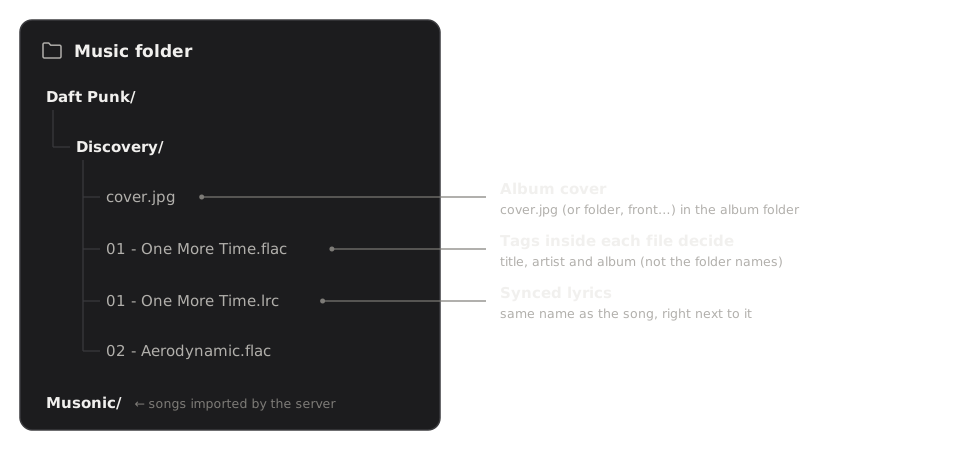
-
Put each album in its own folder.
The name of the folder is free: Musonic reads the album name from the tags. Keeping one album per folder lets the server find its cover.
-
Put the cover image in the same folder as the songs.
Name it
cover.jpg(orfolder.jpg, see Covers for every name accepted). For an album split intoCD1/andCD2/, put a copy of the cover in each disc folder. -
Put lyrics files next to their song, with the same name.
01 - One More Time.lrcgoes with01 - One More Time.flac. -
Check the album artist tag of your compilations.
Set it to
Various Artists(or turn on the compilation flag), otherwise the album is split into one album per artist. See Compilations. -
Let the server scan.
New and changed files are picked up on their own a few seconds later. See Scanning your library.
Supported formats
Section titled “Supported formats”The scanner picks up files with these extensions (upper or lower case):
| Family | Extensions |
|---|---|
| MP3 | .mp3 |
| FLAC | .flac |
| AAC / ALAC (MPEG-4) | .m4a, .mp4, .aac, .alac |
| Ogg | .ogg, .oga, .opus |
| Uncompressed | .wav, .aif, .aiff |
| Others | .wv (WavPack), .ape (Monkey’s Audio), .mpc (Musepack), .wma |
Every other file is ignored, except images (covers) and .lrc / .txt files (lyrics). Tags are read with the Rust library lofty. A file whose audio cannot be analysed (a damaged file, AAC data in a file named .mp3…) still has its tags read; its duration may then be missing.
Whether a format then plays in an app depends on the app and the device. When an app asks for a lower bit rate, the server converts the song with ffmpeg; see the playback settings of your server.
Tags: what Musonic does with each one
Section titled “Tags: what Musonic does with each one”Musonic reads the main tag of each file (ID3v2 for MP3, Vorbis comments for FLAC and Ogg, MP4 atoms for M4A…), or its first tag if it has several.
| Tag | What Musonic does with it |
|---|---|
| Title | The song’s name. Without a title, the file name is used (without its extension). |
| Artist | The song’s artists. One value can hold several names (see Several artists). Without an artist: “Unknown Artist”. |
Artists (ARTISTS, multi-value) |
Used instead of Artist when present: one value per artist, as MusicBrainz Picard writes them. |
| Album | The album’s name. Without an album, the song goes to “[Unknown Album]” of its album artist. |
| Album artist | Who the album is filed under. Without it, the first artist of the song (“A feat. B” gives “A”), or “Various Artists” for a compilation. Several names are allowed, split like the artists. |
| Track number, Disc number | Order of the songs in the album. 3/12 is read as 3. 0 is ignored. |
| Date / Year | The first date found among release date, recording date, year and original release date: 2005, 2005-09 or 2005-09-12. An album’s year is the earliest year of its songs. |
| Genre | Genres of the song; several values, or one value split on ;. A / is kept (Rap/Hip Hop is one genre). An album gets the genres of all its songs. |
| Composer | Credited as composers; several values, or split on / and ;. |
| Compilation flag | Marks the album as a compilation (the flag must be 1). |
| Title sort, Album sort | Used to sort songs and albums (TITLESORT, ALBUMSORT and their equivalents). |
| ISRC | Identifies the recording: used to match the same song across your files, the online catalogue and imported playlists. |
| MusicBrainz recording id, release id | When present, they decide what is “the same song” and “the same album”, whatever the other tags say. See Scanning your library. |
| BPM | Kept with the song. |
| Lyrics (embedded) | Shown in the apps, unless a lyrics file sits next to the song (the file wins). |
| Embedded picture | Used as the album cover when there is no cover image in the folder. |
Musonic also reads the audio properties: duration, bit rate, sample rate, bit depth and number of channels (shown in the console).
Several artists on one song
Section titled “Several artists on one song”Each Artist and Album artist value is split on these separators, upper or lower case:
| Separator | Example | Result |
|---|---|---|
feat. / feat |
Daft Punk feat. Pharrell Williams |
Daft Punk, Pharrell Williams |
ft. / ft |
A ft. B |
A, B |
• |
113 • Rim'K |
113, Rim’K |
; |
A; B |
A, B |
/ (with spaces) |
A / B |
A, B |
A slash without spaces is part of the name: AC/DC stays one artist. &, ,, and, x and with do not split names: Simon & Garfunkel stays one artist. To credit several artists who are written with &, use the multi-value ARTISTS tag, or ; between the names.
Every artist named gets their own artist page, and the song appears on each one. In the apps the names are shown joined with •.
Two names that differ only by upper or lower case, accents or punctuation are the same artist (Beyonce and Beyoncé).
Compilations and various artists
Section titled “Compilations and various artists”An album is identified by its album artist and its title (or by its MusicBrainz release id). So a compilation whose songs only have their own Artist tag would be split into as many albums as there are artists. To keep it together, do one of these:
- Set the Album artist tag of every song to
Various Artists(or any common name), or - Turn on the compilation flag (
TCMPin MP3,COMPILATIONin FLAC/Ogg,cpilin M4A) and leave Album artist empty: Musonic then files the album under “Various Artists”.
Conversely, two different albums with the same title by the same album artist (a remaster, a deluxe edition) are merged unless they have different MusicBrainz release ids or slightly different titles (Discovery and Discovery (Deluxe)).
Covers
Section titled “Covers”For each album, the server takes, in this order:
- An image file in the folder of the album’s songs, by name:
cover, thenfolder,front,album,albumart. Upper or lower case does not matter; the extension can be.jpg,.jpeg,.pngor.webp. SoCover.JPG,folder.pngandfront.webpall work. - Otherwise, the picture embedded in the first song of the album that has one (in disc and track order).
- Otherwise, for a song also known in the online catalogue, its online cover.
An image with another name (scan.jpg, back.jpg, booklet.png) is not used as the cover. Only the folder holding the song counts: a cover in a parent folder is not used for songs in CD1/ and CD2/ subfolders.
The console’s Library → No cover list shows the songs without any picture: none in the file, no image in their folder, none online.
Artist pictures
Section titled “Artist pictures”Musonic does not read artist pictures from your folders (an artist.jpg is ignored). An artist’s picture comes from the online catalogue, when the artist is also found there; with the online catalogue turned off, artists have no picture. See Online catalogue and imports.
Lyrics
Section titled “Lyrics”The server finds lyrics in two places, the first one winning:
- A lyrics file next to the song, with the same name:
song.lrc(synced lyrics, with[mm:ss.xx]times) orsong.txt(plain text). When both exist,.lrcwins. The file must be in UTF-8. - Lyrics embedded in the file (the lyrics tag,
USLTin MP3,LYRICSin FLAC…). If they have times like a.lrc, they are shown synced.
When the server has no lyrics for a song, the Musonic apps look for them on LRCLIB, a free public lyrics database, directly from the device.
What is ignored
Section titled “What is ignored”- Hidden files and folders: every name starting with a dot (
.stfolder,.DS_Store,.trash/…) is skipped, with everything inside. - Files with an extension not listed in Supported formats, except covers and lyrics files.
- Folders the server is not allowed to read: they are listed as errors in the scan summary, the rest of the library is scanned.
Symbolic links are followed, for folders and files.
Next steps
Section titled “Next steps”- Scanning your library: when changes are seen, quick and full scans, missing files and duplicates.
- Online catalogue and imports: songs beyond your files, and where imported songs are filed.