
Sign in to a server
This page explains the sign-in screen of the Android app: what to type in each field, how an invitation link works, what each error message means, and how to log out. It works with Musonic Server and with other Subsonic servers (Navidrome, for example).
What you need
- Musonic installed on your phone (Install the Android app).
- The address of the server, your username and your password. If someone runs the server for you, they give you these, or an invitation link.
Sign in
Section titled “Sign in”-
Open Musonic.
The first time, the app opens on its sign-in screen: the Musonic logo, “Connect your Subsonic server”, and three fields: Server URL, Username and Password. The grey
adminand dots are only examples, not filled in. The Connect button stays dimmed until the three fields are filled.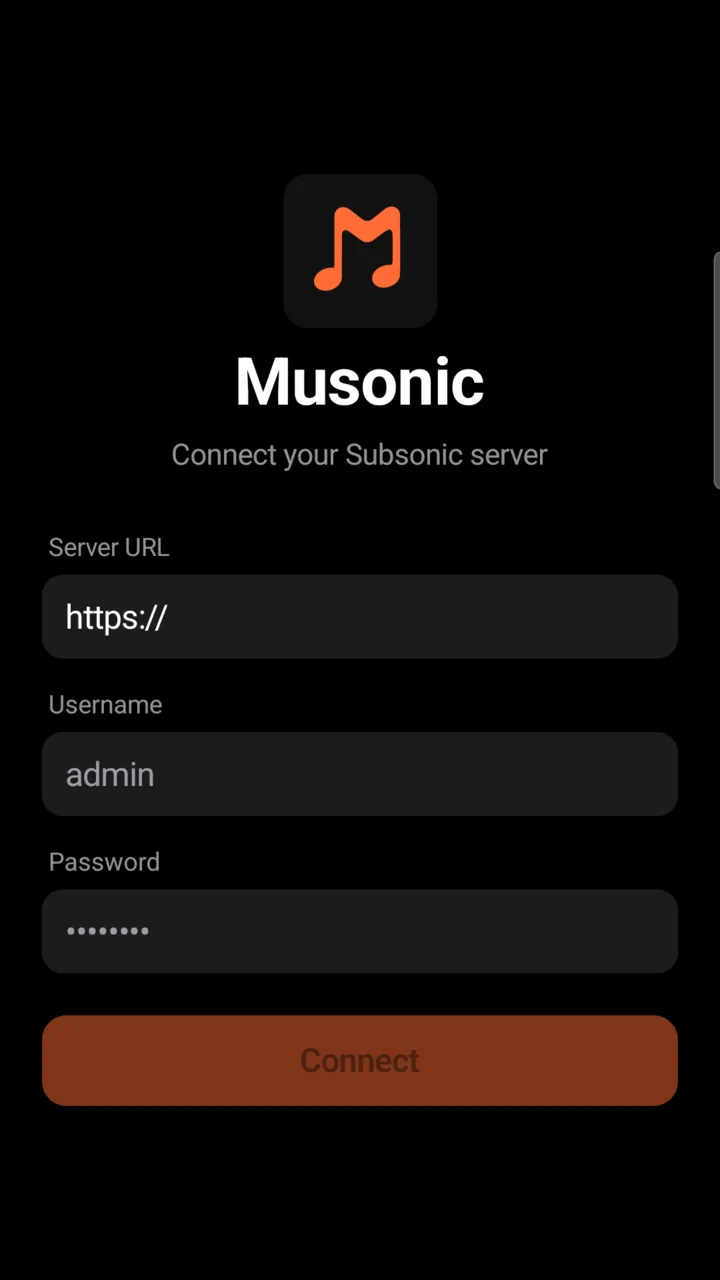
-
In “Server URL”, type the address of your server after
https://.For example
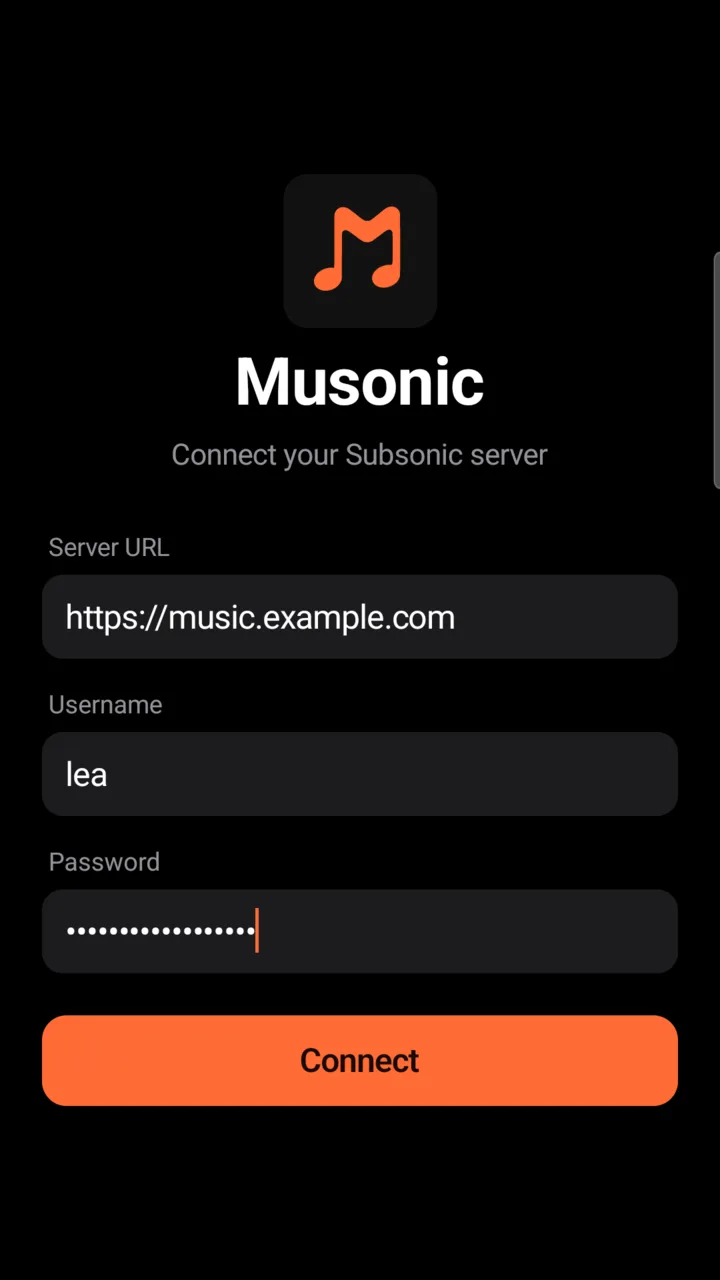
https://music.example.com. The field already holdshttps://: keep it. Type only the address, without/restor anything after it. -
In “Username”, type your username.
-
In “Password”, type your password.
-
Tap “Connect”.
The button turns into a spinner while Musonic checks the server, then shows “Connected! Loading…” in green and opens the Home screen.
Which address to type
Section titled “Which address to type”| Your server is | Type | Example |
|---|---|---|
| Reachable from the internet, with a certificate | https:// and its name |
https://music.example.com |
| On your home network | http://, its local address and its port |
http://192.168.1.20:4533 |
4533 is the port Musonic Server uses by default. If you are not sure, open the same address in the phone’s browser: Musonic Server answers with its console or a page about the server.
http:// is only accepted on your home network. On the internet, a plain http:// address would send your password without encryption, so Musonic refuses it. These addresses are accepted with http://:
- private IPv4 addresses:
192.168.x.x,10.x.x.x,172.16.x.xto172.31.x.x; - Tailscale addresses,
100.64.x.xto100.127.x.x; localhost, link-local addresses, and IPv6 local addresses (fc..,fd..,fe80..);- names ending in
.local,.lan,.home.arpaor.internal, and one-word names such ashttp://nas:4533.
Even then, the app shows under the address: “Using HTTP instead of HTTPS. Your credentials may be sent in plaintext.” It is a reminder, not an error.
What the app keeps instead of your password
Section titled “What the app keeps instead of your password”Your password is used once, to sign in. The app then keeps something else:
- Musonic Server: a key for this phone, named after it (for example “Musonic Android · SM-A525F”). It is listed with your devices in the console, where it can be revoked. The password is not stored.
- Other Subsonic servers: a token computed from the password. If the server refuses tokens (some servers checking passwords against a directory do), the password itself is kept on the phone.
Accept an invitation
Section titled “Accept an invitation”On Musonic Server, the administrator can send you an invitation link instead of creating your account. You choose your name and your password yourself; the administrator never sees the password.
-
Open the invitation link.
It looks like
https://music.example.com/invite/…. Open it in the phone’s browser, or on a computer. -
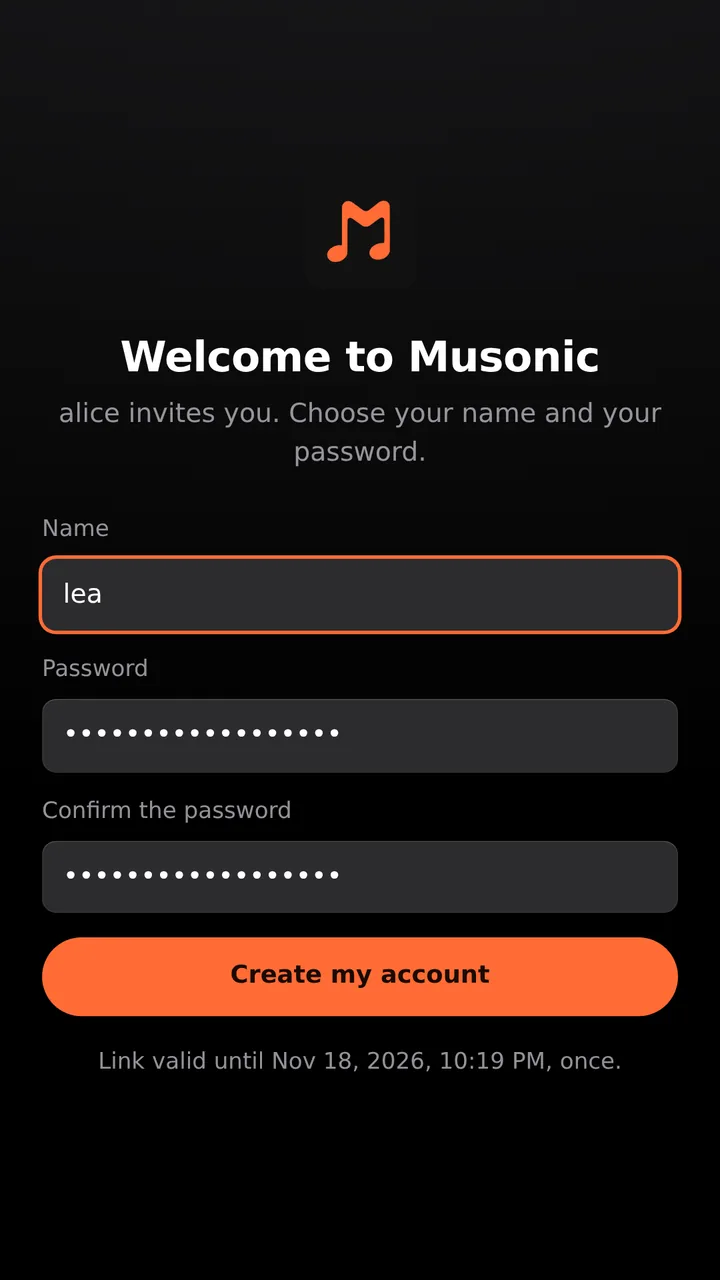
Choose your name, then your password twice.
The page says “Welcome to Musonic” and who invites you, with the fields Name, Password and Confirm the password. The name is the one you will type in “Username” to sign in. The password needs at least 8 characters.
-
Tap “Create my account”.
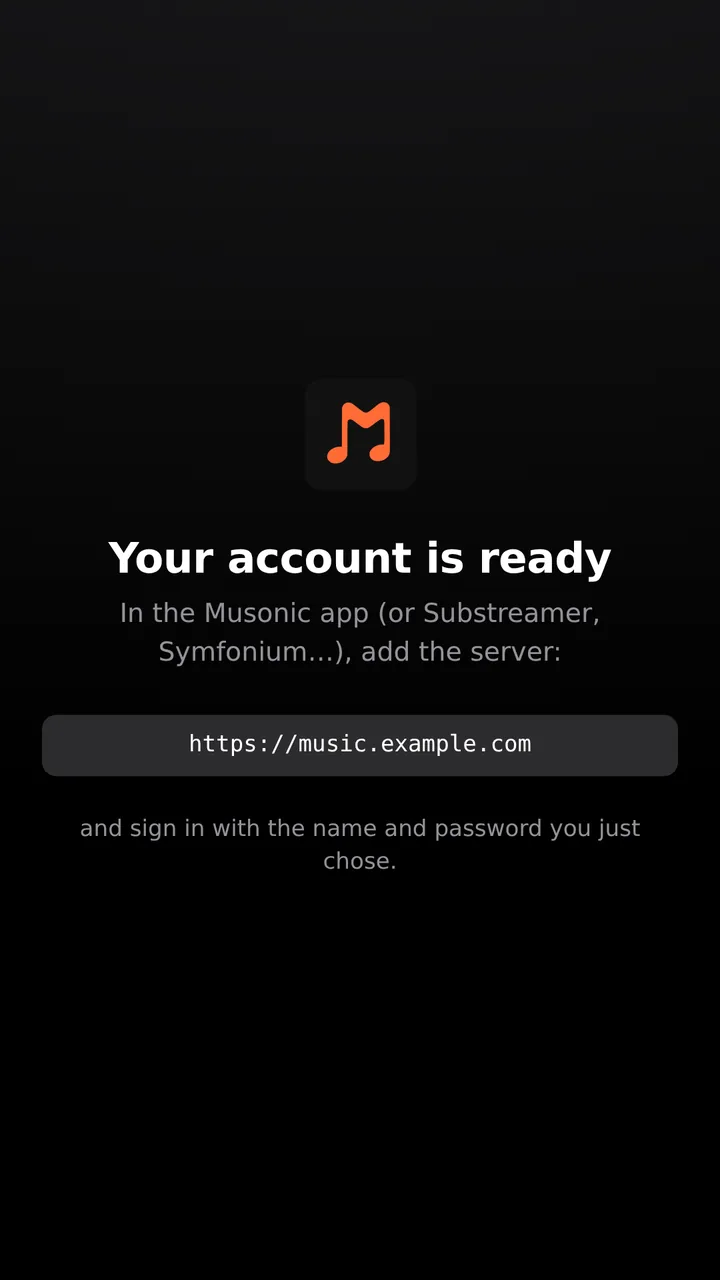
The page says “Your account is ready” and shows the server address to use, to add in the Musonic app (or another Subsonic app such as Substreamer or Symfonium).
-
In Musonic, sign in with that address, your name and your password.
Follow Sign in above.
An invitation link works once, until the date shown under the form. When it cannot be used, the page says why:
| The page says | What to do |
|---|---|
| This link was used already. | The account exists: sign in with it. |
| This link expired. Ask the administrator for a new one. | Ask for a new link. |
| The administrator cancelled this link. | Ask for a new link. |
| This link does not exist. Check it is complete. | The link was cut when copied: copy it again, in full. |
| This name is taken, choose another one. | Choose another name. |
A password reset link (…/reset/…) works the same way: choose a new password twice, then sign in again in your apps with it.
When sign-in fails
Section titled “When sign-in fails”The message shows in red above the Connect button.
| Message | What it means | What to do |
|---|---|---|
| URL, username and password are required. | A field is empty, or the address does not start with http:// or https://. |
Fill in the three fields; keep https:// at the start. |
| Plain HTTP refused: use HTTPS, or an address on your home network (e.g. http://192.168.1.20:4533). | An http:// address that is not on your home network. |
Use the https:// address. |
| Wrong username or password | The server refused the account. | Check both, including capital letters. |
| Server not found — check the URL | No answer at all: typo in the address, server off, phone offline, or a certificate the phone does not trust. | Open the address in the phone’s browser to check it. |
| Connection timed out | The server did not answer within 8 seconds. | Check the phone’s connection and that the server is running. |
| No Subsonic server at this address — check the URL | Something answered, but not a music server (a web page, a router). | Check the address and the port. |
| Client error (404) — check the URL | The server answered with an error in the 400s, often a wrong path. | Check the address; remove anything after the server name. |
| Server error (502) — server is down | The server answered with an error in the 500s, often a reverse proxy whose server is stopped. | Ask the person who runs the server. |
| Unable to connect | Another problem. | Try again; if it lasts, ask the person who runs the server. |
The numbers in brackets are examples: the app shows the code the server sent.
When the app sends you back to sign-in
Section titled “When the app sends you back to sign-in”Later, the server may refuse the account on its own. The app then comes back to the sign-in screen, with your address and username filled in and the reason above the button:
| Message | Why |
|---|---|
| This device was signed out of your account. Please sign in again. | The key of this phone was revoked, from the console or with “Sign out everywhere”. |
| Your account has been suspended. Ask the server’s administrator. | The administrator suspended the account. Nothing is deleted. |
| Did your password change? Please sign in with the new one. | The password changed, for example after a reset link. |
Type your password and tap Connect: the account is replaced, your downloads and settings stay.
Log out
Section titled “Log out”-
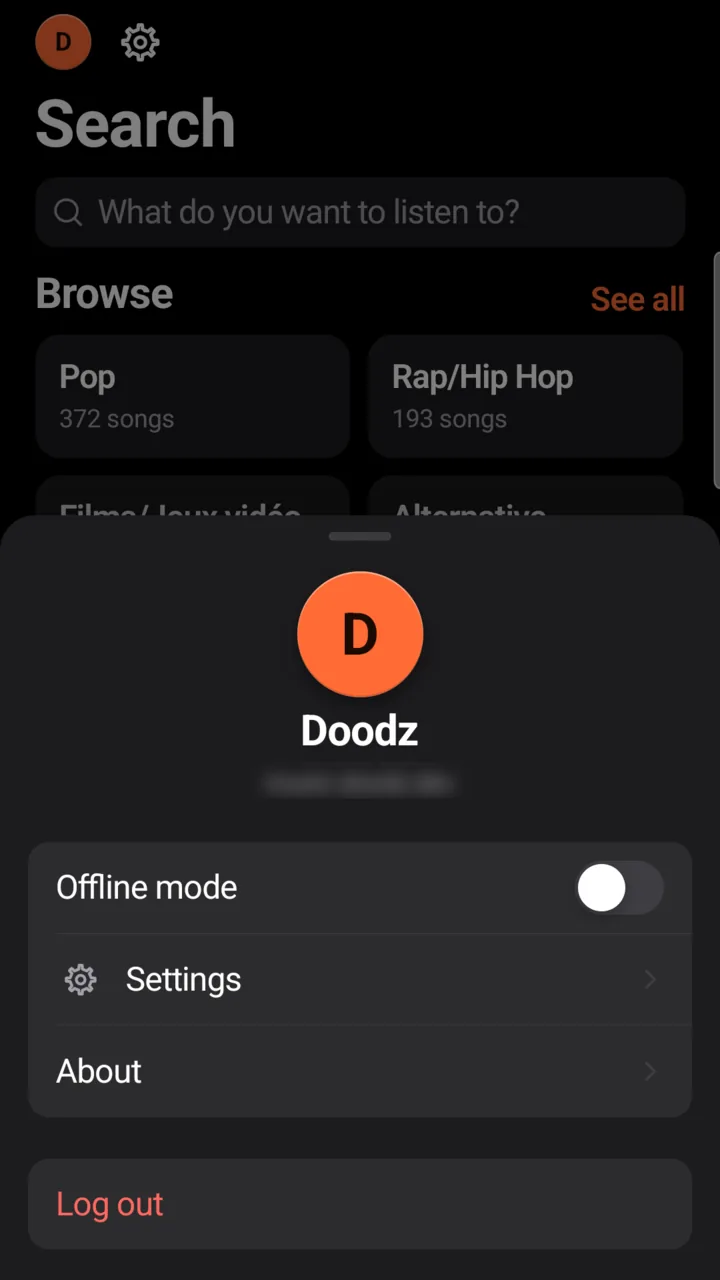
Tap the round button with your initial, at the top left of the Home, Search and Library screens.
It sits next to the Settings gear. The Profile panel opens from the bottom of the screen, with your initial, your username and the server’s name, then Offline mode, Settings and About.
-
Tap “Log out” at the bottom.
-
Confirm with “Log out”.
The app asks first, with your username and the server’s name, and reminds you that you will need your password again.
Logging out deletes this phone’s key on Musonic Server, so it is removed from your devices, and the app forgets the account. Your downloaded songs are not deleted.
Several accounts or servers
Section titled “Several accounts or servers”The app uses one account at a time, and has no account switcher. To use another account or another server, log out, then sign in with the other one. Your playlists, likes and history stay on each server.
Next steps
Section titled “Next steps”- Listen offline: downloads and streaming quality.
- Musonic in the car: set up Android Auto.
- Install the server with Docker: run your own server.