
Musonic in the car
This page shows how to use Musonic on your car’s screen with Android Auto: the one-time setting that makes it appear, then what you can do with it while driving.
What you need
- Musonic installed on your phone and signed in (Install the Android app, Sign in to a server).
- A car or a head unit compatible with Android Auto, and a phone that runs Android Auto (built into Android 10 and newer; on older phones, the Android Auto app from the Play Store).
Why a setting is needed
Section titled “Why a setting is needed”Android Auto only shows apps installed from the Play Store. Musonic is installed from GitHub, so Android Auto hides it until you turn on Unknown sources in its developer settings. You do this once, on the phone. It does not change anything else in the phone, and it only concerns Android Auto.
Make Musonic appear in Android Auto
Section titled “Make Musonic appear in Android Auto”Do this on the phone, parked, before your first drive. The names below are those of Android Auto in English; they may differ a little with its version.
-
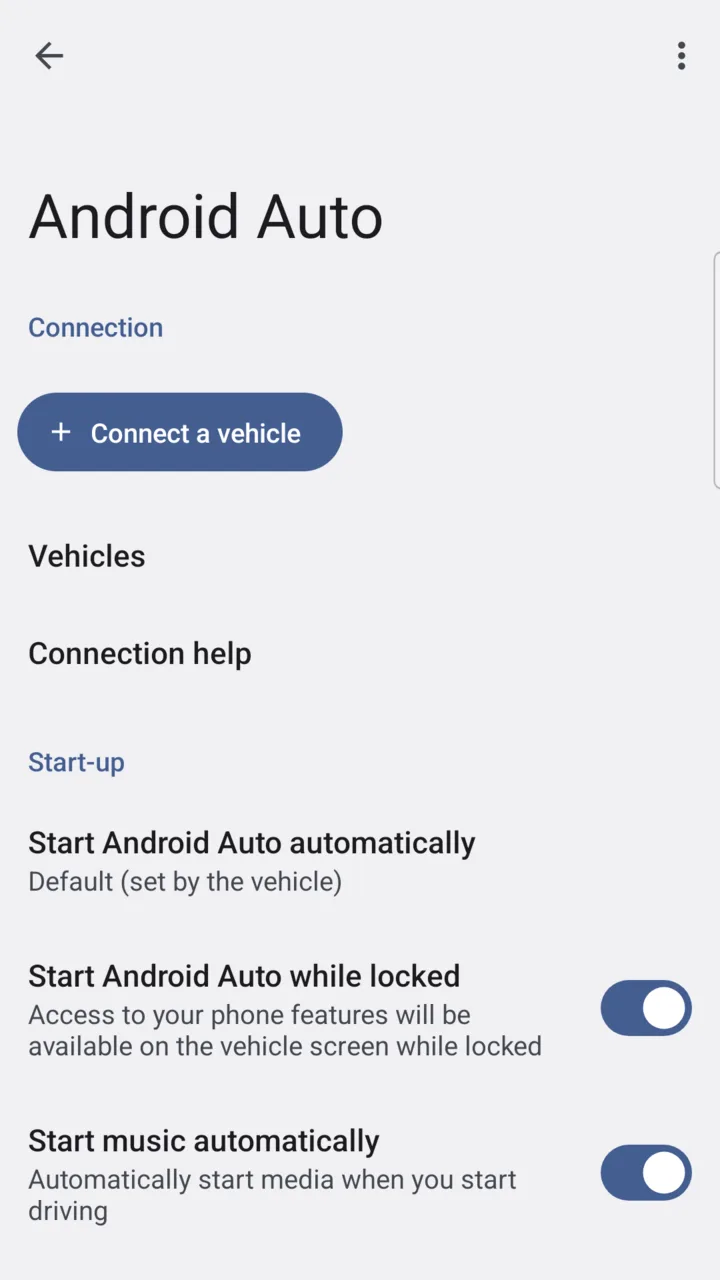
Open Android Auto’s settings.
On Android 10 and newer, open Settings, search for Android Auto and open it. On a Samsung phone it is in Settings → Connected devices → Android Auto. On older phones, open the Android Auto app.
-
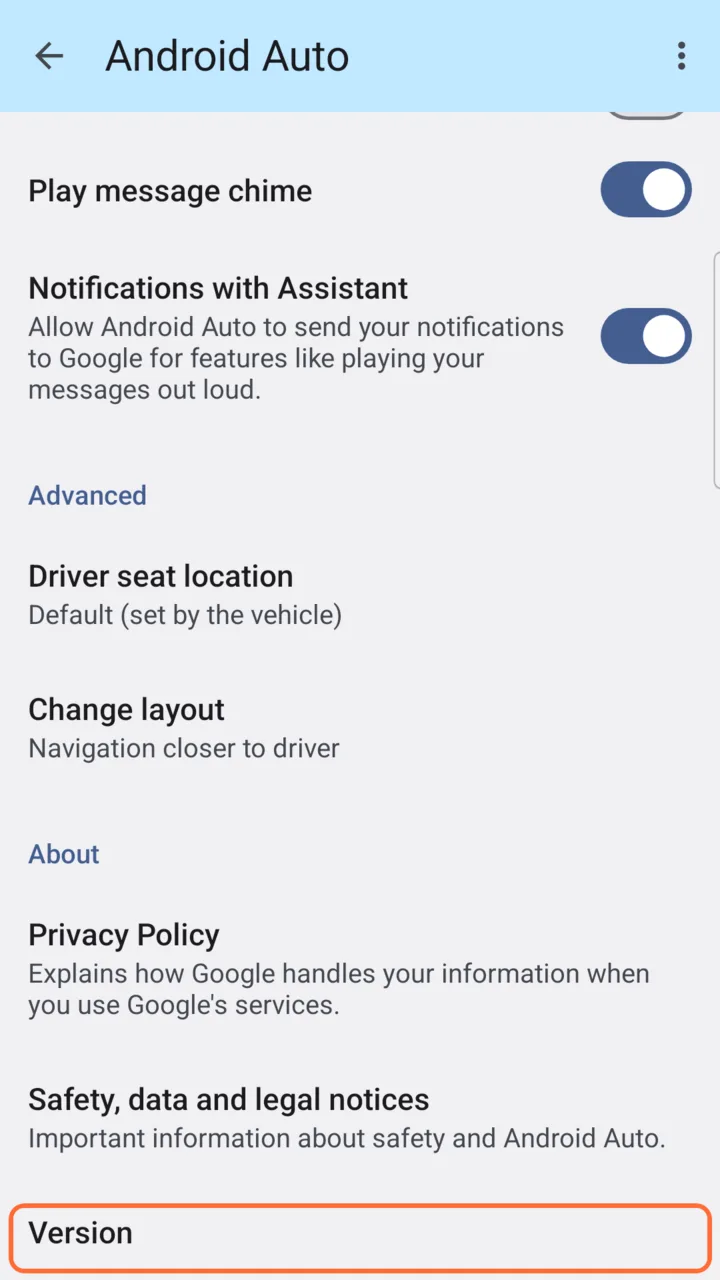
Scroll to the bottom and tap “Version” ten times in a row.
It is the last line, under About. After a few taps, Android Auto counts down the remaining taps.
-
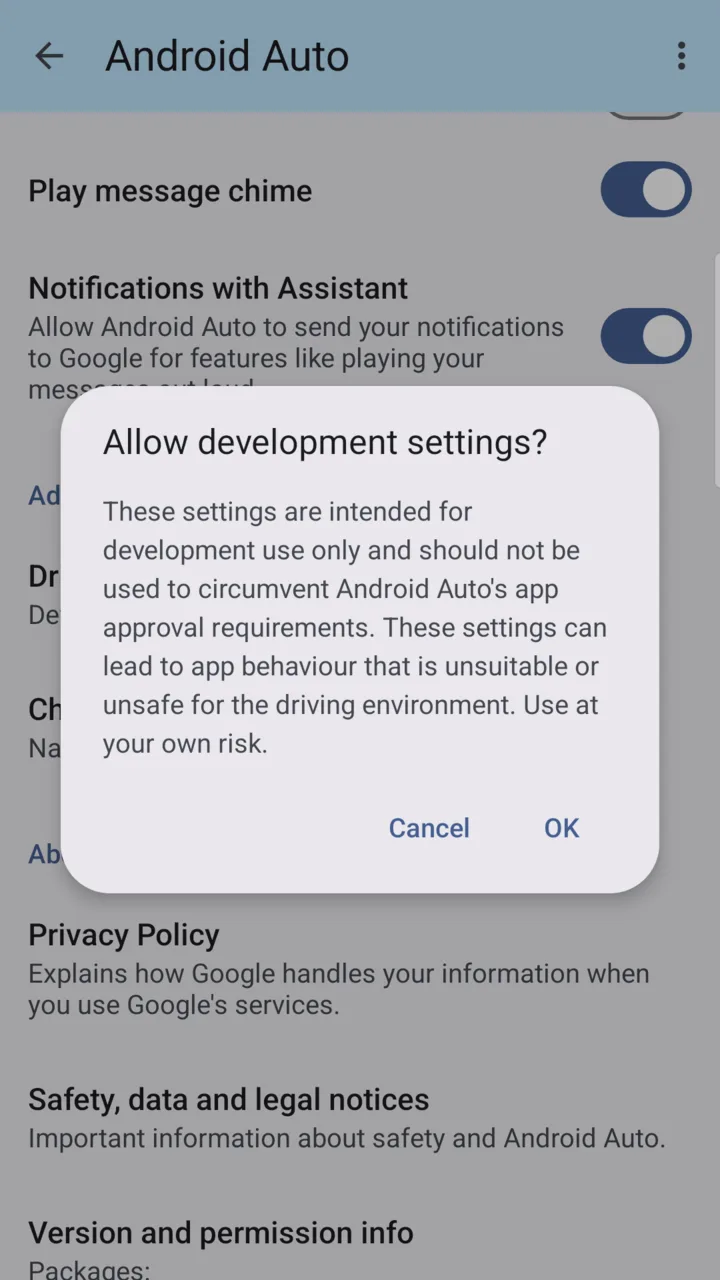
Tap “OK” to allow the development settings.
-
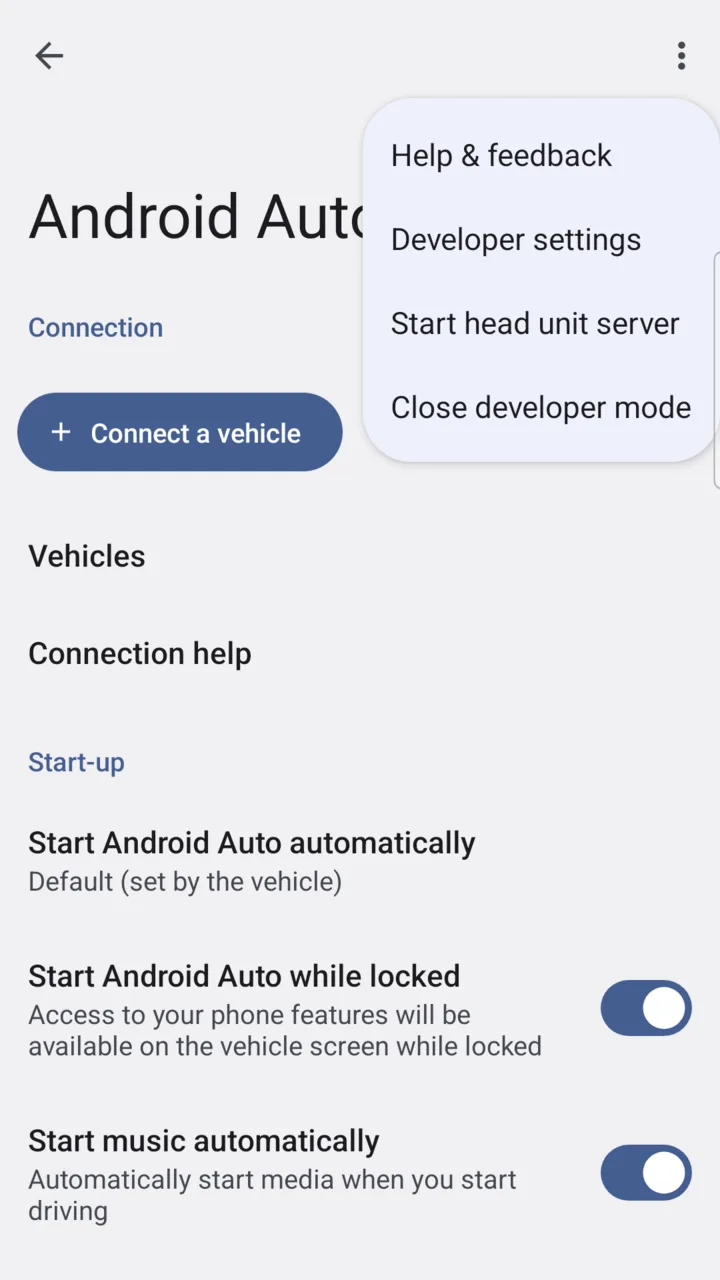
Tap the ⋮ menu at the top right, then “Developer settings”.
-
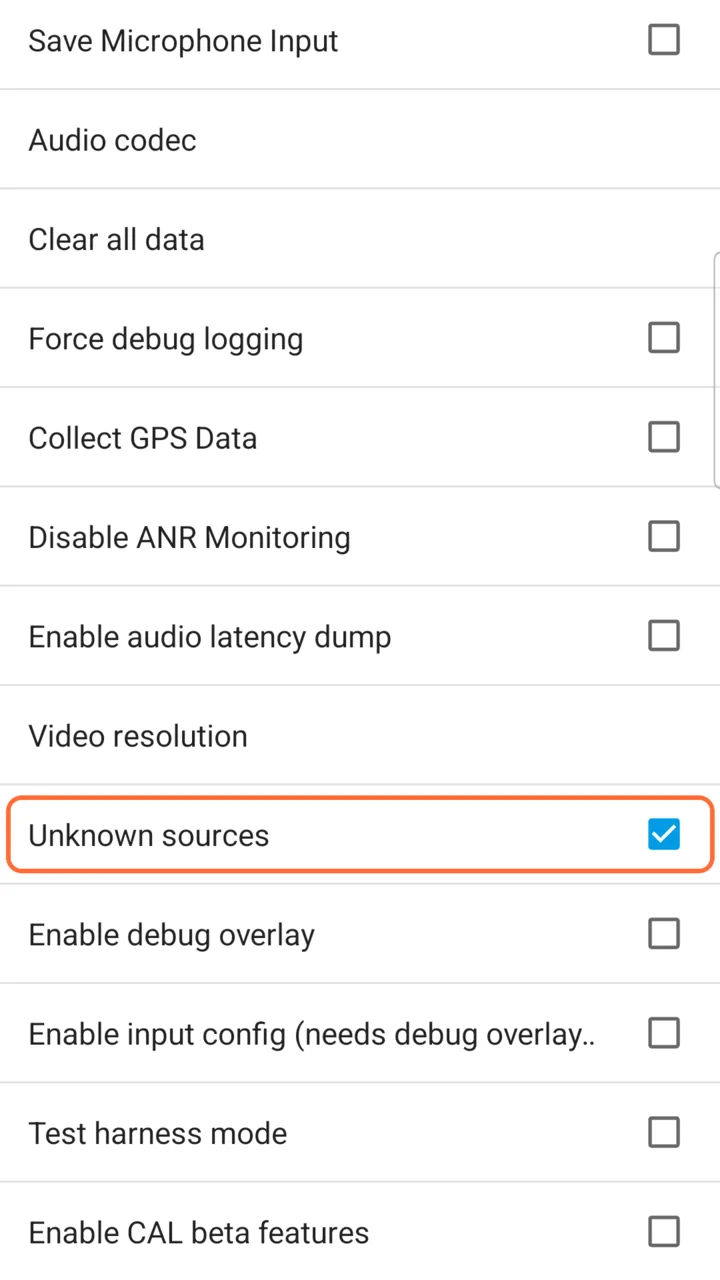
Scroll down and tick “Unknown sources”.
-
Connect the phone to the car, with the cable or wirelessly.
-
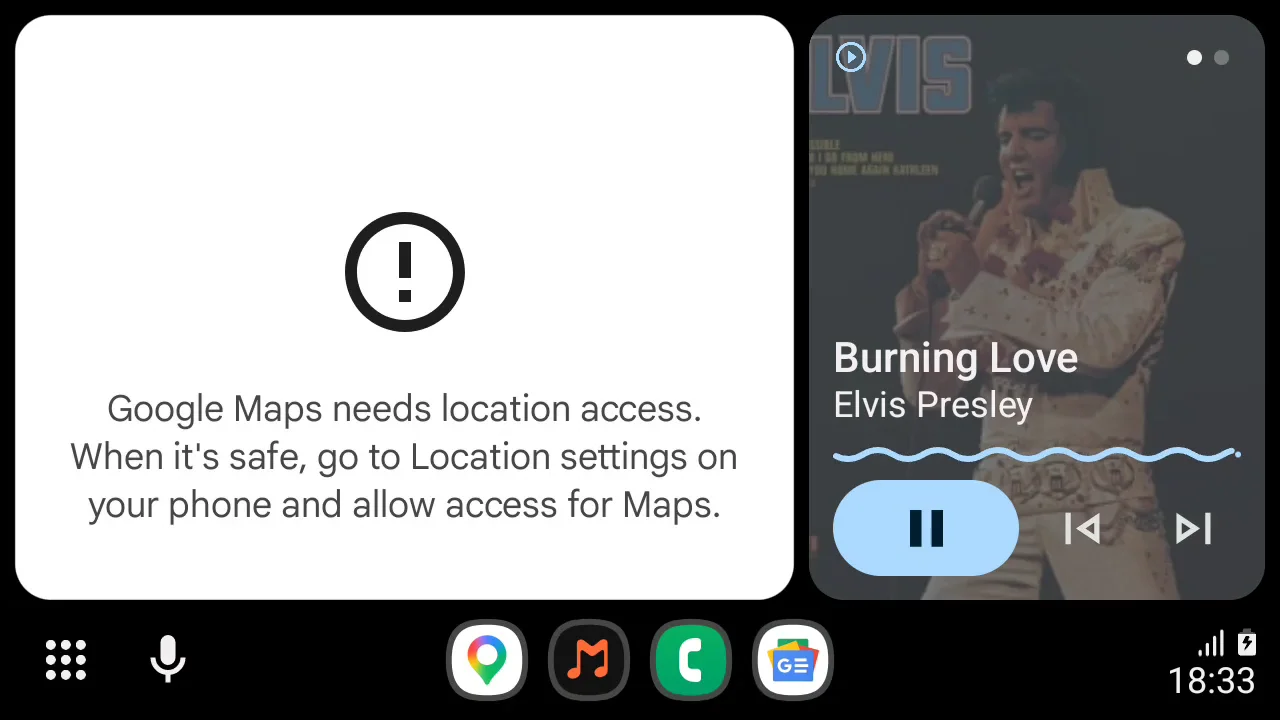
On the car’s screen, open the app list and tap Musonic.
Musonic has an orange logo with a white note. Its icon also shows in the bar at the bottom of the screen; the grid button at the left of this bar opens the full app list. Musonic starts by itself even when the app is closed on the phone.
What you can do in the car
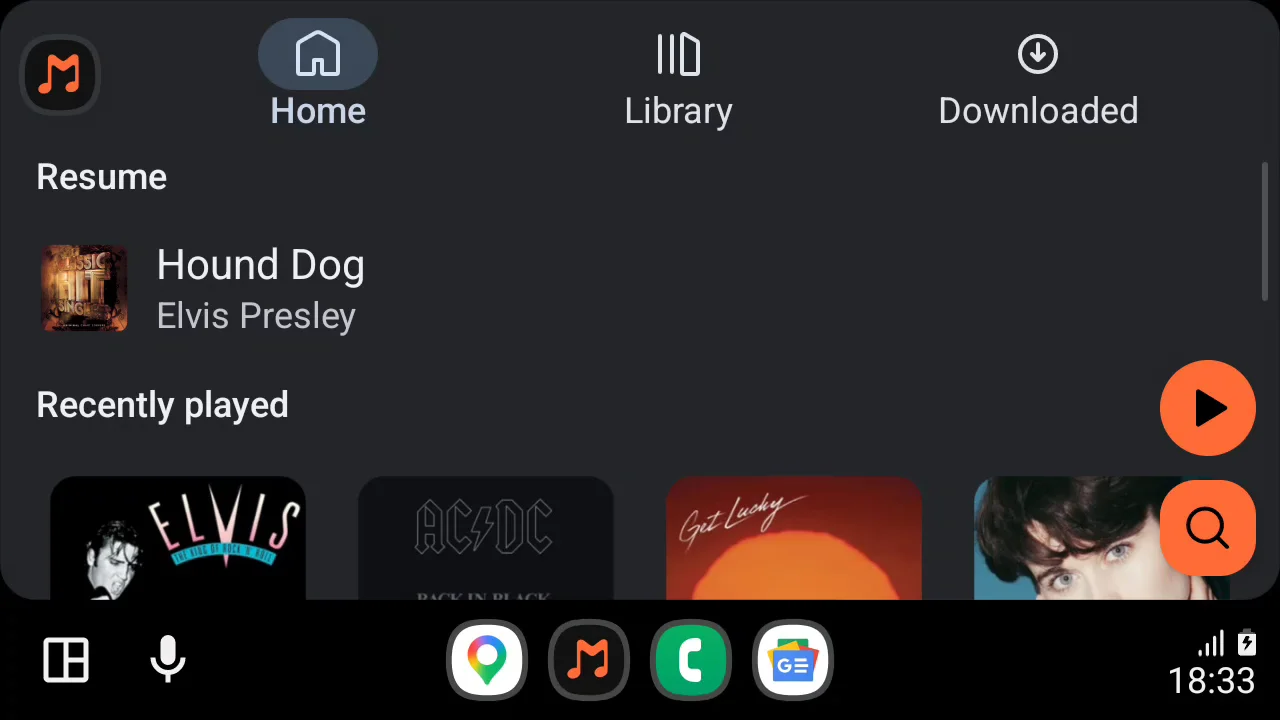
Section titled “What you can do in the car”Musonic has its own screens in Android Auto, with three tabs at the top, next to the Musonic logo. On every screen, a round orange play button at the bottom right opens the playback screen.
| Tab | What it shows |
|---|---|
| Home | Resume: the song playing, one tap to go on. Recently played: albums, playlists, artists and Liked Songs, as big covers. Then your playlists. The round orange magnifier button opens the search. |
| Library | Playlists, Albums, Artists, Podcasts (the shows you follow) and Downloaded. |
| Downloaded | The songs saved on the phone, which play without a network. |
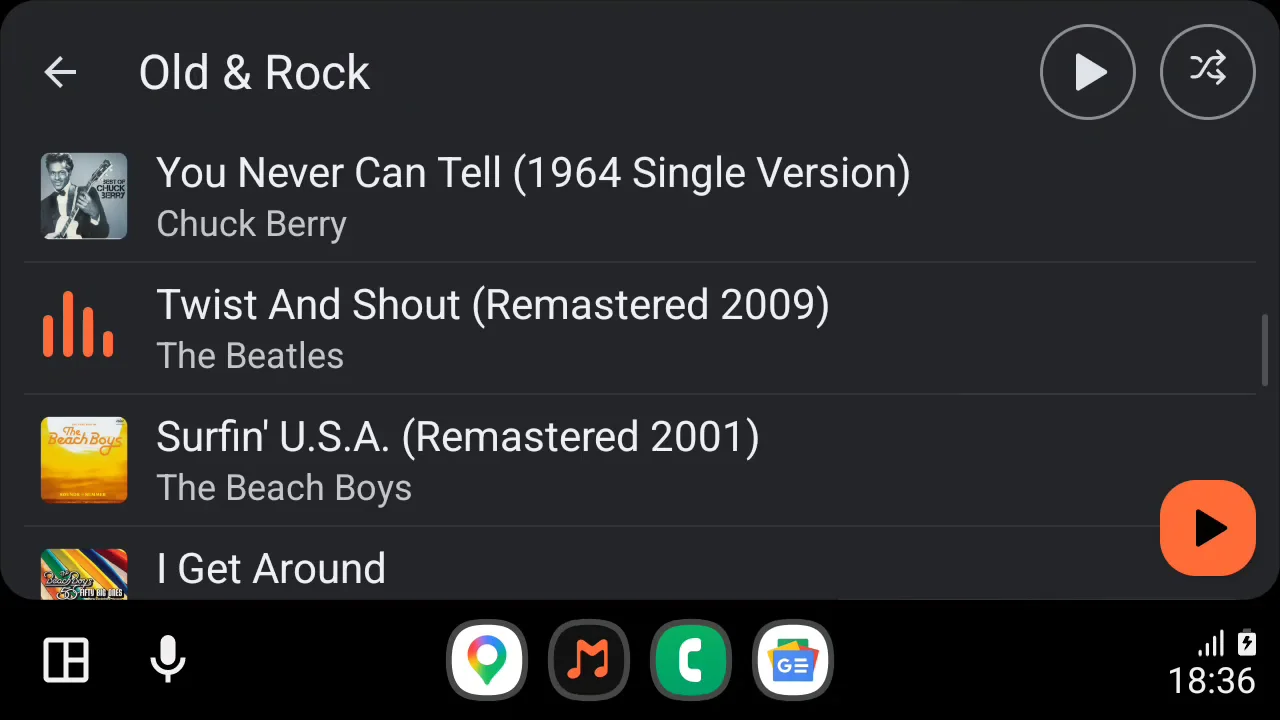
Playlists and albums open on their list of songs, with their name and a back arrow at the top left and the round Play and Shuffle buttons at the top right. The song playing shows orange level bars in place of its cover. Tap a song to play the whole list from it.
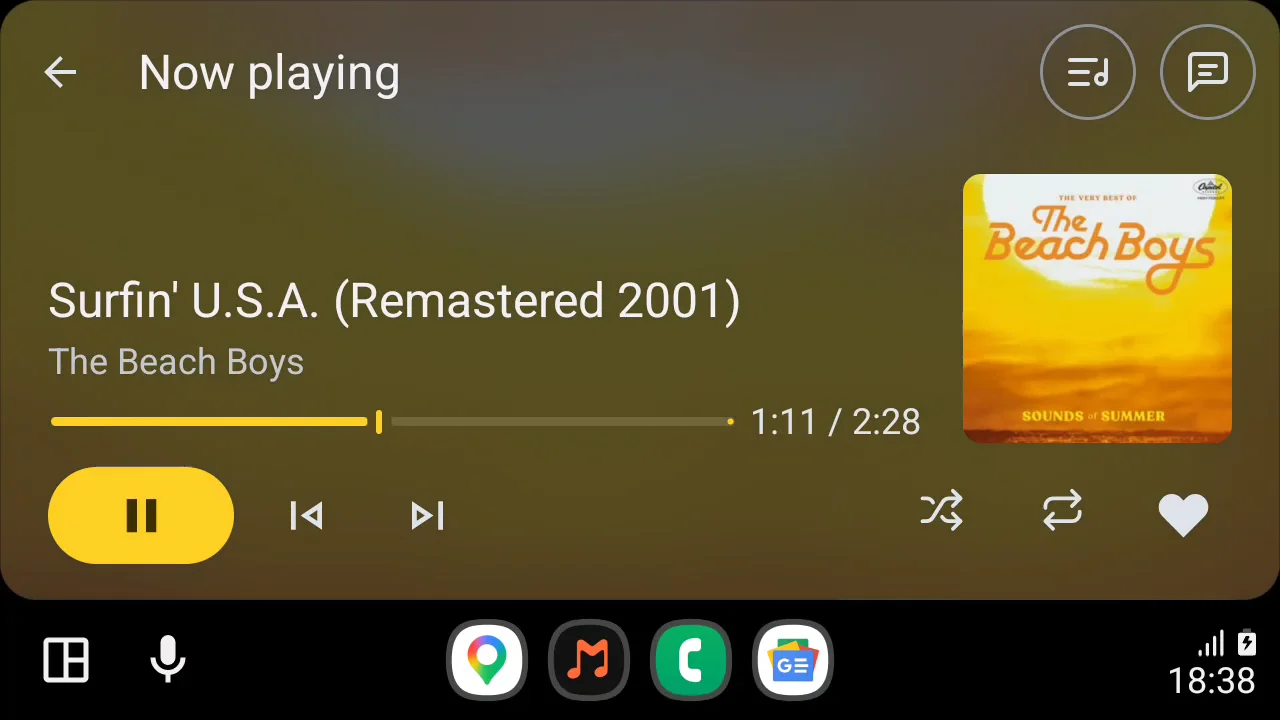
The playback screen (“Now playing”) is drawn by Android Auto: cover, title, artist, the progress bar, then play and pause, previous and next at the bottom left. Musonic adds:
- Shuffle (off, on, Magic), Repeat and Like (the heart), at the bottom right, kept in sync with the phone;
- at the top right, Queue (the next songs, to read) and Lyrics (the speech-bubble icon): the line being sung replaces the artist’s name, on the car’s own playback screen. It needs synced lyrics (otherwise “No synced lyrics”) and the Android audio player setting, which is on by default (Settings → Advanced options);
- for a podcast episode, back 15 s, forward 30 s and the speed instead of shuffle, repeat and like. An episode resumes where you left it.
Search. The magnifier on the Home tab searches songs, albums and artists. The car allows typing only when parked. While driving, say to the car’s assistant “Play song or artist on Musonic”: Musonic searches and plays what it finds.
Without a network, the Library keeps only Playlists and Downloaded, as in the app. See Listen offline.
Made for driving
Section titled “Made for driving”Android Auto draws every screen from templates designed by Google for use while driving; Musonic only chooses what goes in them. So:
- the size of the text, covers and buttons is set by the car, and is the same as in the other music apps;
- lists are cut to the number of items your car allows;
- the keyboard works only when the car is parked; use your voice otherwise;
- Musonic shows only the buttons the car accepts: two at most at the top of a screen, icons only.
On older versions of Android Auto that do not support these screens, Musonic shows the standard media screens of Android Auto instead: tabs, lists and the playback screen, with fewer options.
Next steps
Section titled “Next steps”- Listen offline: download playlists before a trip with no signal.
- Install the Android app: updates and uninstall.