
Use Musonic on iPhone or iPad
There is no Musonic app for iPhone or iPad, and none is planned. On iOS, you listen with the Musonic web player in Safari or Chrome, and you add it to your Home Screen so it opens like an app, with its own icon. This page takes you through it step by step, then tells you honestly what works less well than on Android.
What you need
- An iPhone or iPad with a recent iOS or iPadOS.
- The address of your server, your username and your password.
- A server address starting with
https://(see the caution below).
Add Musonic to your Home Screen
Section titled “Add Musonic to your Home Screen”The pictures below are drawings of the iOS screens: the buttons move a little between iOS versions, so look for the same icon and the same words.
-
Open Safari and go to
musonic.doodz.dev/app.Or your server’s own copy,
https://<your server>/app/. The Musonic sign-in screen appears. You do not need to sign in yet. -
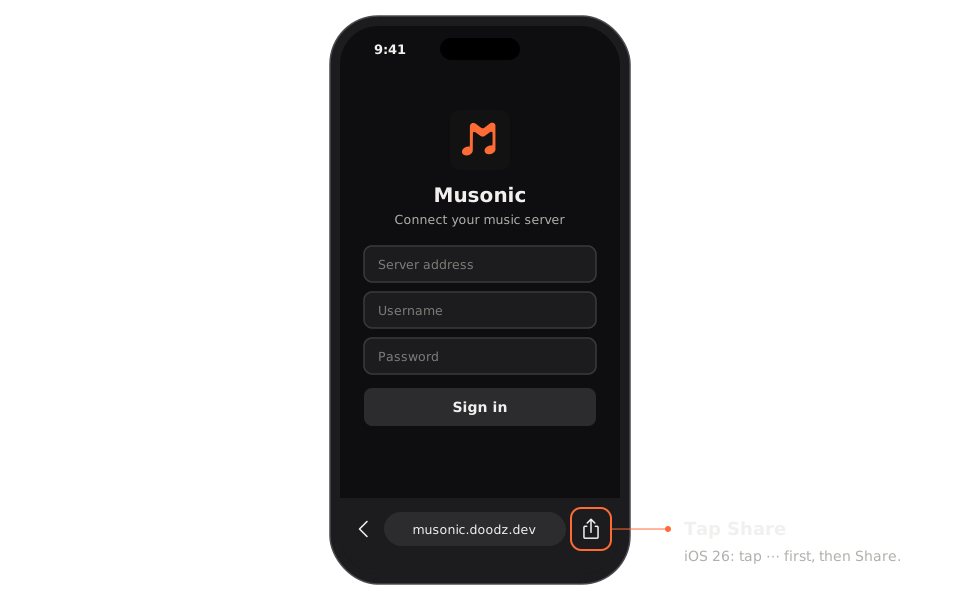
Tap the Share button.
It is a square with an arrow pointing up. On iOS 26, tap ⋯ at the bottom right of the address bar first, then Share. On iOS 18 and earlier, it is directly in the toolbar at the bottom of the screen (at the top right on an iPad).
-
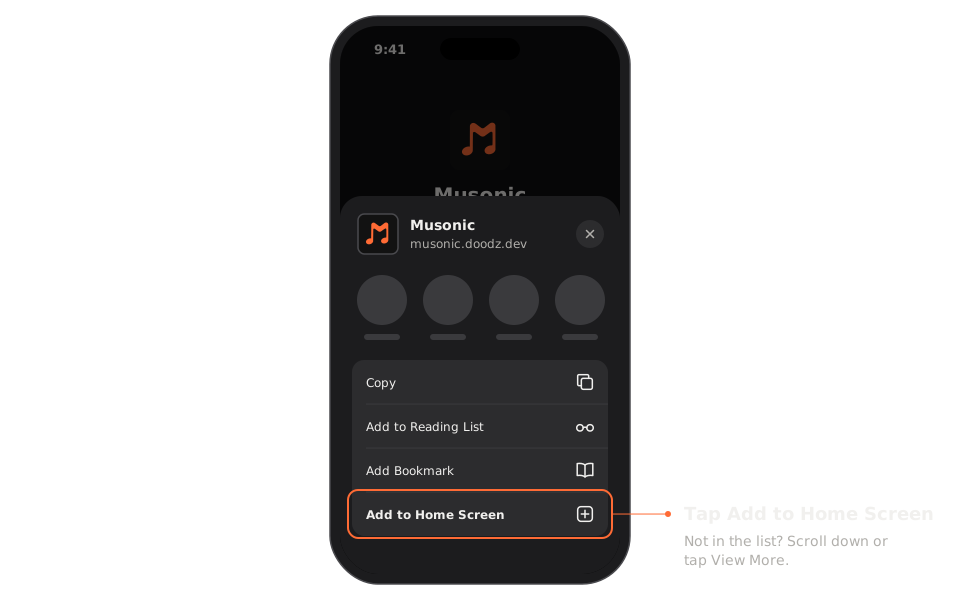
Tap “Add to Home Screen”.
It is in the list under the row of apps. If you do not see it, scroll down or tap View More.
-
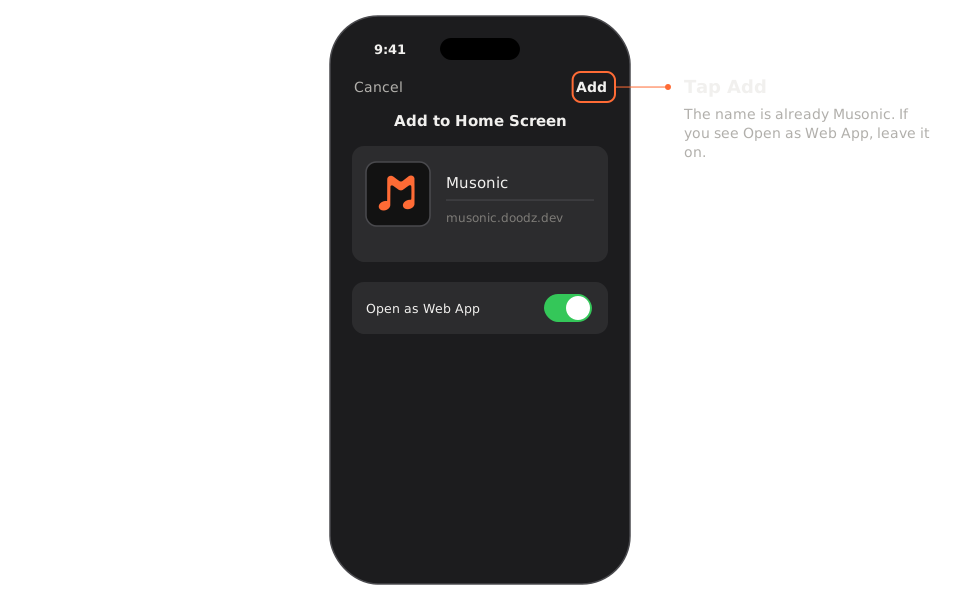
Tap “Add”.
The name is already “Musonic”: you can change it. If you see Open as Web App, leave it on. Tap Add at the top right.
-
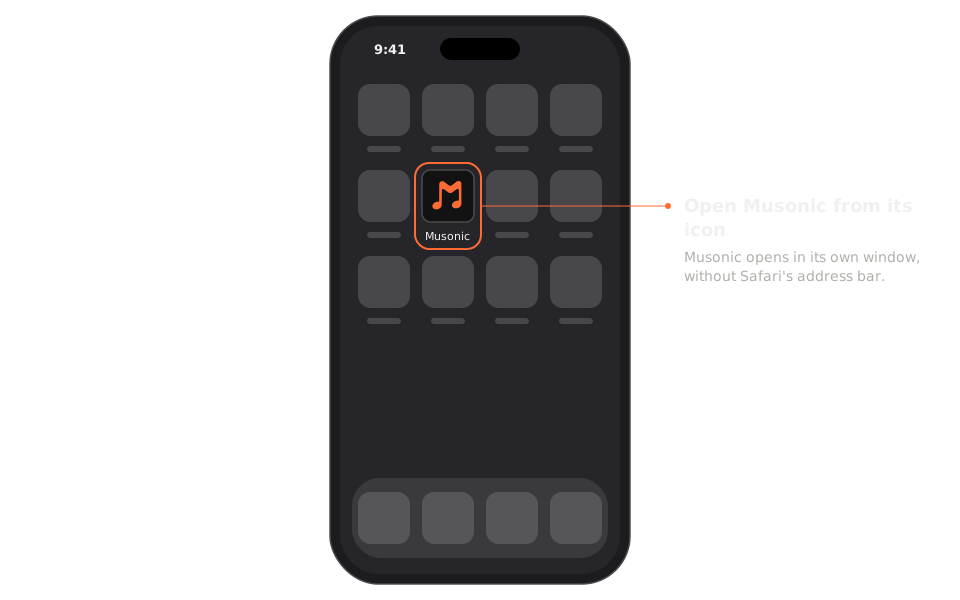
Open Musonic from its icon on your Home Screen.
It opens in its own window, without Safari’s address bar.
Chrome on iOS can also add a page to the Home Screen on recent versions of iOS (16.4 and later).
-
Open Chrome and go to
musonic.doodz.dev/app. -
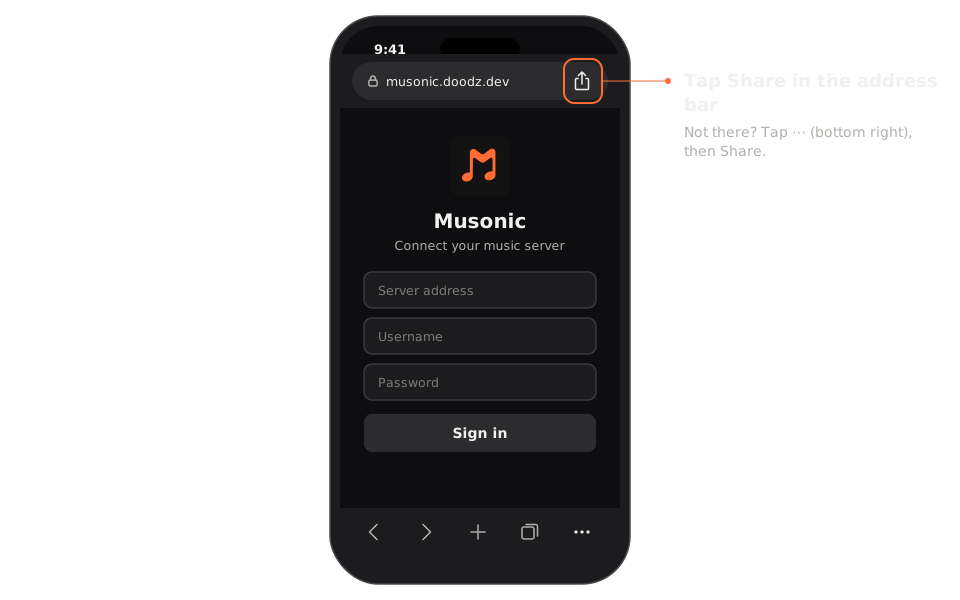
Tap the Share button in the address bar.
It is the square with an arrow pointing up, at the right of the address. If it is not there, tap ⋯ (bottom right) and then Share.
-
Tap “Add to Home Screen”.
Scroll the list or tap View More if you do not see it.
-
Tap “Add”.
-
Open Musonic from its icon on your Home Screen.
Sign in the first time
Section titled “Sign in the first time”-
Tap the Musonic icon on your Home Screen.
-
Type your server’s address, your username and your password.
For example
https://music.example.com. Musonic addshttps://if you leave it out. -
Tick “Remember me” if this iPhone is yours.
Confirm with Turn on. Without it, you will have to sign in again each time iOS closes the app.
-
Tap “Sign in”.
The app on your Home Screen does not share its sign-in with Safari: even if you were signed in in Safari, sign in once more in the app. The sign-in screen, the errors and what happens to your password are explained in The web player.
What works less well on iPhone
Section titled “What works less well on iPhone”The web player is made for computers first. On iOS, a web page also has less freedom than an app. Here is what to expect.
| Topic | What happens |
|---|---|
| Screen layout | The layout is a computer one. On an iPhone held upright, the screen is too narrow (under about 760 px) and the side menu with Home, Search and Library is hidden. Turn the iPhone sideways: on most recent iPhones, the menu then appears. On an iPad, the menu is shown in landscape and, on most models, upright too. |
| Playback in the background | iOS can pause or close a web page that is in the background. Playback usually goes on with the screen locked, but it may stop after a long time, and the next track may not start. This has not been tested on every iOS version. |
| Crossfade | Leave Crossfade between tracks on Off on an iPhone. When it is on, the sound goes through the browser’s audio engine (Web Audio), which iOS pauses more readily in the background. |
| Volume | iOS does not let a web page change the volume: use the iPhone’s buttons. The volume slider may have no effect. |
| Offline | No offline listening: the web player streams everything and needs the connection to your server. Downloads exist only in the Android app. |
| Car | No CarPlay. Bluetooth in the car works like for any other sound from the iPhone. |
| Mini player, full screen | The floating mini player and the browser full-screen button are for computers: they do not work on iPhone. |
| Sleep timer | It works while the page runs. If iOS has paused the page, it may go off late. |
| Updates | Automatic: it is a web page. You get the latest version each time it loads, with nothing to install. A copy hosted on your server follows the updates its administrator installs. |
What works the same as on a computer: your library, search, playlists, likes, lyrics, the queue, podcasts, imports and Musonic Connect, with the same account as on your other devices.
Remove it
Section titled “Remove it”Touch and hold the Musonic icon, tap Remove App, then Delete from Home Screen (or Delete Bookmark). Your playlists and likes are on your server: nothing is lost.
Next steps
Section titled “Next steps”- The web player: everything it does, sign-in details, shortcuts.
- Import your playlists
- Use other Subsonic apps: some third-party Subsonic apps exist on iOS.