
Problems in the app
This page is for people who listen with Musonic on a server someone else runs (a relative, a friend). Find your problem below: each one has a few steps to try, and a link to the page that explains more. Nothing here needs access to the server.
Android app
Section titled “Android app”The music stops when the screen turns off, or after a while in the background
Section titled “The music stops when the screen turns off, or after a while in the background”Android, or the phone’s brand, closes apps it thinks use too much battery. Allow Musonic to run in the background.
-
Open the phone’s Settings, then “Apps”, then “Musonic”.
-
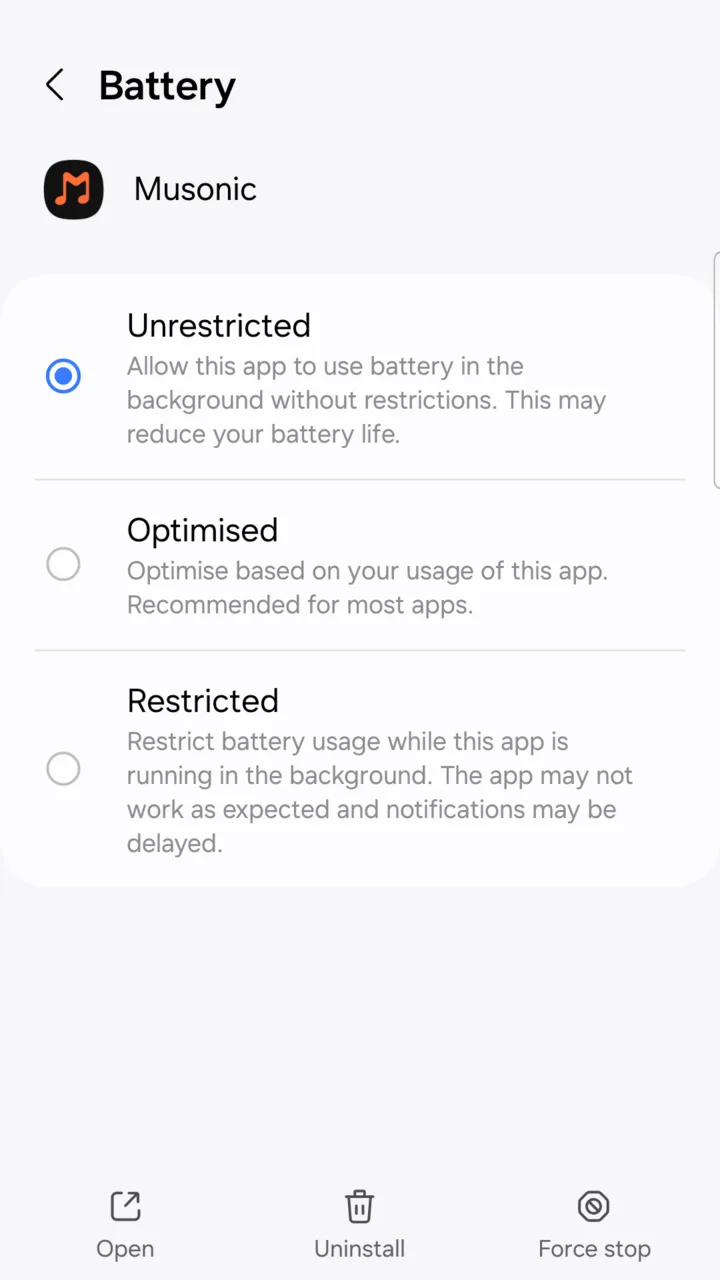
Tap “Battery” (or “App battery usage”), then choose “Unrestricted”.
On older Android versions: Settings → Apps → Special access → Battery optimisation, show All apps, pick Musonic and choose Don’t optimise.
-
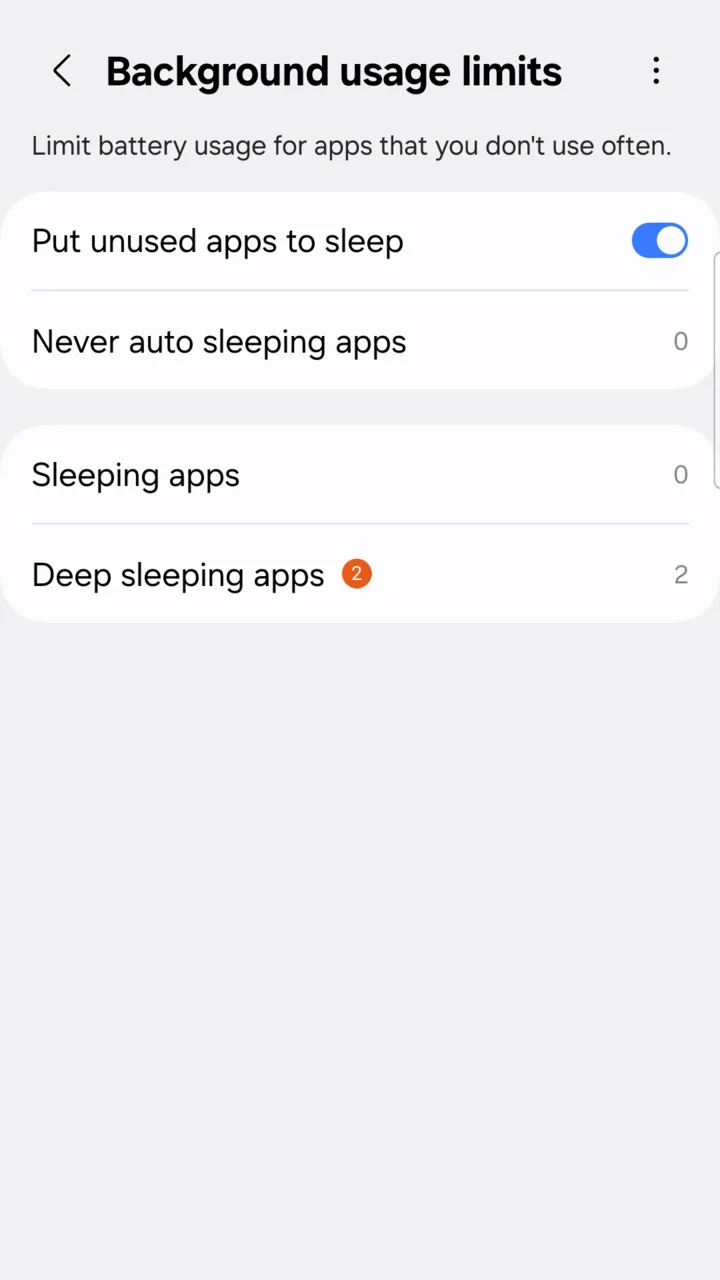
On a Samsung phone, also take Musonic out of the “sleeping apps”.
Open Settings → Battery → Background usage limits. The number on the right of each list is how many apps it holds: tap a list to see them. If Musonic is in Sleeping apps or Deep sleeping apps, remove it. If you chose Unrestricted at step 2, that is all: an unrestricted app never goes to sleep, so Samsung does not even offer it in Never auto sleeping apps. Otherwise, open Never auto sleeping apps, tap + and add Musonic.
-
Do not swipe Musonic out of the recent apps while you listen.
Closing Musonic that way stops the music and removes its notification: that is on purpose. Leave it in the background, or pause it.
The names of these settings change from one brand and Android version to the next (Xiaomi, OnePlus, Huawei and others have their own battery managers). Look for “battery”, “background” or “autostart” in the phone’s Settings search.
If the music still stops, open Profile → Settings → Advanced options and switch Android audio player off, then close Musonic (swipe it out of the recent apps) and open it again. Musonic then uses its other playback engine. Switch it back on if that does not help: it is the lighter one.
The controls in the notification or on the lock screen are missing
Section titled “The controls in the notification or on the lock screen are missing”-
Play a song. The controls show only while Musonic has something to play.
-
Check that Musonic may show notifications. Open Settings → Apps → Musonic → Notifications and allow them.
-
If you swiped Musonic out of the recent apps, open it again. That stops playback and removes the notification.
An update refuses to install (“App not installed”)
Section titled “An update refuses to install (“App not installed”)”-
Do not uninstall Musonic. Uninstalling erases your downloads, your settings and your sign-in, and Android does not back them up.
-
Download the new
Musonic.apkfrom the same place as before: the project’s releases on GitHub, through the View release button of the “Update available” window. -
Open the file and tap “Update”. The new version installs over the old one and keeps everything.
Android also refuses a file that is older than the version you have, a file that did not download completely (download it again), and phones that are 32-bit or older than Android 7.0. If the version on your phone was not installed from the project’s GitHub releases (for example one somebody built), Android refuses the update because the two were signed by different people: in that case only, you must uninstall first, and you lose the downloads. See Install the Android app → Updates.
Lyrics do not show
Section titled “Lyrics do not show”-
Look at the Lyrics button in the full-screen player. When it is dimmed, Musonic found no lyrics for this song: the player shows “No lyrics available”.
-
Check your connection. Lyrics are fetched when you play the song: from the server first, otherwise from LRCLIB (
lrclib.net) on the internet. They need a connection, also for downloaded songs. -
Ask the person who runs the server to add the lyrics to the file, or a
.lrcfile next to it, if the song is missing from LRCLIB.
Podcast episodes show their transcript, when the show provides one, never song lyrics. See Listen to music → Lyrics.
A download does not start, or stays stuck
Section titled “A download does not start, or stays stuck”-
On mobile data, check “Wi-Fi only”. With Settings → Quality and downloads → Wi-Fi only on, Musonic asks before each download you start (“You’re on mobile data…”), and Automatic download skips songs while you are on mobile data. Connect to Wi-Fi, or answer Download.
-
Check the storage limit. If you saw “Storage limit reached: download refused.”, raise Settings → Quality and downloads → Storage limit, or remove some downloads.
-
Wait for the spinners. Three songs download at a time; the others wait with a spinner.
-
Tap the download button again. A song whose download failed (network lost, app closed) goes back to the grey arrow; downloads interrupted by closing the app do not resume on their own.
Songs marked Online and podcast episodes cannot be downloaded. See Listen offline.
The app cannot reach the server
Section titled “The app cannot reach the server”The app shows a banner, No internet connection or Server unreachable, with an Offline mode button. After a few failed checks in a row, it switches to offline mode by itself and comes back online as soon as the server answers.
-
Check the phone’s connection. Open any website in the phone’s browser.
-
Open the server’s address in the phone’s browser. If the page does not open either, the address is wrong or the server is off.
-
At home or outside? An address such as
http://192.168.1.20:4533works only on your home network. Outside, you need the server’shttps://address: ask the person who runs it. -
Otherwise, ask the person who runs the server. It may be stopped or being updated.
When signing in, the message above Connect says what went wrong:
| Message | What to do |
|---|---|
| Server not found — check the URL | Check the address. A self-signed certificate also gives this message. |
| Connection timed out | Check the connection; the server did not answer within 8 seconds. |
| No Subsonic server at this address — check the URL | Check the address and the port. |
| Plain HTTP refused: use HTTPS, or an address on your home network (e.g. http://192.168.1.20:4533). | Use the https:// address. |
| Client error (404) — check the URL | Remove anything after the server name. |
| Server error (502) — server is down | Ask the person who runs the server. |
| Wrong username or password | Check both, including capital letters. |
If the app sends you back to sign-in with “This device was signed out of your account”, “Your account has been suspended” or “Did your password change?”, see Sign in → When the app sends you back to sign-in. All the messages are in When sign-in fails.
Musonic does not show in Android Auto
Section titled “Musonic does not show in Android Auto”-
Check that you are signed in in Musonic on the phone.
-
Check that “Unknown sources” is ticked in Android Auto’s developer settings. Android Auto hides apps that do not come from the Play Store without it, and an update of Android Auto can untick it.
-
Unplug the phone and connect it to the car again. Do the same after installing a new version of Musonic.
The whole setting, step by step: Musonic in the car.
Web player
Section titled “Web player”The web player signs you out, or loses the connection
Section titled “The web player signs you out, or loses the connection”-
Tick “Remember me” when you sign in, on your own computer. Without it, closing the tab signs you out, and each new tab asks you to sign in.
-
Read the message on the sign-in screen. “This browser was signed out of your account” means the key of this browser was revoked; “Did your password change?” means it changed: sign in again with the new one.
-
If pages show “Could not load this page.” or a song “cannot be played”, check your connection, then reload the page.
-
If you use
musonic.doodz.dev/app/with anhttp://server address, it cannot work. The browser blocks it. Use the server’s own copy (http://<server>/app/) at home, or itshttps://address.
See The web player → Sign-in errors.
On iPhone, the music stops in the background
Section titled “On iPhone, the music stops in the background”iOS pauses web pages in the background more readily than apps. There is no Musonic app for iPhone: the web player is the way to listen.
-
Open Musonic from its icon on the Home Screen, not from a Safari tab.
-
Set “Crossfade between tracks” to “Off” (profile menu → Settings). With crossfade on, iOS pauses the sound more often.
-
If the next song does not start, unlock the iPhone, open Musonic and press play.
See Use Musonic on iPhone or iPad.
Still stuck?
Section titled “Still stuck?”Ask the person who runs your server: they can see your account, your devices and the server’s state in its console. If you think you found a bug in Musonic, open an issue on GitHub with your app, its version, your phone or browser, and what you did.