
Listen offline
This page shows how to keep music on your phone to listen without a network (on a plane, in the metro, abroad), how to remove it, and how to choose the streaming quality to use less mobile data.
What you can download
Section titled “What you can download”| What | Where | Button |
|---|---|---|
| A song | its row in a list, or its menu | the download arrow, or Download |
| An album | the album’s page | Download |
| A playlist | the playlist’s ⋯ menu, in the playlist or the Library | Download |
| Liked Songs | the Liked Songs page | Download all |
| What you play | automatically, see Automatic download |
Only songs of your library can be downloaded. Songs from the online catalogue, marked Online, are skipped; podcast episodes always play from the network.
Download a playlist
Section titled “Download a playlist”-
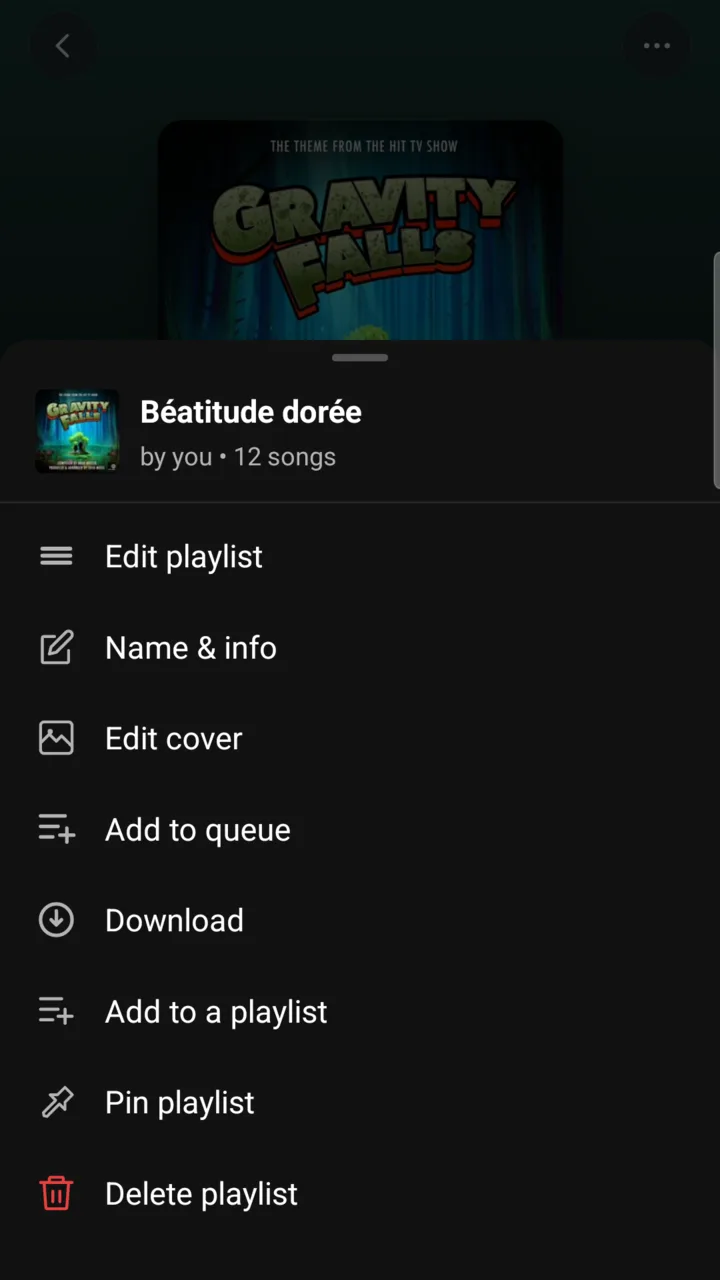
Open the playlist, then tap the ⋯ button.
It is at the top right of the playlist’s page. A sheet opens with the playlist’s options; Download is in the middle of the list.
-
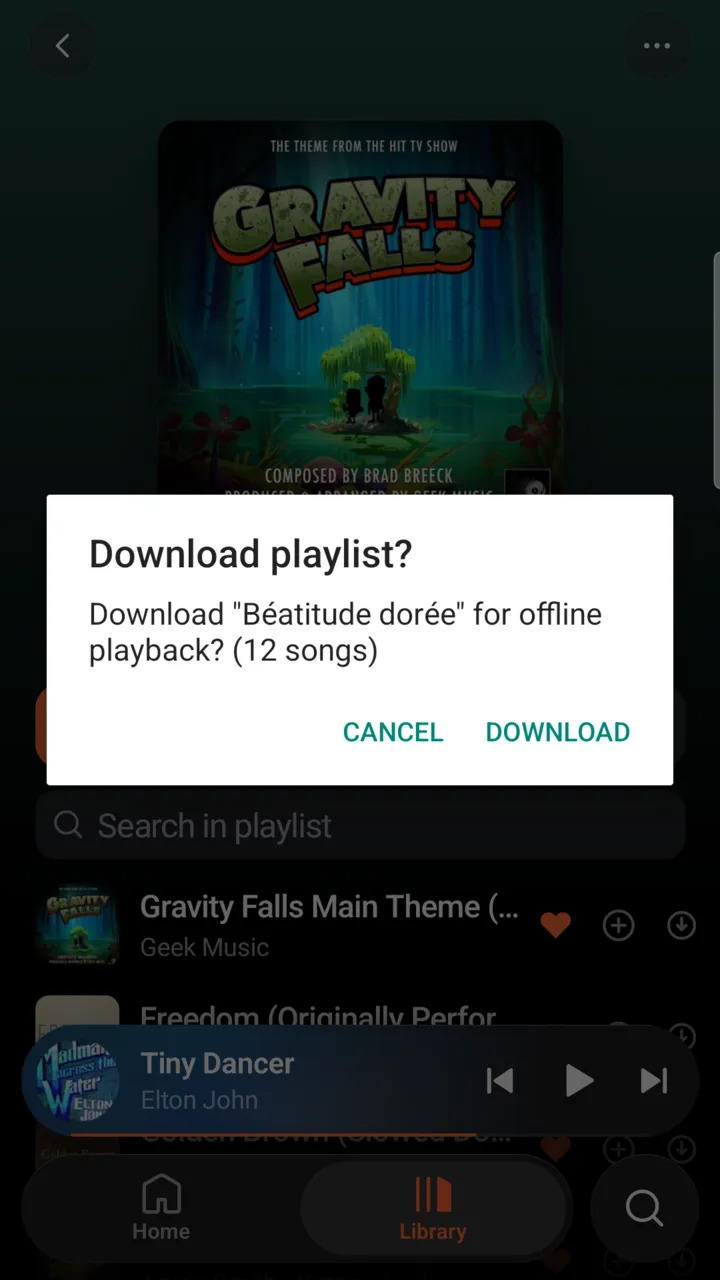
Tap “Download”, then “Download” again to confirm.
Musonic asks first, with the number of songs: “Download “My playlist” for offline playback? (42 songs)“.
-
Wait until “… available offline” shows.
At the right end of each row, a song shows a spinner, then a green download arrow once it is on the phone. Three songs download at a time. You can keep using the app meanwhile.
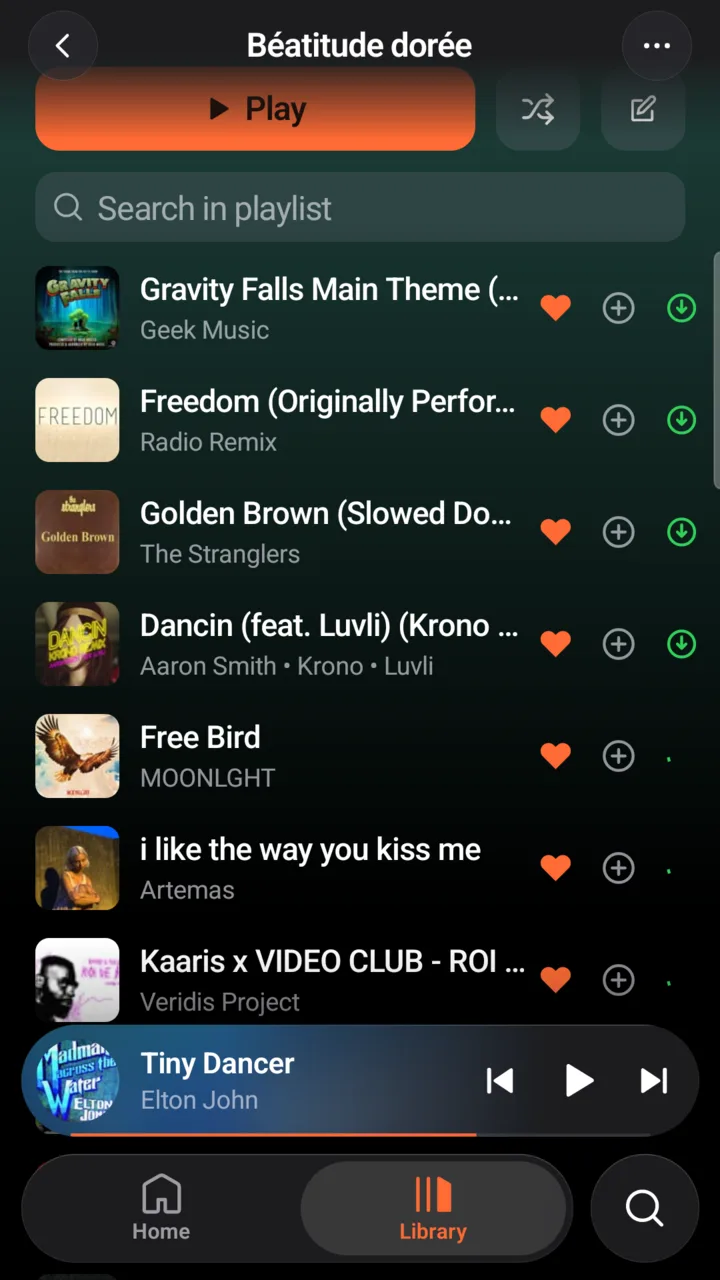
Albums work the same way with the Download button of the album’s page, and Liked Songs with Download all. When everything is downloaded, the playlist or the album shows the Downloaded badge.
On mobile data
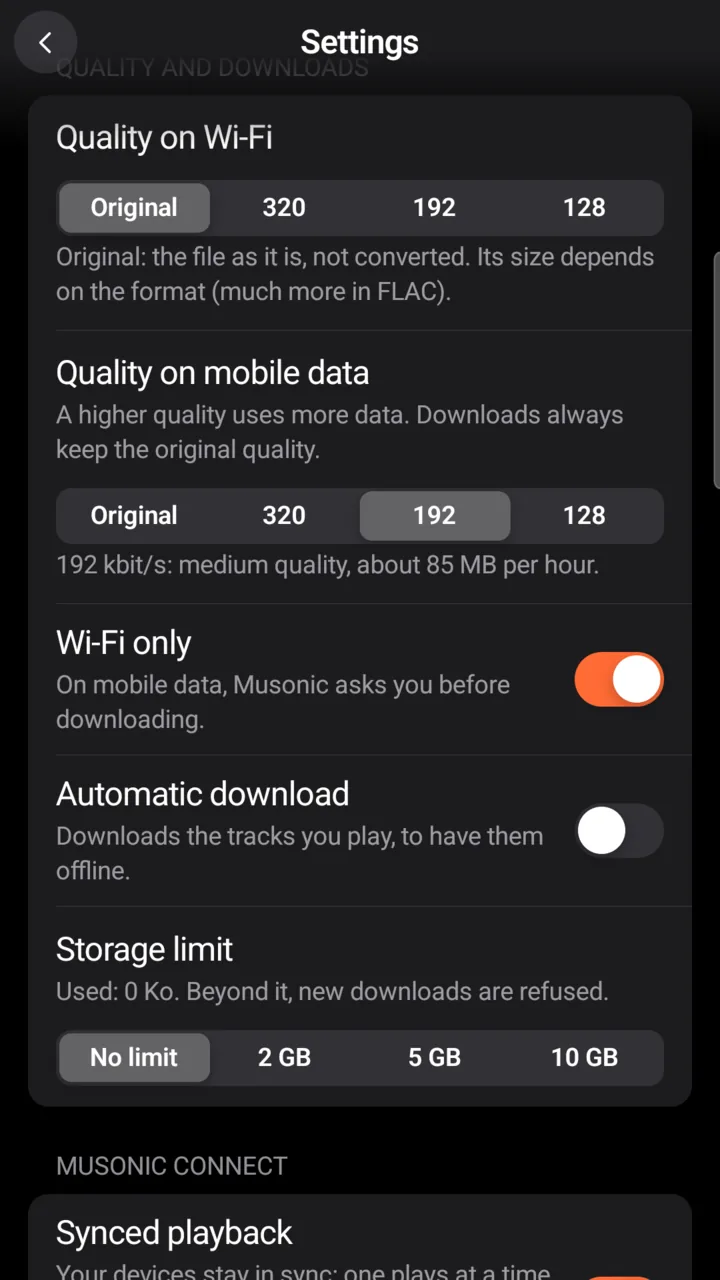
Section titled “On mobile data”Wi-Fi only is on by default. On mobile data, Musonic asks before each download you start: “You’re on mobile data. Downloads use Wi-Fi only. Download these 42 tracks with your mobile data anyway?” Tap Download to go on, or Cancel to wait for Wi-Fi. Turn the option off in Settings → Quality and downloads → Wi-Fi only to never be asked.
Automatic download
Section titled “Automatic download”Settings → Quality and downloads → Automatic download (off by default) downloads every song you play. Musonic asks you to confirm, because it uses space on the phone and bandwidth on your server. On mobile data with Wi-Fi only on, automatic downloads are skipped without asking: the songs you play on mobile data are not downloaded later, even once back on Wi-Fi.
What is downloaded
Section titled “What is downloaded”- The original file, whatever the streaming quality you chose: a FLAC stays a FLAC. The only exception is a bit-rate limit the administrator set on your account or on the server, which applies to downloads too.
- The cover of each song, so it shows offline in lists, the player, the notification and the lock screen.
The files are stored in Musonic’s own private space on the phone. Other apps and the file manager do not see them, and they are not on the SD card.
Space used
Section titled “Space used”- Profile → Storage shows the space your downloads use.
- Settings → Quality and downloads → Storage limit sets a maximum: No limit (default), 2 GB, 5 GB or 10 GB. It shows “Used: …”. Beyond the limit, new downloads are refused with “Storage limit reached: download refused.”
Remove downloads
Section titled “Remove downloads”| What | How |
|---|---|
| An album | On the album’s page, tap Downloaded, then Remove. |
| A playlist | In the playlist’s ⋯ menu, tap Delete downloads, then Remove. |
| Everything | Uninstall the app (this also erases the account and the settings). |
The songs stay in your library on the server: only the copy on the phone is removed.
Without a network
Section titled “Without a network”When the server cannot be reached, a banner says No internet connection or Server unreachable, with an Offline mode button. After a few failed checks in a row, Musonic switches to offline mode by itself. You can also turn it on by hand in Profile → Offline mode.
In offline mode:
- the Library shows your playlists and the Downloaded tab; albums and artists come back once you are online;
- playlists show only their downloaded songs;
- search, the online catalogue and Magic shuffle are not available;
- the Home shows the last version loaded.
Musonic goes back online by itself as soon as the server answers again. To decide yourself, turn off Settings → Advanced options → Automatic reconnection.
Streaming quality
Section titled “Streaming quality”When you listen without downloading, the server can send a lighter version of the song to use less data. Set it separately for Wi-Fi and for mobile data in Settings → Quality and downloads.
| Choice | What you get | Data, about |
|---|---|---|
| Original | the file as it is, not converted | depends on the format, much more in FLAC |
| 320 | high quality, 320 kbit/s | 145 MB per hour |
| 192 | medium quality, 192 kbit/s | 85 MB per hour |
| 128 | data saver, 128 kbit/s | 60 MB per hour |
By default: Original on Wi-Fi, 192 on mobile data. A file already lighter than the chosen level is sent as it is. The server does the conversion; if the administrator set a lower limit for your account or the server, that limit wins.
Next steps
Section titled “Next steps”- Musonic in the car: the Downloaded tab on the car’s screen.
- Sign in to a server: addresses and errors.