
Scanning your library
This page is for the person who runs the server. It explains how the server keeps its library in step with your music folder, when you need to start a scan yourself, and what the console’s lists (missing files, duplicates, no cover) mean.
What you need
- A server with a music folder set (
MUSONIC_MUSIC_DIR; with Docker, the folder mounted on/music). - An administrator account, to use the console.
In short: you rarely have to do anything
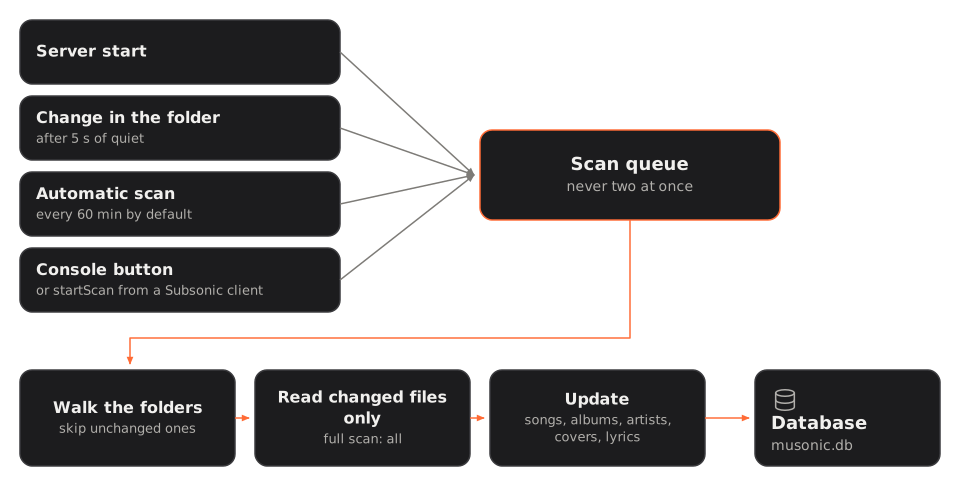
Section titled “In short: you rarely have to do anything”The server scans the library when it starts, then:
- a few seconds after a change in the music folder (a file added, changed, moved or deleted): it watches the folder and waits until changes have stopped for 5 seconds, so copying a whole album gives one scan, not one per file;
- on a schedule, every 60 minutes by default, to catch what watching missed;
- when you ask, from the console or a Subsonic client.
Scans never overlap: a request made during a scan starts another one right after it.
Each scan then walks the folders (skipping those that did not change), reads only the changed files (every file in a full scan), and updates the songs, albums, artists, covers and lyrics in the server’s database (musonic.db).
Start a scan from the console
Section titled “Start a scan from the console”-
Open your server’s address in a browser and sign in with an administrator account.
The administration console opens on the dashboard.
-
Click “Library” in the “Music” section of the menu.
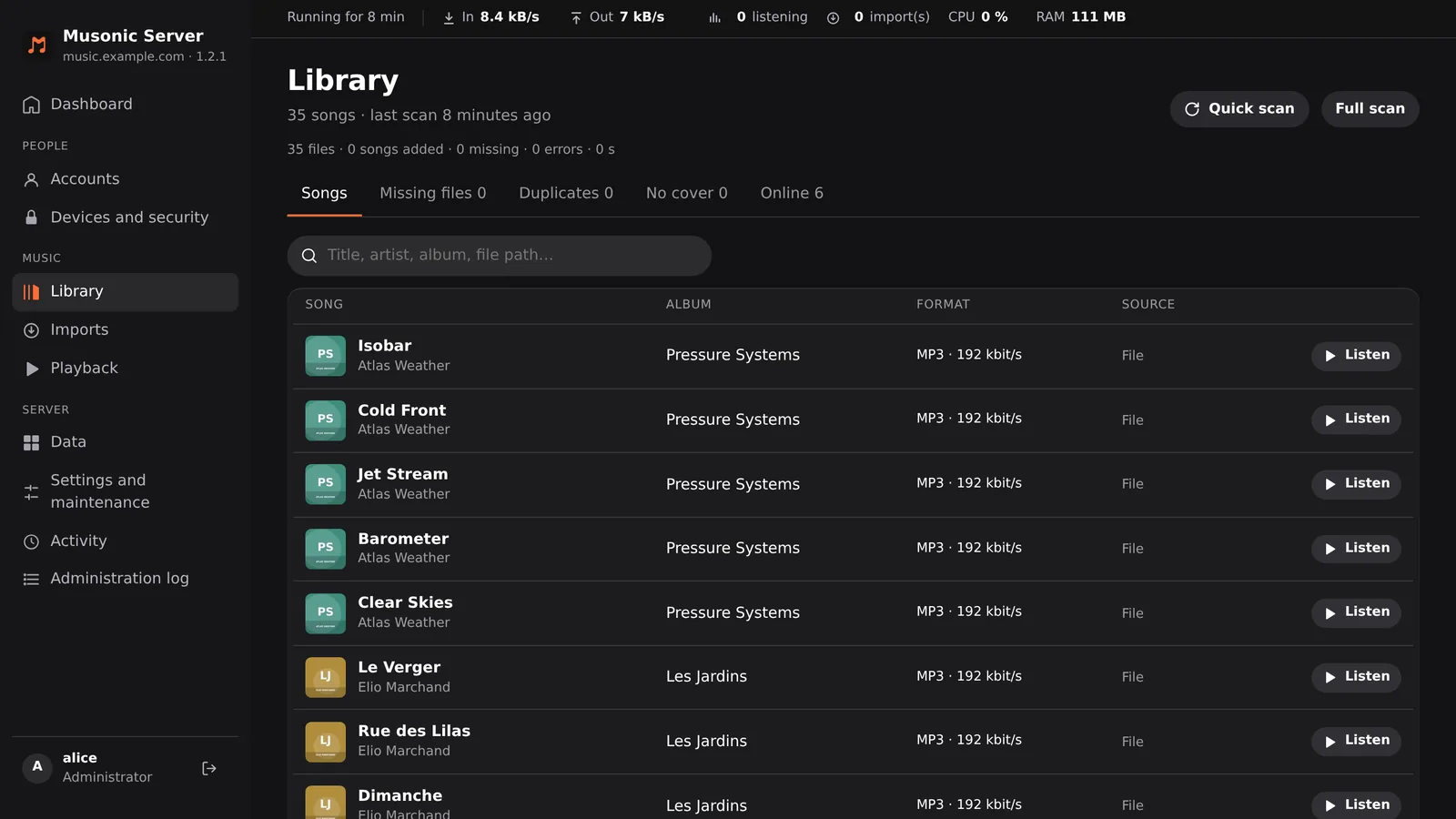
The top of the page shows the number of songs and when the last scan ran (for example “35 songs · last scan 8 minutes ago”), with the Quick scan and Full scan buttons at the top right.
-
Click “Quick scan” (or “Full scan”, see below which one you need).
The line under the title shows “Scanning…” and both buttons are greyed out until it ends.
-
Read the summary of the scan.
It sits under the title line, for example “35 files · 0 songs added · 0 missing · 0 errors · 0 s”: the number of files, songs added, files missing, errors and the time it took.
Quick scan or full scan?
Section titled “Quick scan or full scan?”| Quick scan | Full scan | |
|---|---|---|
| What it reads | Only the folders whose content changed (names, sizes, modification dates), and in them only the audio files that changed | Every audio file again |
| When it runs | At start-up, after changes, on the schedule, from the button | Only when you ask |
| Time | Seconds on an unchanged library | About as long as the first scan |
| Use it | Almost always | After adding or replacing a cover image or a lyrics file next to songs that did not change; after editing tags with a tool that keeps the file’s modification date; when something looks wrong |
From the command line or a Subsonic client
Section titled “From the command line or a Subsonic client”docker compose exec musonic-server musonic-server scan # quickdocker compose exec musonic-server musonic-server scan --full # fullmusonic-server scan # quickmusonic-server scan --full # fullRun it with the same settings as the server (same MUSONIC_DATA_DIR and MUSONIC_MUSIC_DIR).
musonic-server scan scans once, prints a summary and exits. It is meant for scripts and for the first scan before a Navidrome import; while the server runs, prefer the console’s buttons, which go through the server’s own scan queue.
Subsonic clients with a “scan library” button use startScan (fullScan=true for a full scan); only administrator accounts may start one.
Change the automatic scan
Section titled “Change the automatic scan”-
In the console, open “Library”.
-
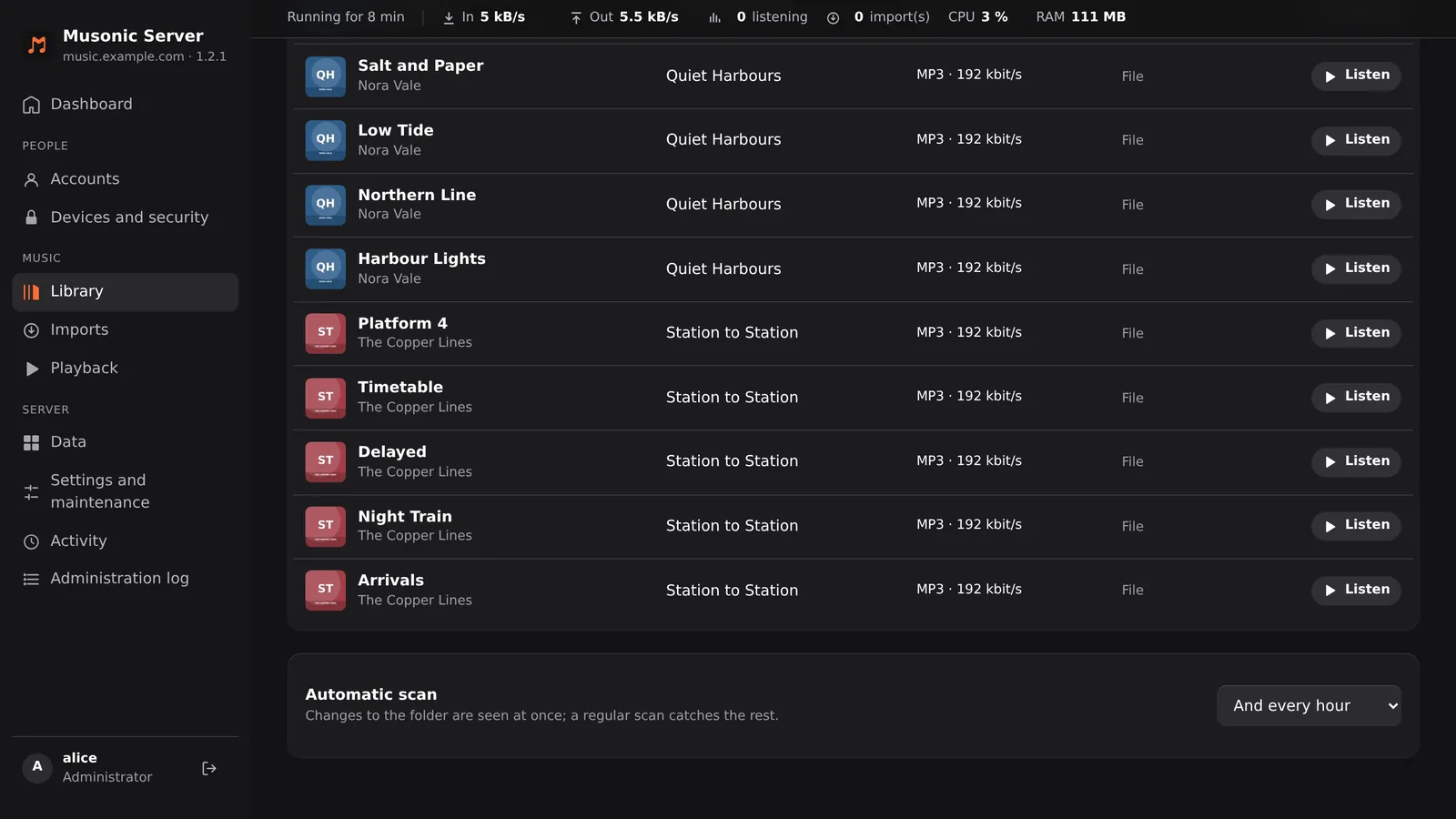
Choose how often in “Automatic scan”, at the bottom of the page, under the list of songs.
It is a drop-down list on the right of the block, under the note “Changes to the folder are seen at once; a regular scan catches the rest.”
The choices are “On changes only”, “And every hour” (the default), “And every 6 hours” and “And once a day”.
-
Click “Restart now” in the banner that appears.
The new value applies once the server has restarted. Music stops for a few seconds, then the apps reconnect on their own.
The same setting is scan_interval_minutes in the configuration file, or MUSONIC_SCAN_INTERVAL_MINUTES (minutes, 0 = only on changes; from 0 to 10080 in the console). A value saved in the console wins over the configuration file and the environment.
When changes are not seen on their own
Section titled “When changes are not seen on their own”If the server cannot watch the folder, it writes this line in its logs at start-up and relies on the scheduled scans only:
cannot watch /music: …; relying on scheduled scansWatching relies on the operating system’s notifications. They do not arrive for every kind of folder: changes made from another machine on a network share are often not reported. On Linux, a very large library can also exceed the number of folders a user may watch; raising fs.inotify.max_user_watches with sysctl fixes that.
In those cases, keep a schedule (every hour, or more often with MUSONIC_SCAN_INTERVAL_MINUTES), or start a quick scan by hand after adding music.
Likes and playlists when files change
Section titled “Likes and playlists when files change”Every song has one id that does not change: it is given once, and kept across rescans, moves and imports. Likes, playlists, play counts and the apps’ downloads point at that id. When a file changes, the scanner looks for the song it belongs to in this order:
- The same path: a file retagged in place stays the same song, with its new tags.
- The same identity: a file moved or renamed is recognised by its MusicBrainz recording id, or else by album artist + album + disc + track number + title. It keeps its song, likes and playlists.
- A song first seen online with no file yet, with the same ISRC, or the same title, artists and length (within 3 seconds): an imported file joins the song that was already liked or in a playlist.
- Otherwise, a new song.
| What you do | What happens |
|---|---|
| Edit the tags of a file, in place | Same song, new tags. |
| Move or rename a file or a folder | Same song (found by its identity). |
| Move the whole music folder (another disk, another Docker mount) | Nothing to redo: paths are kept relative to the music folder. |
| Move a file and change its title, album or track number at the same time | A new song: the old one is shown as a missing file and keeps its likes. Do one, scan, then the other; or give your files MusicBrainz ids, which survive any change. |
| Delete a file | Its song is marked as a missing file: hidden from the apps (unless it is also known in the online catalogue), kept with its likes and playlists. If the file comes back, the song comes back as it was. |
Songs with a missing file are never deleted by the server on their own.
The console’s lists
Section titled “The console’s lists”The Library page has tabs to check your library, under the summary of the last scan. Each tab shows how many songs it holds (for example “Missing files 0”):
| Tab | What it lists |
|---|---|
| Songs | Every song, with its file, format, bit rate and size. Search by title, artist, album or file path. |
| Missing files | Songs whose file is no longer in the music folder (moved without being recognised, or deleted). |
| Duplicates | The same song twice: two files for one song (two copies with the same tags), or two songs with the same title and artists. |
| No cover | Songs with no picture at all: none in the file, no image in their folder, none online. |
| Online | Online songs liked or added to a playlist that have no file yet (not imported). |
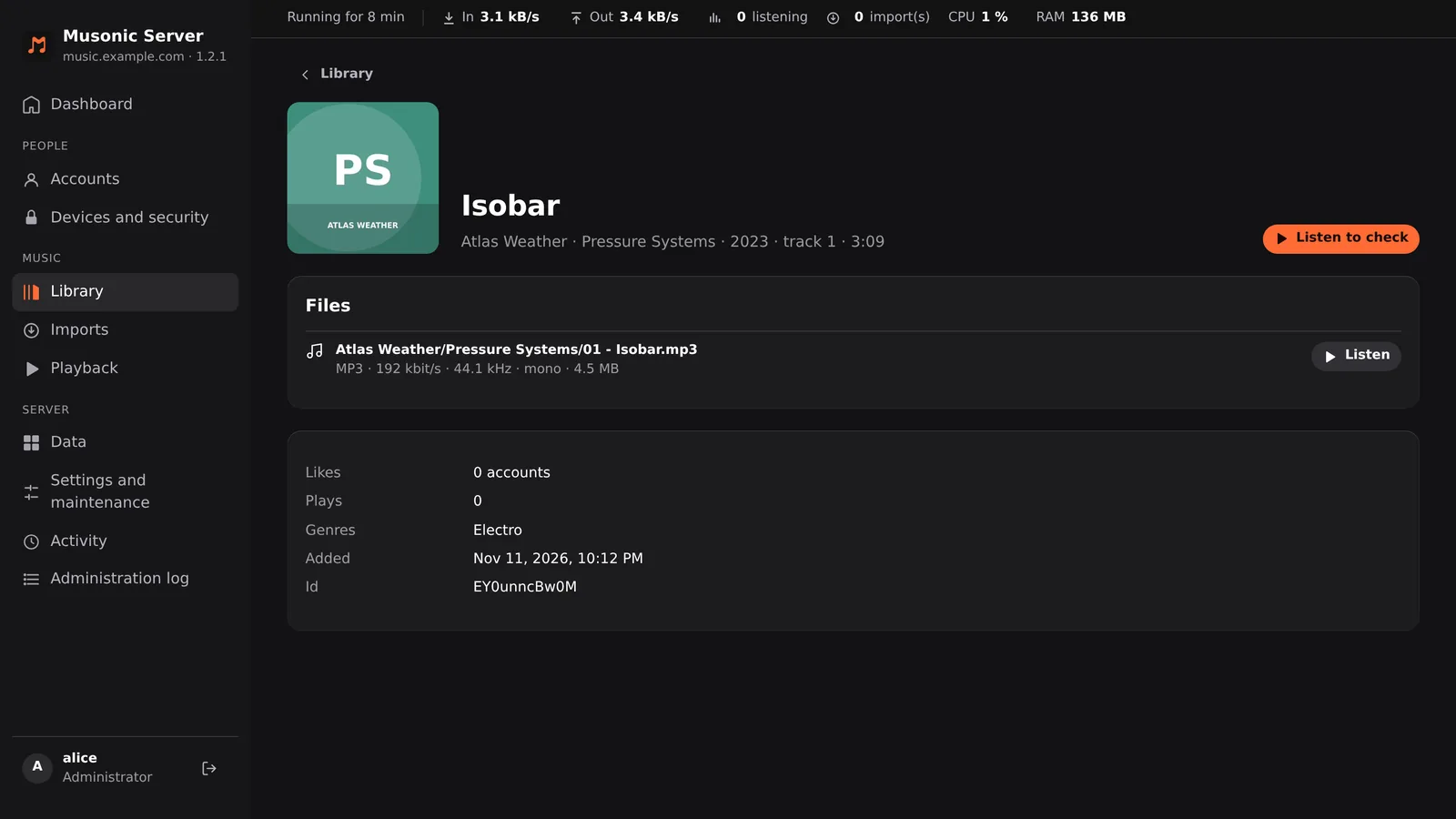
Click a song to open its page: tags, files (with Listen to check, to hear the file in the browser), online catalogues that know it, ISRC, genres, plays and likes. At the top: the title, then artist · album · year · track number · length, and Listen to check on the right. The Files block gives each file’s path in the music folder, format, bit rate, sample rate, channels and size, with a Listen button. ‹ Library, at the top left, goes back to the list.
Performance
Section titled “Performance”- The scanner reads the tags of several files at once, one per processor thread.
- A folder whose content did not change (same names, sizes and dates) is not opened again: a quick scan of an unchanged library only walks the folders.
- Changes are written in batches of 200 files, so the apps keep working during a long first scan.
- On a large library, setting up the watching takes a while: the server answers requests meanwhile.
Settings related to scanning
Section titled “Settings related to scanning”| Setting (file) | Environment | Default | What it does |
|---|---|---|---|
music_dir |
MUSONIC_MUSIC_DIR |
none (/music in the Docker image) |
The music folder. Without it, the server starts with an empty library. |
scan_interval_minutes |
MUSONIC_SCAN_INTERVAL_MINUTES |
60 |
Minutes between scheduled scans; 0 = only at start-up, on changes and on request. Also in the console. |
Next steps
Section titled “Next steps”- Organise your music files: formats, tags, covers and lyrics.
- Online catalogue and imports: songs that join the library from the online catalogue.