
Listen to music
This page explains everything you do while listening, in the Android app and in the web player (which is also what you use on an iPhone). Where the two differ, the page shows both side by side.
What you need
- The app or the web player, signed in to your server (see Sign in to a server).
- A few songs in your library. Home fills up as you listen and like songs.
Find your way around
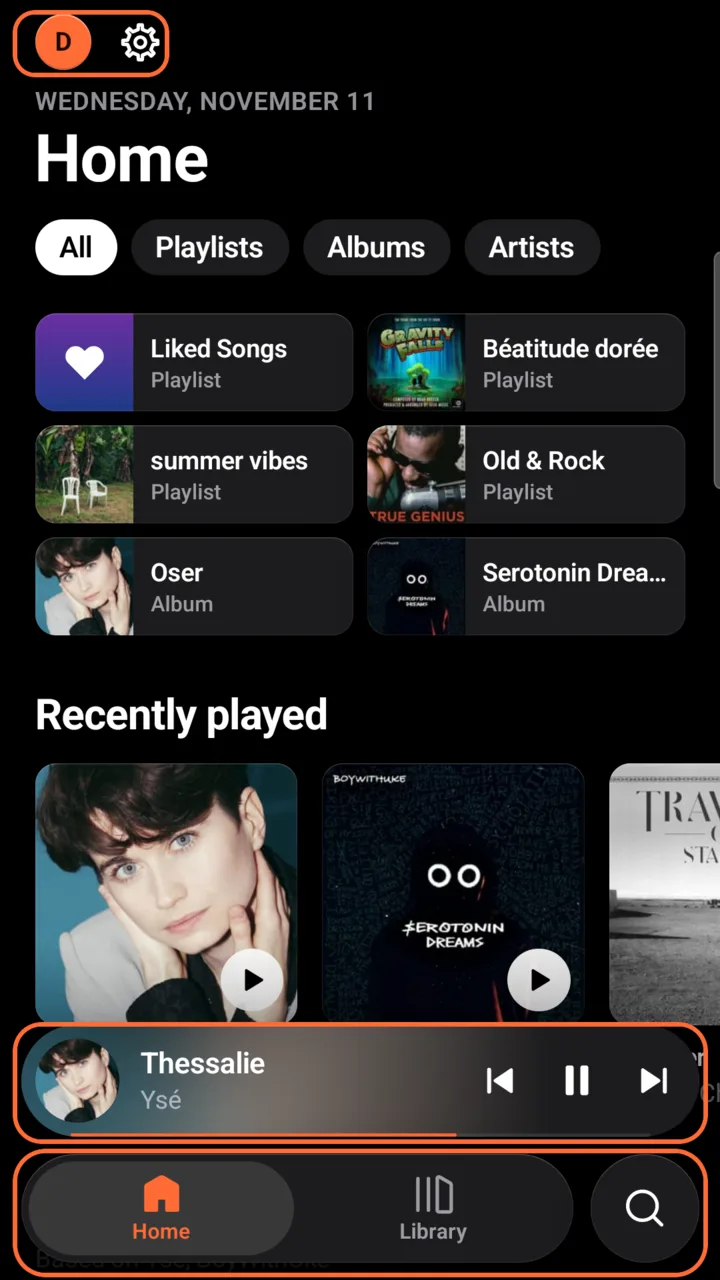
Section titled “Find your way around”The app has three tabs at the bottom: Home and Library side by side, and Search, the round magnifier button on the right. The song playing sits in a small bar just above them, the mini player. At the top left of every tab, your profile initial opens your profile (offline mode, storage, About, Log out) and the gear next to it opens Settings.
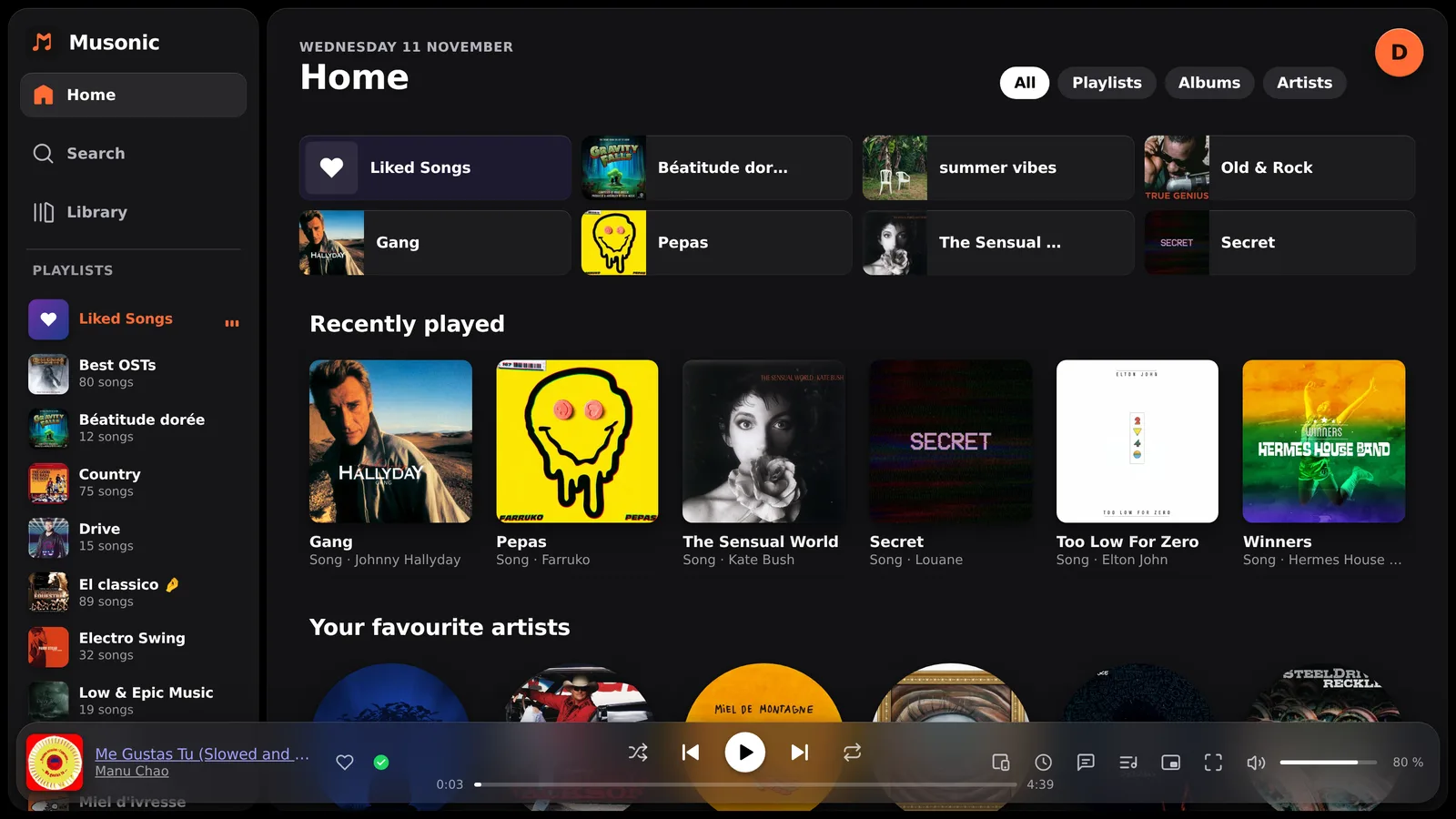
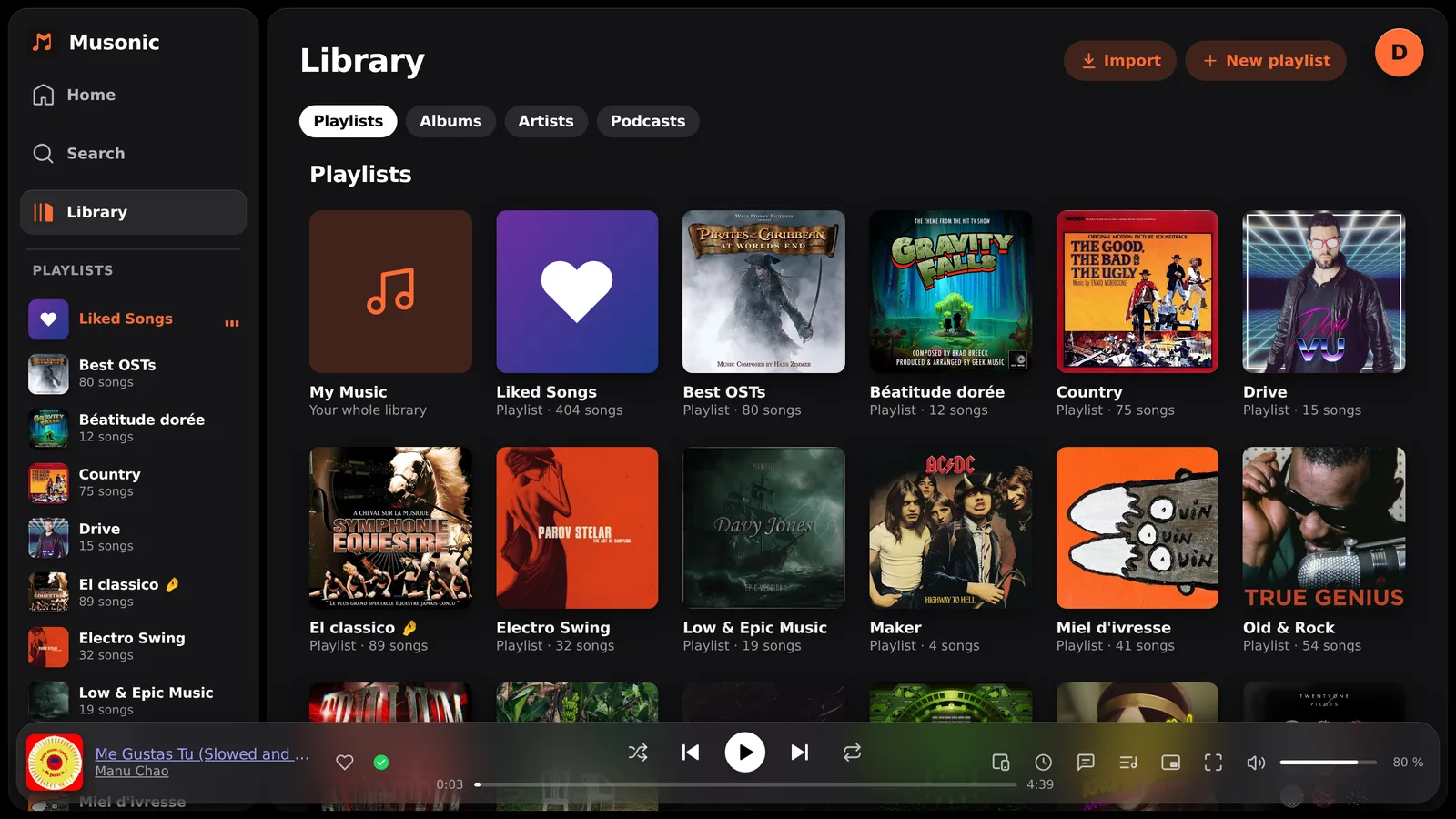
A side panel on the left holds Home, Search, Library and your playlists. The player bar runs along the bottom. Your profile, at the top right, opens Settings, About and Log out.
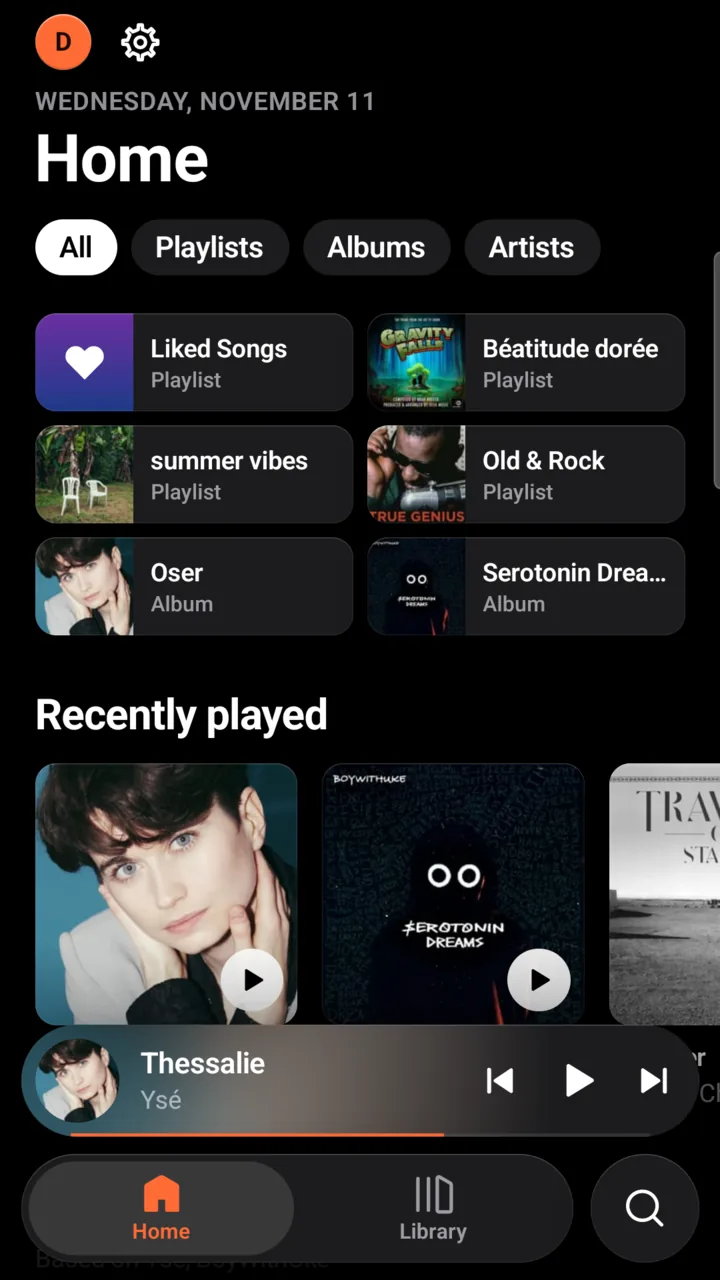
Home is made for you from your own library and what you listen to. It changes every day (the choice of the day is the same all day long, then changes the next day) and it is the same on your phone and in the browser. An album never appears twice on the same page.
The chips at the top (All, Playlists, Albums, Artists) show only one kind of card.
| Section | What it shows | How it is chosen |
|---|---|---|
| Quick access (the tiles at the top) | Liked Songs, your playlists, recent albums | Liked Songs first (once you have liked a song), then your three most recently changed playlists, then the albums you played lately. 6 tiles in the app, up to 8 on the web. |
| Recently played | Albums (in the app: also the songs, playlists and mixes you started) | What you played last. The app first lists what you really played on this phone, then the server’s recent albums. |
| Your favourite artists | Artists | A score per artist: the plays of your most played albums, plus 1 point per liked song and 5 points if you liked the artist. |
| More like … | Albums | One of your five favourite artists is picked for the day; you get the latest album of up to four artists similar to them. |
| Albums with songs you like | Albums | Albums holding your liked songs, the ones with the most likes first (albums you liked as a whole are left out). |
| Because you liked “…” | Songs | One of your liked songs is picked for the day; you get songs similar to it. |
| Magic Mixes | Mixes | See Magic Mixes. |
| Rediscover | Albums | Albums among your most played that you have not played for more than 60 days. |
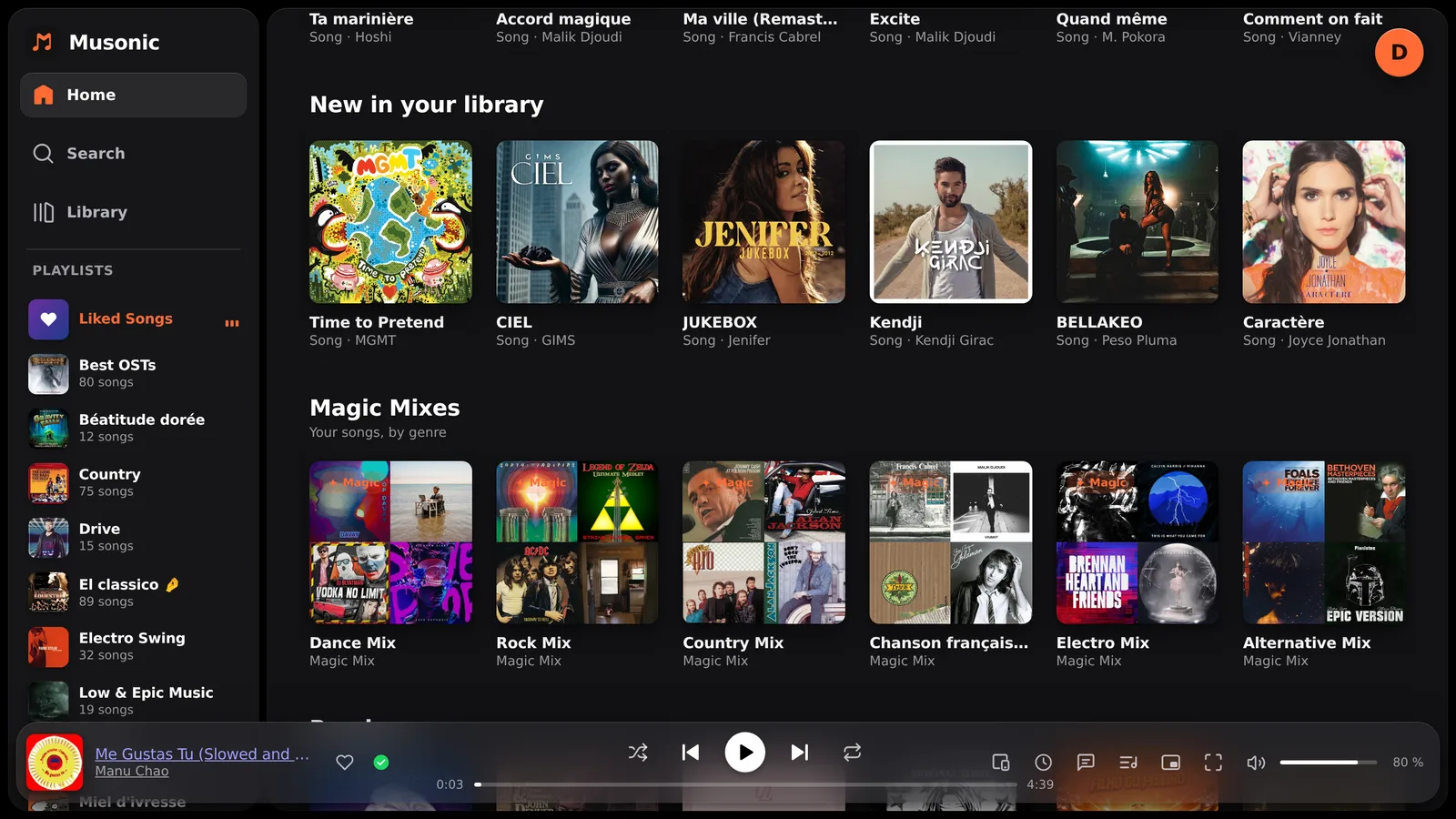
| New in your library | Albums | The albums most recently added to your server. |
| Random | Albums | A random pick. It always closes the page. |
After Your favourite artists, the shelves from More like … to New in your library are put in a new order every day; a section with very few cards goes further down, and an empty one is not shown.
The app adds two online sections after Recently played With Musonic Server:
- For you: albums found in the online catalogue from the artists you played lately, marked Online.
- Artists to discover: artists similar to yours that you do not have yet.
They are loaded once per session and never offline. The last Home is kept on the phone, so it still shows without a connection (“Offline: last loaded home”). Pull the page down to refresh it. Recent cards have a play button: it plays at once, while touching the card opens it. Settings → Advanced options → Date on Home shows or hides the date above the title.
The web Home has the same sections, without the online ones. If your library is still empty, it says so: play a few songs and it fills up.
Magic Mixes
Section titled “Magic Mixes”A Magic Mix is a playlist made for you each day around a music genre.
- Musonic counts the genres of the albums you play most, the albums you played lately, your liked albums and your liked songs.
- It keeps your top genres and picks some of them for the day: 4 mixes in the app, 8 on the web.
- For each genre it draws up to 30 random songs of that genre from your library. A genre with fewer than 5 songs gets no mix.
The genre comes from your files’ tags: if your files have no genre, there are no mixes. Open a mix like a playlist: its cover is a mosaic of up to four album covers, and Play or Shuffle starts it.
When you open a mix in the app, about 3 songs in 10 are discoveries — songs from the online catalogue and songs similar to yours, marked Online and spread through the list (never first). Opened again from Recently played, a mix of that genre is drawn afresh.
On the web, a mix holds only songs from your library (“Your songs, by genre”) and is named after its genre, for example Rock Mix. Magic Mixes also show on the Search page when the field is empty.
Search
Section titled “Search”-
Tap the Search tab, then the search field.
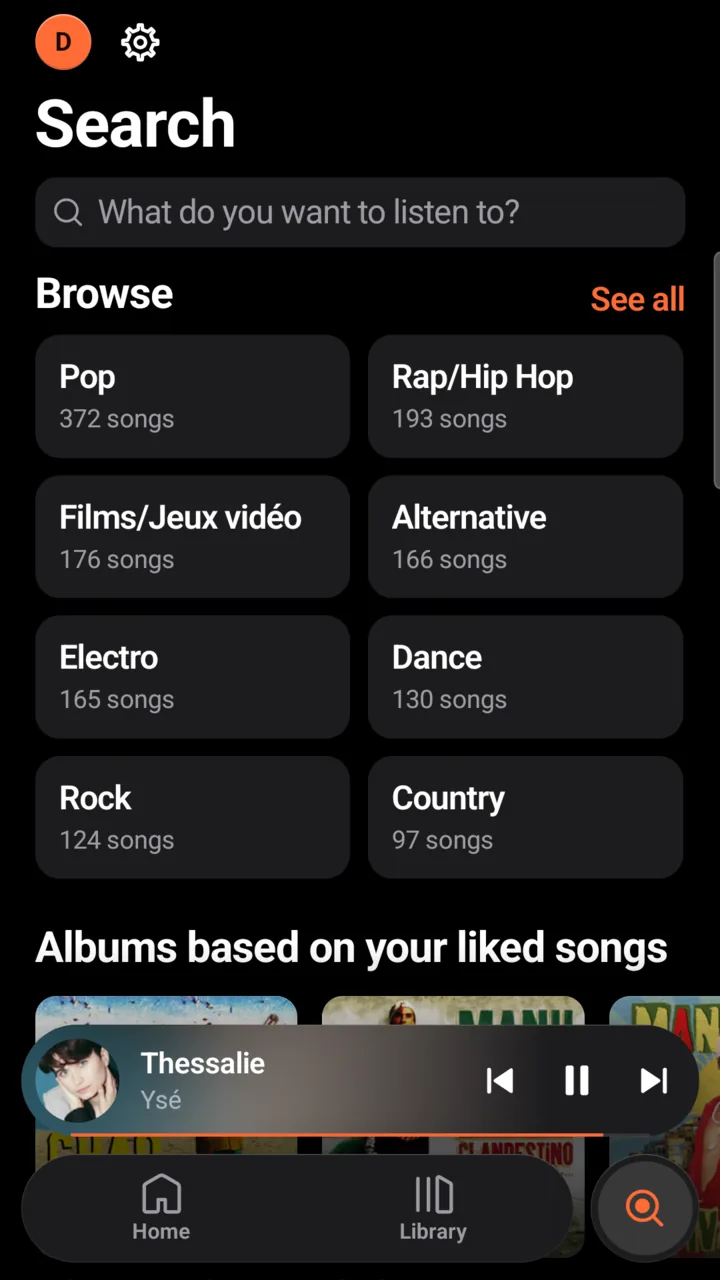
With an empty field you see Browse, the genres of your library with their number of songs (each opens all its songs; See all lists every genre), and suggestions based on your liked songs and recent listens. Once the field is open, your recent searches show; Clear erases them.
-
Type what you are looking for.
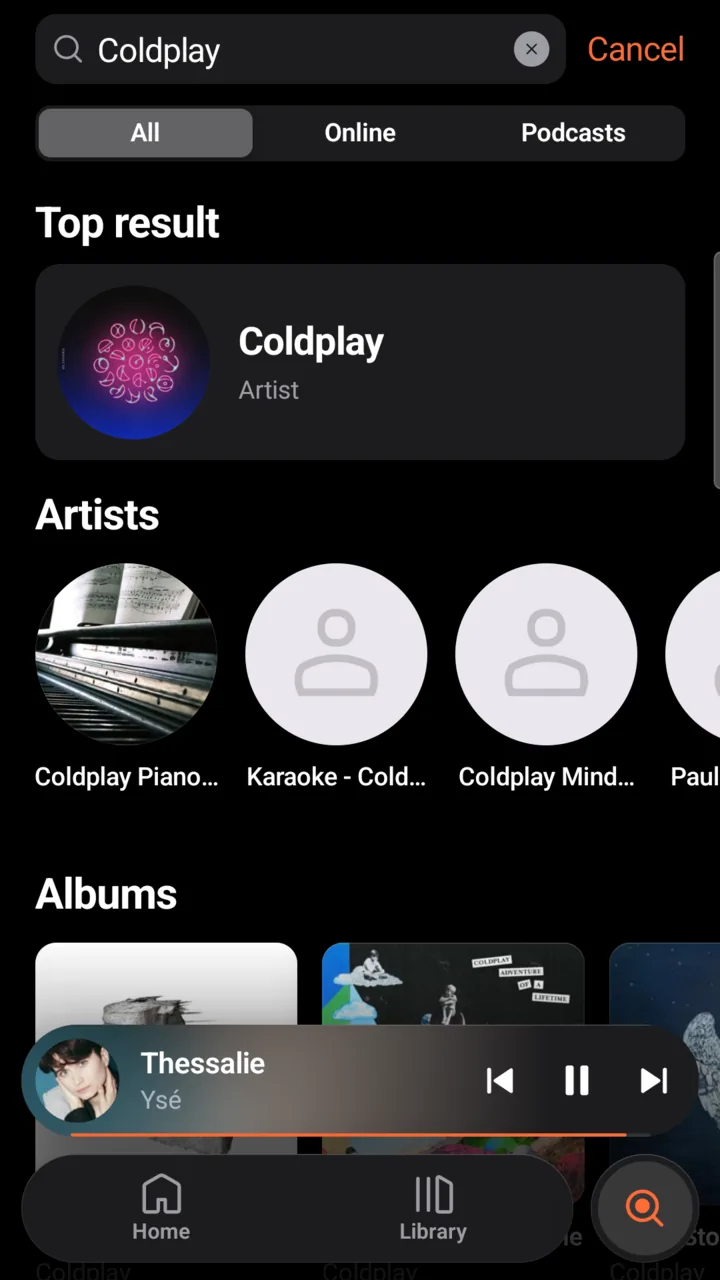
Results come as you type: the Top result, then artists, albums and songs. The × in the field clears it; Cancel closes the search.
-
Choose a filter: All, Online or Podcasts.
All mixes your library and the online catalogue. Online keeps only the online catalogue (items marked Online). Podcasts searches shows and episodes (see Podcasts).
-
Tap a song to play it, or an album or artist to open it.
A song found by search plays alone, then autoplay carries on with similar songs. Press and hold a song for its menu.
-
Click Search in the side panel.
With an empty field you see the Magic Mixes and Browse: Recently added, Most played, Random and one tile per decade (1970s to 2020s).
-
Type in the field “What do you want to listen to?”.
-
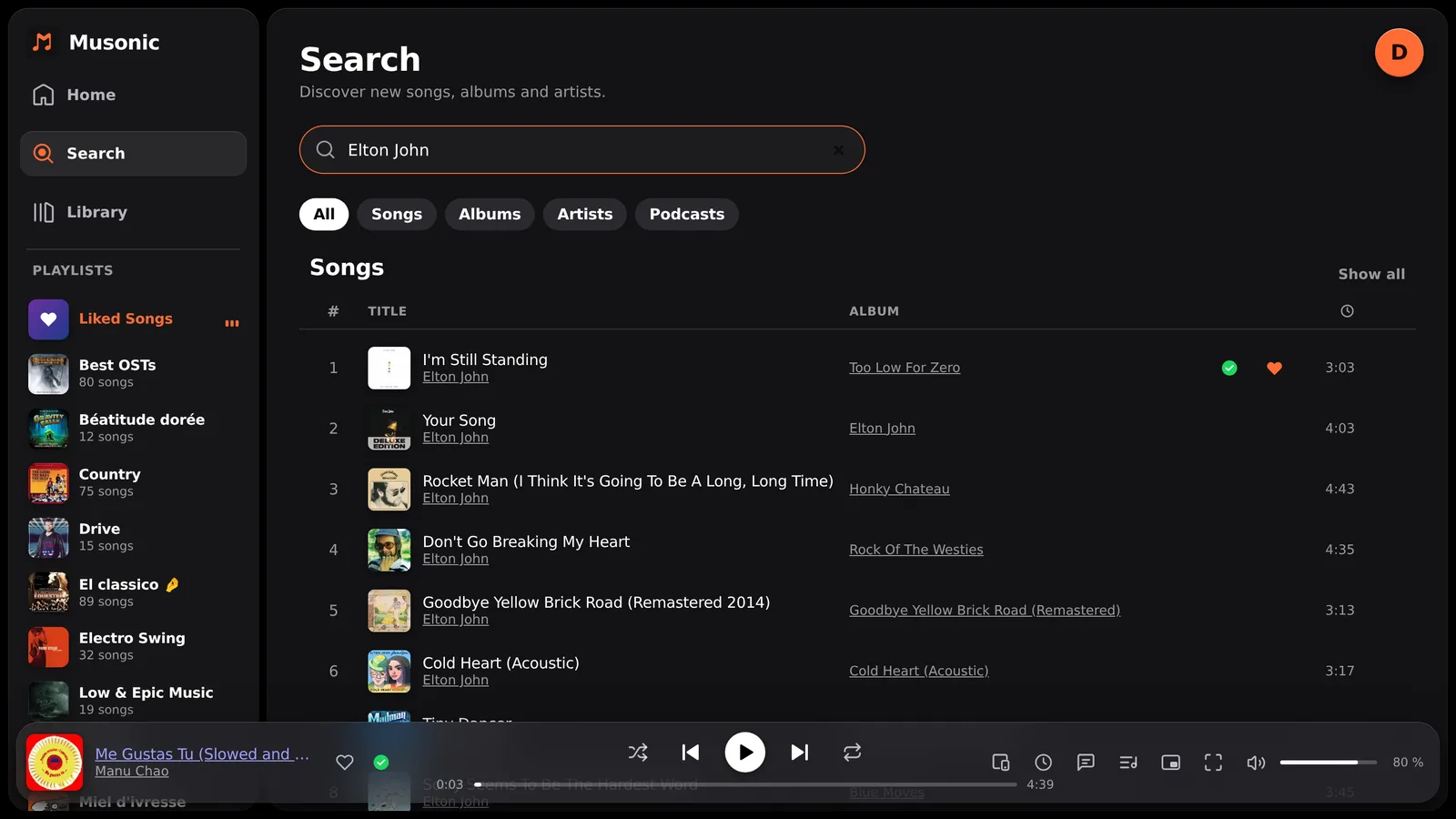
Choose a filter: All, Songs, Albums, Artists or Podcasts.
All shows a few of each kind, each section with Show all at its top right. With one filter, the list loads more results by itself as you scroll down. Paste the address of an RSS feed to open a podcast (see Podcasts).
-
Double-click a song to play it, or click an album or an artist to open it.
A song found by search plays alone, then autoplay follows. Right-click a row (or its “⋯”) for its menu.
Library
Section titled “Library”The Library tab has the tabs Playlists, Albums, Artists, Podcasts and Downloaded (swipe the row to reach the last one). On Playlists, two tiles come first: Liked Songs and My Music (every song of your library, sortable by title, artist or date added, with a letter index).
- Sort by: tap the sort label above the list (for example Recent) and choose Recent, Recently added, Alphabetical or Custom. The number of items shows on the right.
- At the top right, the magnifier searches the library and the grid / list button changes the view.
- Press and hold a playlist to pin it at the top, rename it, download it or delete it.
- The + button (top right) creates a playlist (or imports one, see Import your playlists).
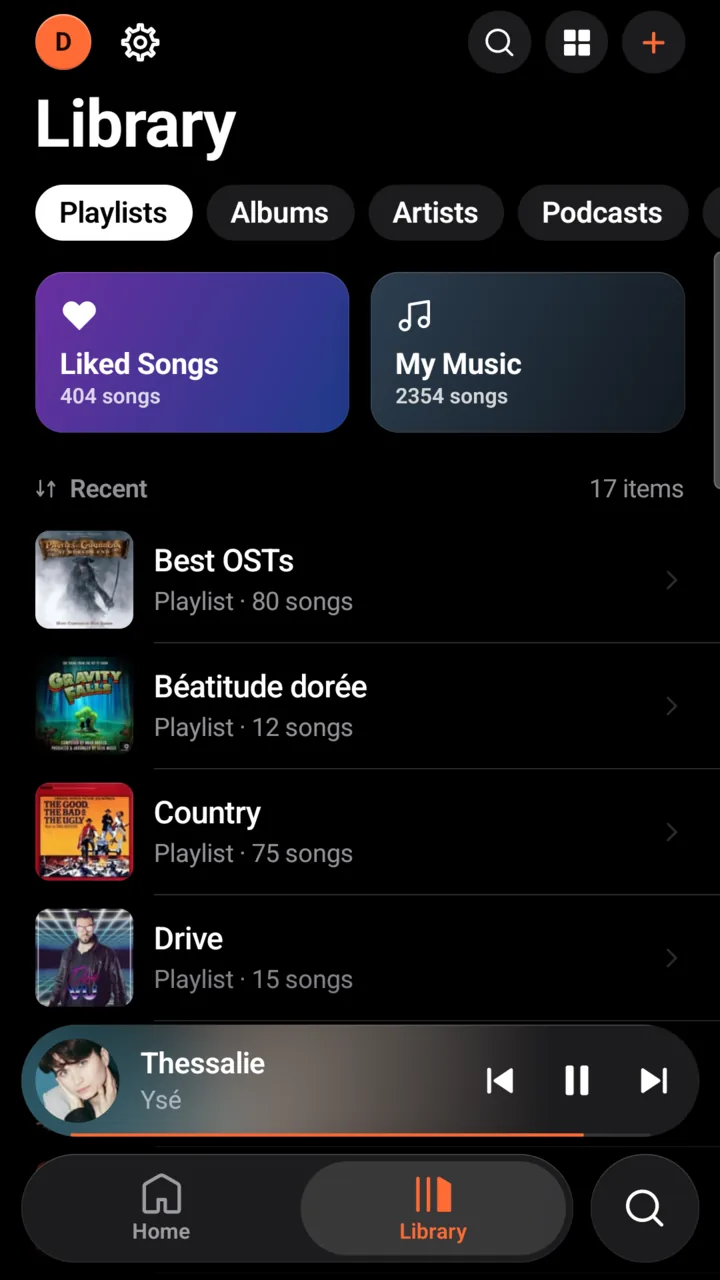
Library has the tabs Playlists (with Liked Songs and My Music, your whole library), Albums, Artists and, with Musonic Server, Podcasts. Play by genre opens a genre’s songs. New playlist creates one; Import (with Musonic Server) brings one from another service. The side panel lists your playlists, the most recently played first, with a play button on hover.
The player
Section titled “The player”The mini player shows the cover, title, artist, Previous, Play / Pause and Next.
- Tap the cover or the title, or swipe up: the full player opens.
- Swipe left or right: next or previous song.
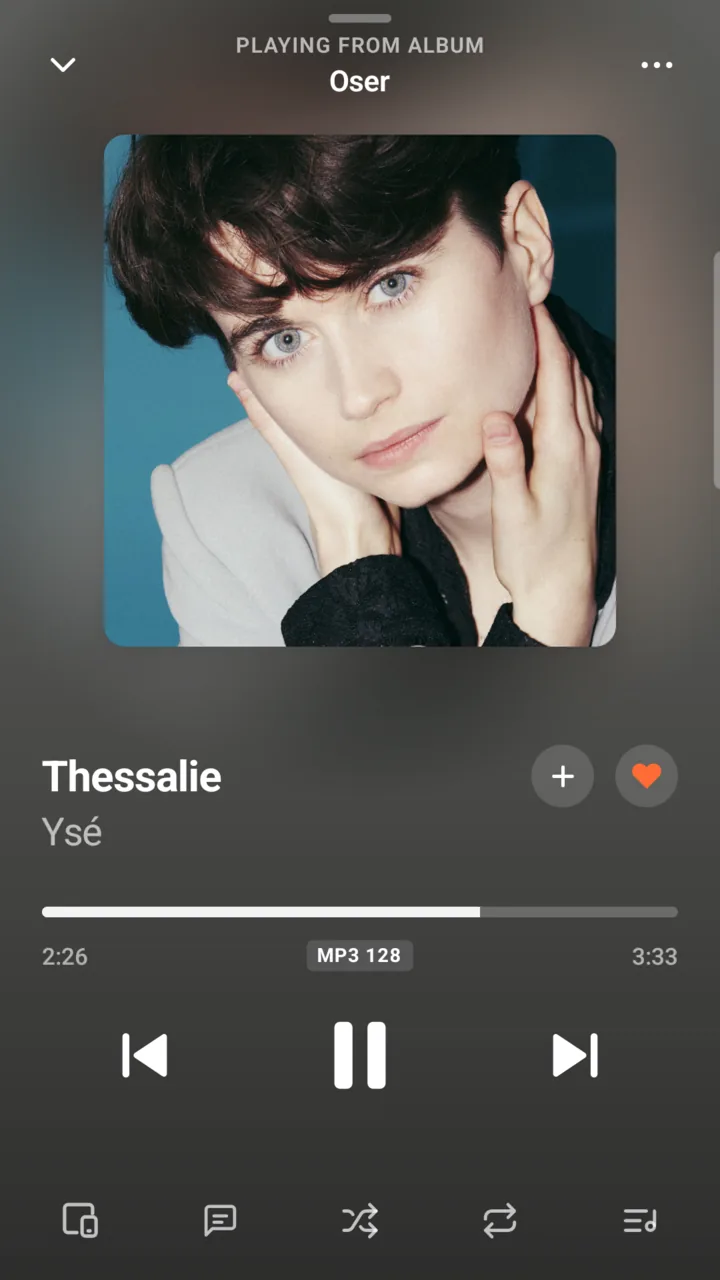
The full player shows at the top where the music comes from (for example “Playing from album”), then the cover, the title with + (add to a playlist) and ♥ (like), the progress bar with the real audio quality (for example MP3 128), the controls, and a bottom row of icons, from left to right: Devices (only with Musonic Server, see Musonic Connect) · Lyrics · Shuffle · Repeat · Queue.
- Drag down from the top or the cover, or tap the chevron at the top left, to close it.
- Swipe the cover left or right to change song.
- The “⋯” button (top right) opens the song’s menu: like, add to a playlist, add to queue, download, go to the album or the artist, and the Sleep timer.
The phone can be turned: in landscape, the cover takes one column and the rest the other (side set in Settings → Advanced options).
The player bar shows the song on the left (with ♥ to like it), then in the middle shuffle, Previous, Play / Pause, Next, repeat and the progress. On the right, from left to right: Devices (with Musonic Server), Sleep timer, Lyrics, Queue, Floating mini player, Open the player (full player) and the volume. Hover a button to see its name.
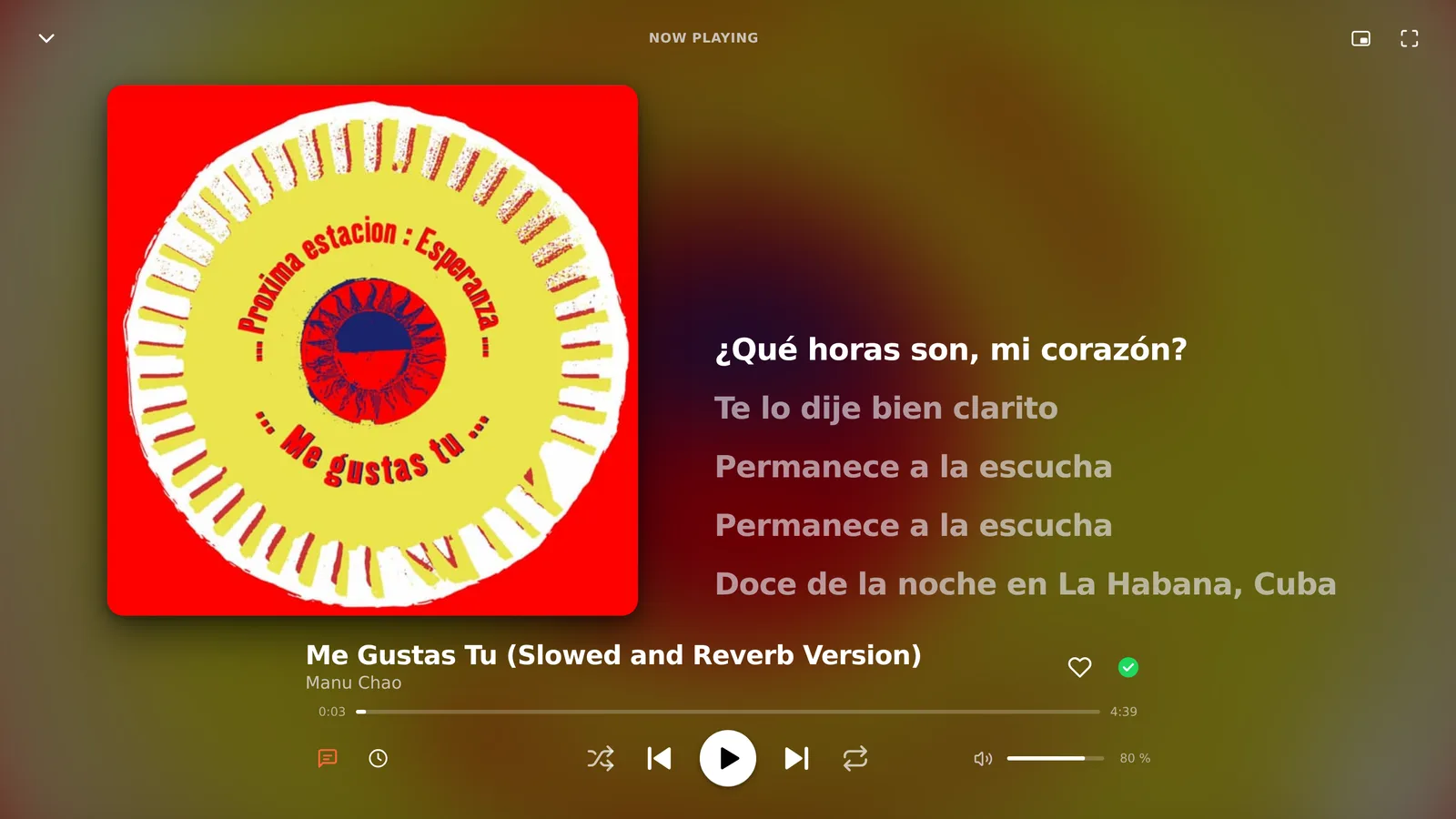
- Click the cover in the bar: the full-screen player opens (blurred cover, large cover, lyrics beside it). Escape or the chevron at the top left closes it; at the top right, one button opens the floating mini player and the other switches the browser to full screen.
- The floating mini player (Brave, Chrome, Edge) is a small window that stays on top of everything, even when the tab is hidden. Its layout follows its size.
- Keyboard: Space plays or pauses, Ctrl + → next song, Ctrl + ← previous. Media keys and your computer’s media controls work too.
Previous goes back to the previous song during the first 3 seconds; after that, it restarts the song. In the app, Settings → Advanced options → Always go back to the previous track makes it always go back. Swiping the mini player always changes song.
Shuffle and repeat
Section titled “Shuffle and repeat”The shuffle button has three positions: off, on, and Magic.
- On: the songs to come are mixed. When you tap a song in a list, that song plays first and the rest is shuffled.
- Magic: your songs in a mixed order, with one suggestion after every two songs — close songs from the same artists, marked Magic. In the app, Magic needs a connection; Settings → Advanced options → Magic shuffle removes this position so the button has only two.
- Off again: the list goes back to its own order, after the last song of it that played. Suggestions to come are removed.
The repeat button: off, all (the list starts again at the end, reshuffled if shuffle is on), one (the song repeats; Next still moves on).
Autoplay: when nothing is left after the song playing, similar songs follow. It never runs in “repeat all”. In the app, you can turn it off in Settings → Playback → Autoplay or with the Autoplay tile of the queue; on the web it is always on.
The queue
Section titled “The queue”-
In the full player, tap “Queue”.
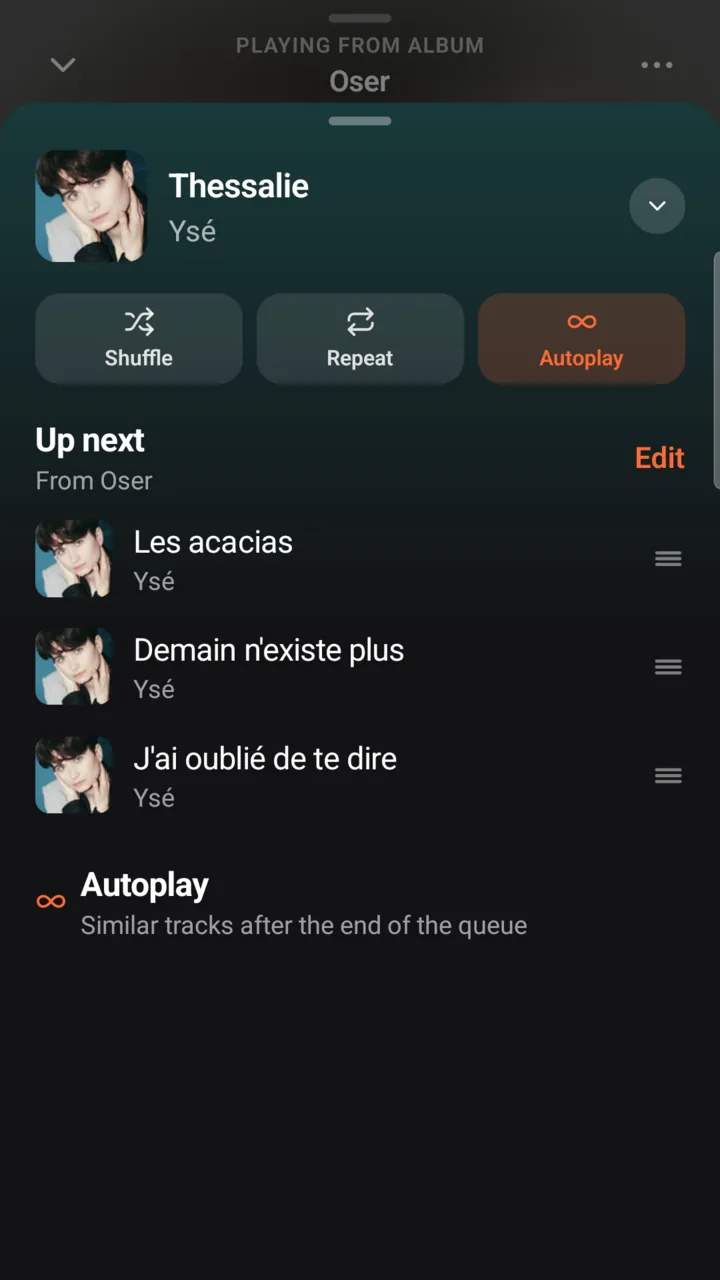
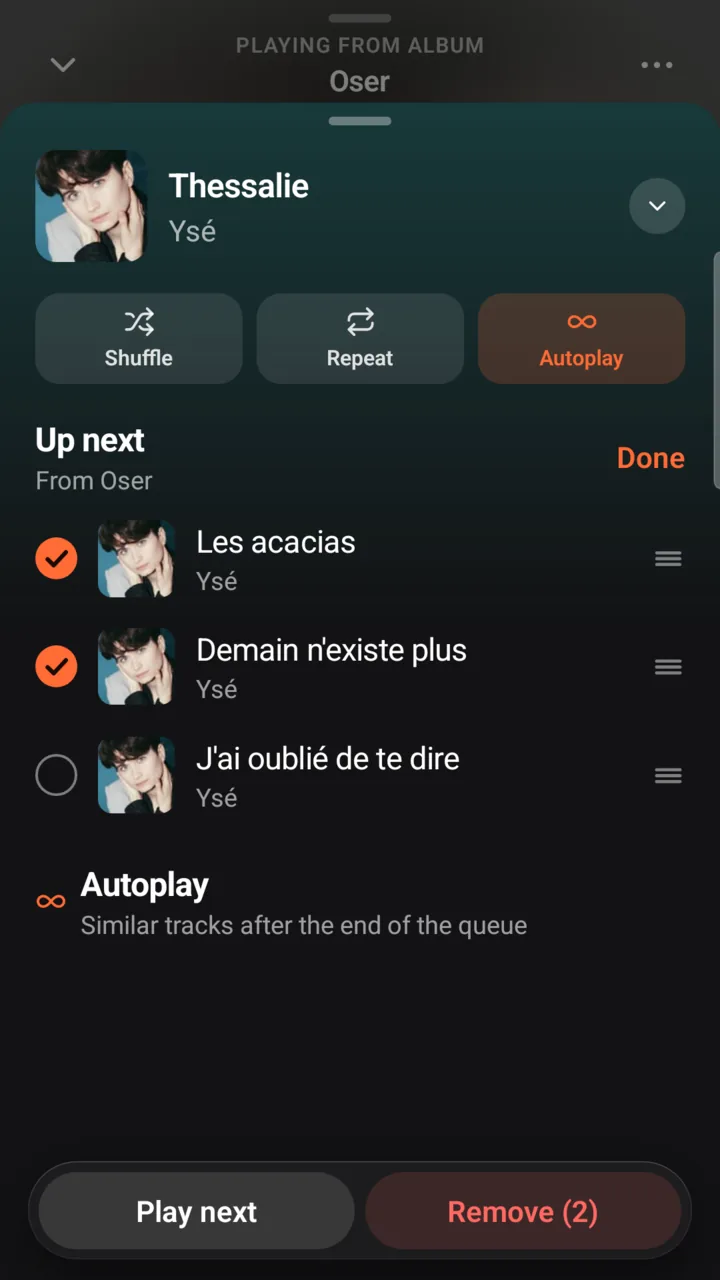
At the top: the song playing (tap it to go back to the player; the chevron on the right closes the queue) and three tiles, Shuffle, Repeat, Autoplay (lit when on). Below: Up next with where the songs come from (“From …”) and an Edit button, then Autoplay (“Similar tracks after the end of the queue”) and its songs, dimmed.
-
To move a song, drag it by its handle.
The handle is the three lines on the right of each row. The change applies at once.
-
To remove or play songs next, tap “Edit”, select them, then tap “Play next” or “Remove”.
A circle appears before each song: tap it to select the song. The buttons show at the bottom, Remove with the number of songs selected. With nothing selected, the bottom button is Clear all, which removes everything to come. A message offers Undo for a few seconds. Done (in place of Edit) leaves this mode.
To add a song from anywhere, open its menu (“⋯” or press and hold) and tap Add to queue.
-
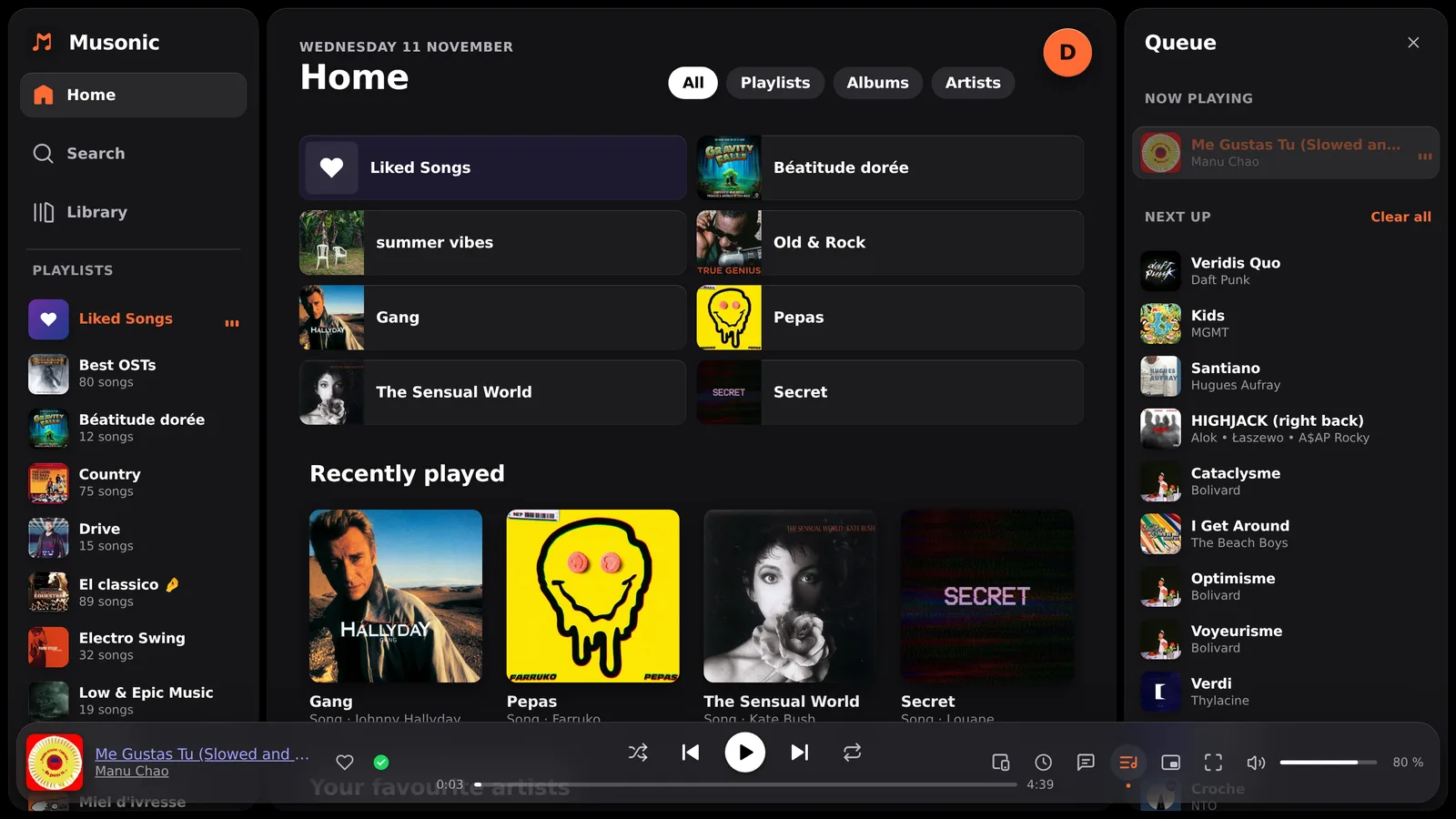
Click the queue button in the player bar.
The queue opens on the right, in sections: Now playing, Added by you, Next up, Autoplay (a section shows only when it holds songs). The × at the top right closes it.
-
Drag a song to move it; click it to play it.
Songs before it are skipped.
-
To add a song, right-click it (or “⋯”) and choose “Play next” or “Add to queue”.
Clear all, beside the section title, empties what comes next (there is no undo on the web).
How the queue is organised (the same rules in both):
| Zone | What it holds |
|---|---|
| Now playing | The song playing. Clearing the queue never removes it. |
| Added by you | Songs you added. Play next puts a song at the top of this zone, Add to queue at its end. They play before the rest, are never shuffled, and stay when you start another album or playlist. |
| Next up | The rest of the album, playlist or mix you started, possibly with Magic suggestions. |
| Autoplay | Similar songs, played after everything else. |
A song dropped among “Added by you” becomes one of them. The same song can be in the queue twice.
After a restart:
- Android: the queue and the position come back when you open the app again (for the same account).
- Web With Musonic Server: your last listening comes back when the page opens, paused where you stopped, whether it was on this device or another one. With another server, the queue starts empty.
Lyrics
Section titled “Lyrics”In the full player, tap “Lyrics” (the speech-bubble icon in the bottom row). The cover shrinks to a small row and the lyrics take the space. Synced lyrics follow the song (the current line in white); tap a line to jump to it. If you scroll, following resumes after 3 seconds.

Click the lyrics button in the player bar: they open in the side panel. They also show beside the cover in the full-screen player. Click a line to jump to it.
Where the lyrics come from, in this order:
- Your server. Musonic Server reads a
.lrcfile (synced) or.txtfile with the same name as the song, next to it, then the lyrics in the file’s tags. A.lrcwins over a.txt, and a file next to the song wins over the tags. Other servers give the lyrics they know. - LRCLIB (lrclib.net), a free public lyrics database, when your server has none. Only the artist, the title and the length of the song are sent. Synced lyrics are preferred, plain text otherwise, and the length must match within 3 seconds.
Plain lyrics are shown whole, without following. When nothing is found, the app says “No lyrics available” and the web “No lyrics for this song.”. For a podcast episode, its transcript is shown instead, when the show publishes one.
Tap the ♥ (in the player, or beside a song in a list) to add a song to Liked Songs; tap it again to remove it. Your likes feed Home (favourite artists, “Because you liked”, Magic Mixes) and show on all your devices.
In the app, Liked Songs also has Recommended tracks (songs close to the ones you love) and Download all.
Crossfade
Section titled “Crossfade”The crossfade makes the next song fade in over the end of the current one. It is off by default and goes from 0 to 12 seconds (0 = off).
-
Tap the gear at the top of any tab.
-
Under “Playback”, move the “Crossfade” slider.
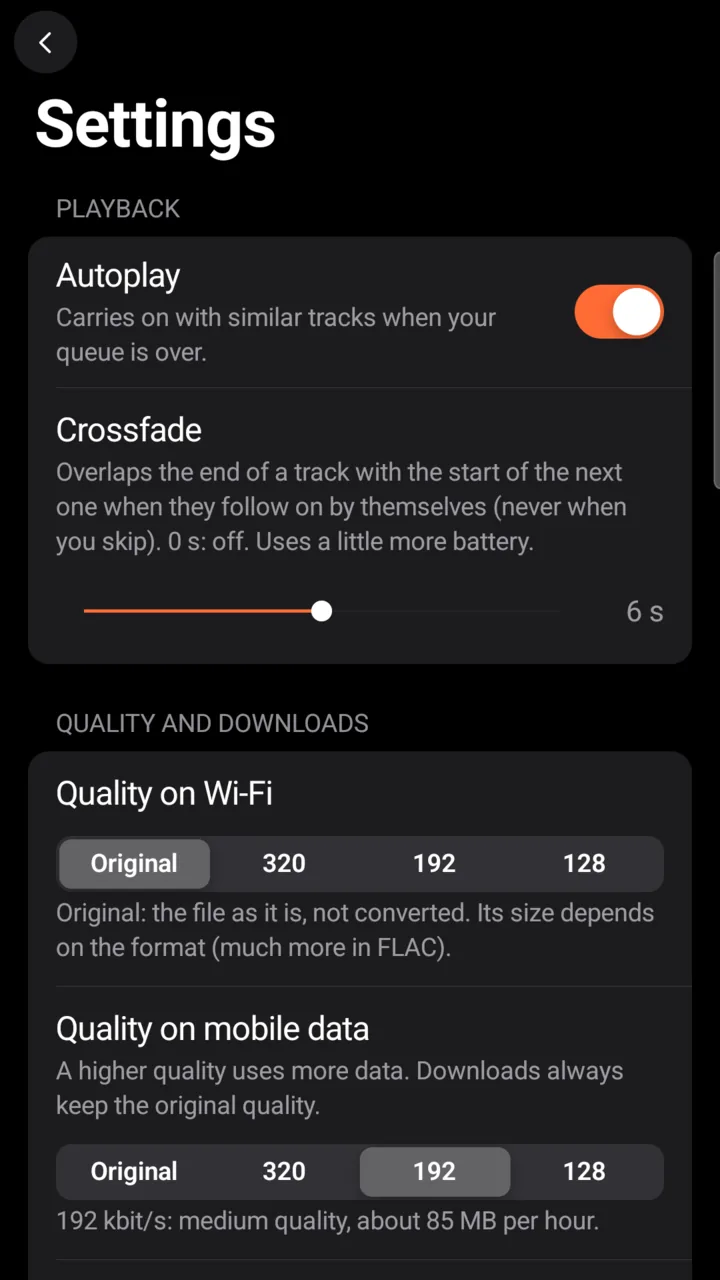
The fade is done by Android’s own player, so it also works with the screen off; the song shown (app, notification, car) changes when the old one really ends. If you turn off Settings → Advanced options → Android audio player, the fade only happens while Musonic is on screen. It uses a little more battery.
-
Click your profile at the top right, then “Settings”.
-
Under “Playback”, move the “Crossfade between tracks” slider.
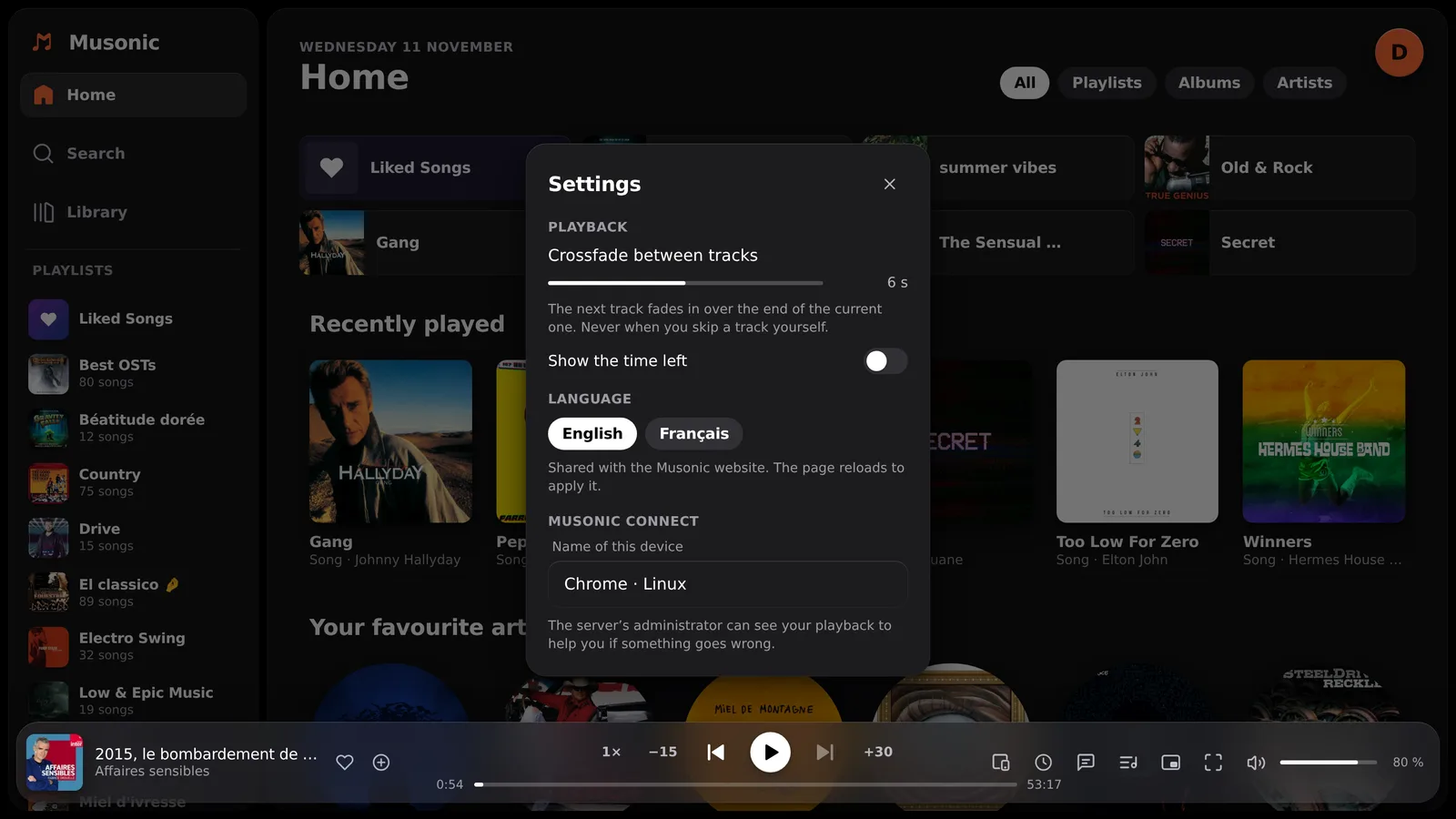
The setting is remembered by this browser.
There is never a crossfade:
- when you skip a song yourself (Next, Previous, a swipe, a tap on another song);
- with repeat one;
- when the sleep timer is set to the end of the song;
- at the end of the queue (nothing comes after);
- on a song shorter than twice the fade;
- between podcast episodes.
Sleep timer
Section titled “Sleep timer”The sleep timer pauses the music after a time you choose, or at the end of the song playing.
-
In the full player, tap “⋯”, then “Sleep timer”.
-
Tap a preset (15 min, 30 min, 45 min, 1 h or 1 h 30 min), or turn the hours, minutes and seconds wheels and tap “Stop in …”.
End of track pauses at the end of the song. Turn off timer cancels it.
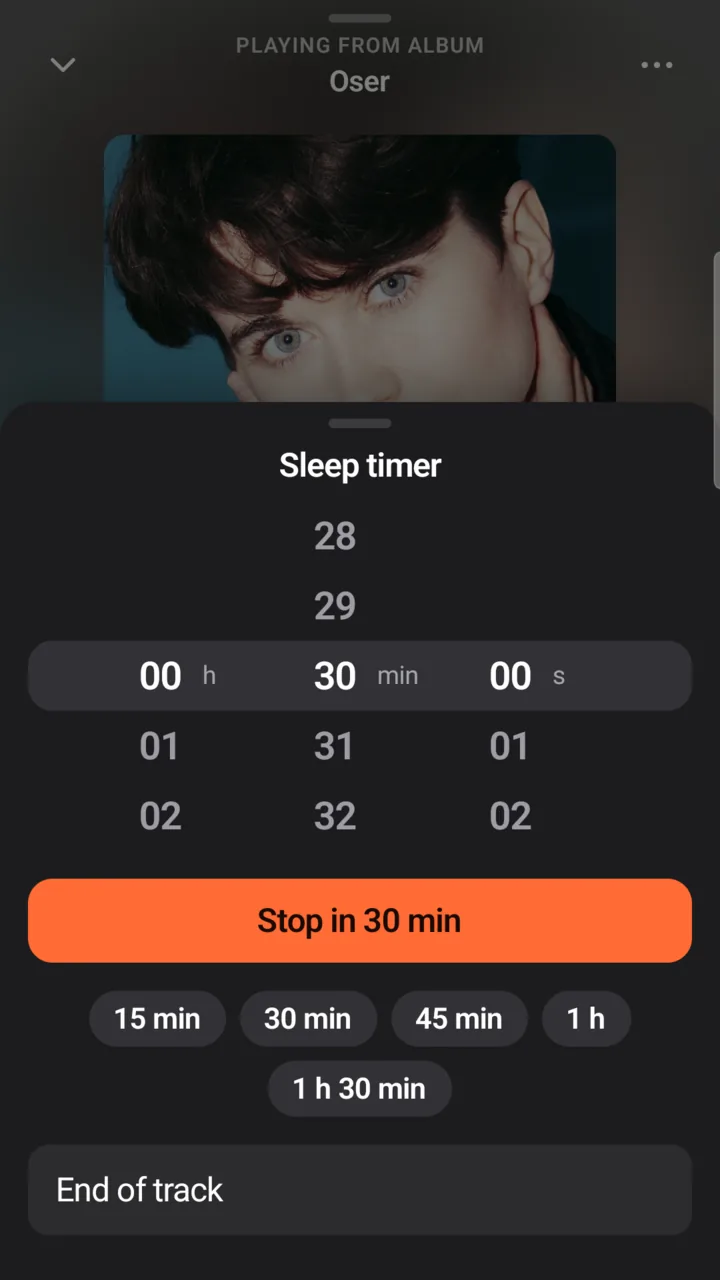
It works with the screen off. Closing the app cancels it; the menu shows the time left (“Sleep timer · 12 min”).
Click the sleep timer button in the player bar (or the full player), pick a duration (hours, minutes, seconds) or End of track. Reloading the page cancels it, and in a tab hidden for a while the browser may stop the music up to a minute late.
Musonic Connect
Section titled “Musonic Connect”beta With Musonic Server. Musonic Connect shows what plays on your other devices (your phone, each browser tab with Musonic Web), lets you control them, and moves the music from one to another at the same second.
-
Open Musonic on two devices with the same account.
-
On one of them, tap or click “Devices”.
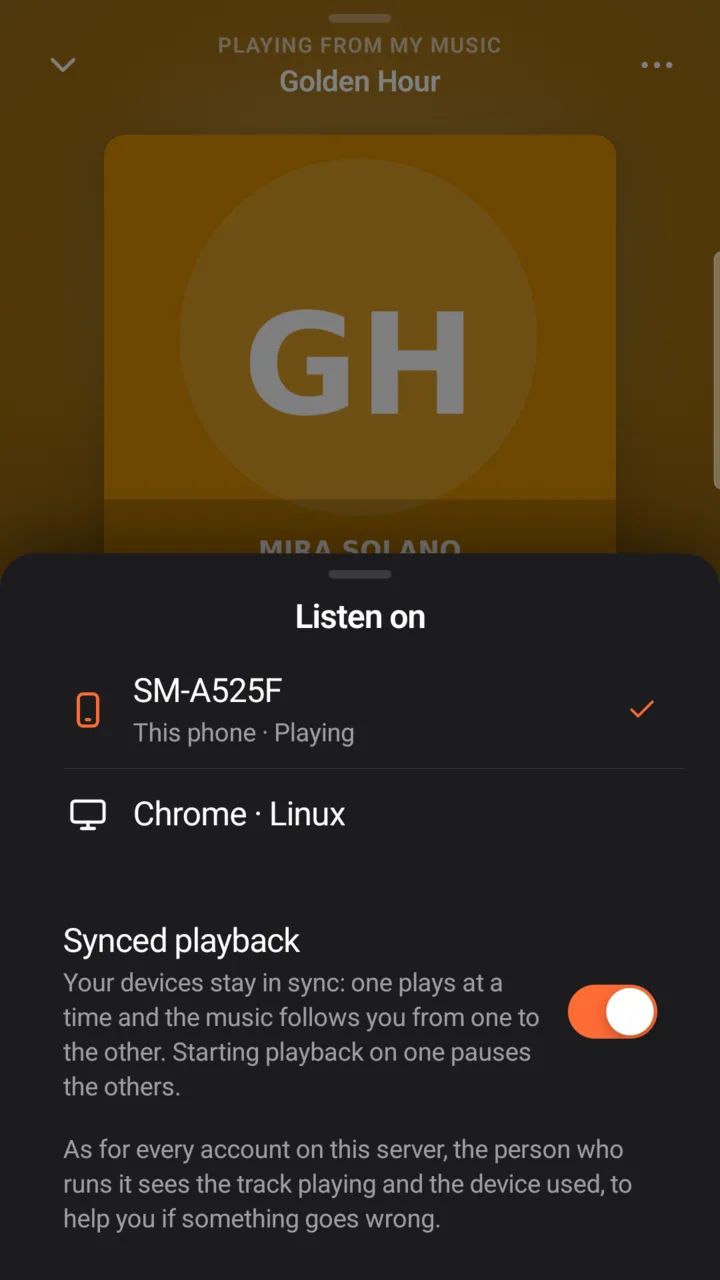
In the app it is the first icon of the bottom row of the full player (a phone in front of a screen); on the web, the first button on the right of the player bar. The list “Listen on” shows your devices; the one playing is ticked and marked “Playing”, and your phone is marked “This phone”.
-
Tap the device that should play.
The music moves there, at the same point in the song. While another device plays, your player becomes its remote: its song, its position and its buttons (“Playing on …”). Listen here brings the music back.
Synced playback (a switch in the same window, and in Settings → Musonic Connect): when on, only one device plays at a time and starting the music on one pauses the others. When off, each device plays on its own. On the web, the settings also let you name the device.
When the app opens, it takes up your last listening if it is newer than its own, paused where you stopped.