
Online catalogue and imports
This page is for the person who runs the server. It explains the online catalogue (songs, albums and artists beyond your files), what happens when someone likes an online song, where imported songs land in your music folder, and the settings to limit or turn off each part.
What you need
- An administrator account, to use the console.
- For imports: a music folder the server can write to (with Docker, do not mount it
:ro).
What the online catalogue is
Section titled “What the online catalogue is”Search in the Musonic apps shows your library and the online catalogue together. The online catalogue comes from Deezer’s official public API: song, album and artist information, covers, artist pictures, and a 30-second preview of each song. No account is needed, and the server never signs in anywhere for it.
- Your server makes the requests, not the apps: the online service sees your server’s address, not your listeners’. Answers are kept for 30 minutes, and requests stay under the API’s documented limit.
- Browsing writes nothing. Opening an online album or artist adds nothing to your library.
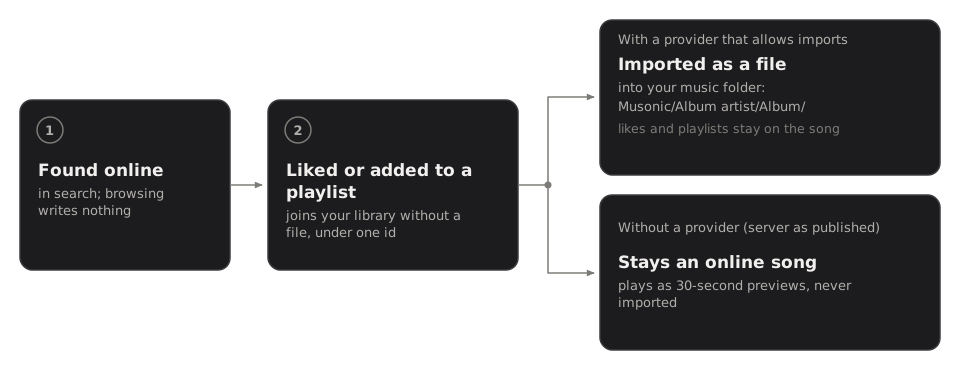
- Using a song adds it to your library, under one id. The first time someone likes an online song, adds it to a playlist, plays it or queues it, it is stored as a library song without a file. Every account then sees the same song, with the same id.
- When that song later gets a file (imported, or added by you to the music folder with the same ISRC, or the same title, artists and length), the file joins the same song: likes, playlists and plays stay where they are.
What plays when you press play
Section titled “What plays when you press play”A song with a file in your library plays from that file. A song without a file is asked of the audio providers, in this order, and plays from the first one that has it:
- the providers built into the server program you run;
- the Subsonic relay, if you set one (see Providers);
- the 30-second previews of the online catalogue, if they are on.
With the server as published, and nothing configured, online songs play as 30-second previews and are never imported. Full songs and imports need a provider that you plug in.
The audio of an online song goes through the server’s segment cache: several listeners share it, players can seek in it, and it is freed 10 minutes after the last listener.
Imports
Section titled “Imports”When a provider that allows imports is plugged in, a song without a file is imported when someone:
- likes it,
- likes its album,
- adds it to a playlist.
The server downloads the whole song from the first provider that may import it, writes its tags (title, artists, album, album artist, disc, track number, date, ISRC and cover), files it, then scans it. The song keeps its id, likes and playlists.
Imported songs are filed in your music folder as:
<music folder>/Musonic/<Album artist>/<Album>/<NN> - <Title>.<ext>Musonicis theimport_dirsetting (MUSONIC_IMPORT_DIR): a folder inside the music folder.<NN>is the track number on two digits; from the second disc on, it is preceded by the disc (2-03 - Title.flac).- Characters that some file systems refuse (
/ \ : * ? " < > |) are replaced by spaces.
Two imports run at the same time. A failed import is tried again after 5 minutes, 30 minutes, 2 hours and 12 hours, then given up, until someone likes the song or adds it to a playlist again.
Follow the imports in the console
Section titled “Follow the imports in the console”-
In the console, click “Imports” in the “Music” section of the menu.
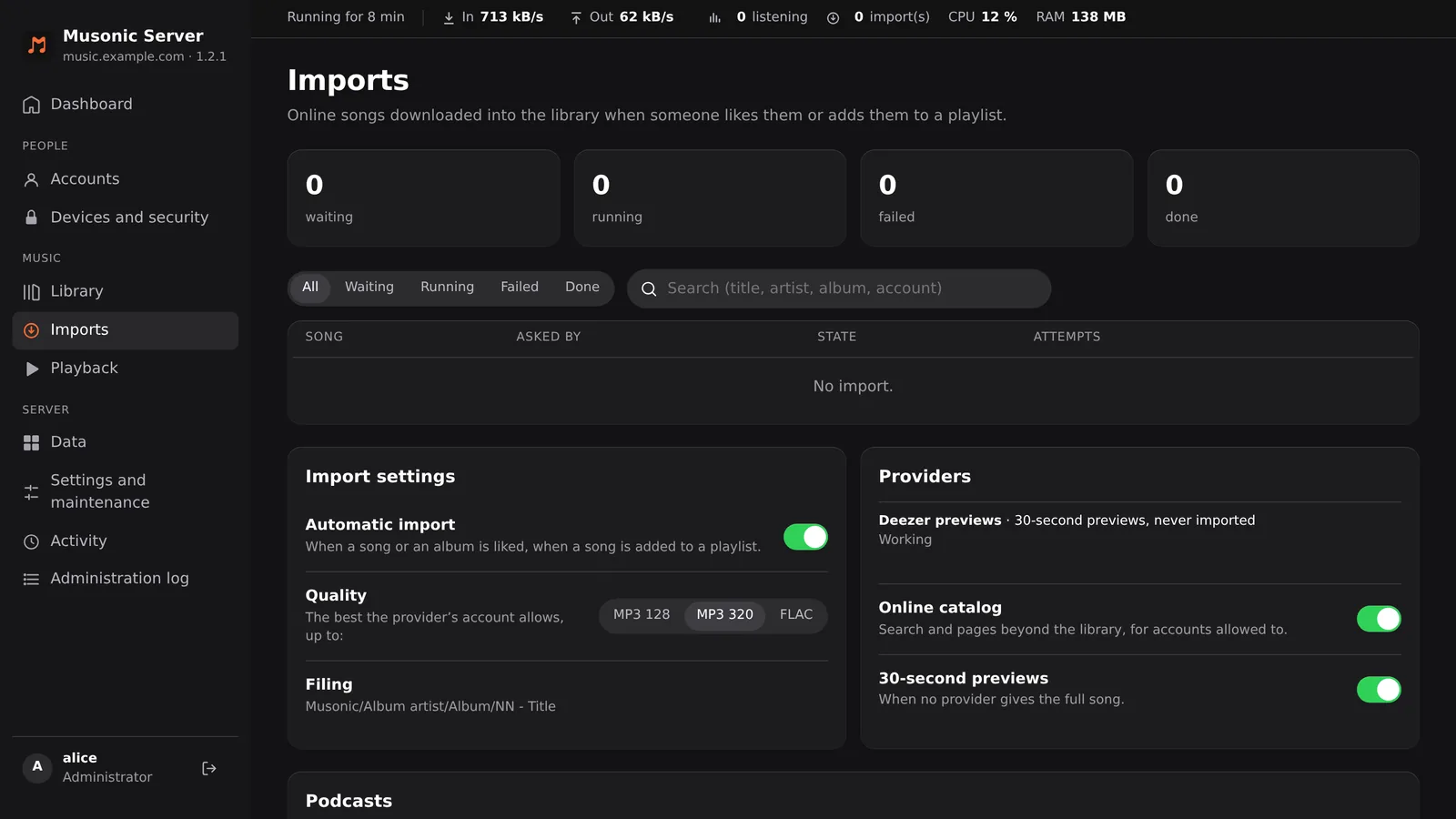
At the top, four counters give the number of imports waiting, running, failed and done. Below, the queue lists every import with its song, who asked for it, its state (Waiting, Running, Failed, Done) and its number of attempts; the filters All, Waiting, Running, Failed, Done and a search field (title, artist, album, account) narrow it. “No import.” means the queue is empty. The Import settings and Providers blocks come next, then Podcasts and YouTube Music import.
-
Click “Retry” on a failed import to try it again now, or “Remove” to take it out of the queue.
A removed song stays liked or in its playlists, online, without a file.
-
Check the “Providers” block.
Each provider shows its name, what it does (“Full songs and imports” or “30-second previews, never imported”) and whether it works (“Working”). A provider whose credentials expired shows an alert, also on the dashboard.
Audio providers
Section titled “Audio providers”An audio provider gives the server audio for songs it has no file for. The server does everything else: one id per song, a shared cache, the import into your library, tags, covers and the rescan. Server 1.2.1 has these providers:
| Provider | What it does | How to turn it on |
|---|---|---|
| Online previews | The 30-second preview of an online song, when no other provider has it. Never imported. | On by default (online_previews). |
| Subsonic relay | Another Subsonic-compatible server (a Navidrome, another Musonic Server…). The song is found there by search (ISRC when both know it, else title, artists and length) and its file relayed as is. Its songs play in full and can be imported. | subsonic_provider_url, subsonic_provider_user and MUSONIC_SUBSONIC_PROVIDER_PASSWORD. |
| Your own provider | Any source you write in Rust, behind a documented interface. | A program of your own built on the musonic-server crate. |
An import folder (drop any audio file into a watched folder to have it tagged, filed and added) is planned; it is not in server 1.2.1.
Plug in a Subsonic relay
Section titled “Plug in a Subsonic relay”-
Open your
compose.yml(the folder where the server’s data lives). -
Add the relay’s address, user and password under
environment:.environment:MUSONIC_SUBSONIC_PROVIDER_URL: "https://<other-server>"MUSONIC_SUBSONIC_PROVIDER_USER: "<user>"MUSONIC_SUBSONIC_PROVIDER_PASSWORD: "<password>"<other-server>is the address of the Subsonic server to relay from;<user>and<password>are an account on it. The password can only be set in the environment, never in the configuration file. -
Restart the server:
docker compose up -d. -
Check it in the console, on the “Imports” page.
“Subsonic relay” appears in “Providers”, with its state.
If MUSONIC_SUBSONIC_PROVIDER_URL is set without the user or the password, the server does not start, and says which one is missing in its logs.
Write your own provider
Section titled “Write your own provider”A provider is a Rust type that implements the AudioProvider interface: given a song (title, artists, album, ISRC, duration, and its id in the provider’s catalogue when known), it answers with a file the server reads by byte ranges, or says it does not have the song. It also says whether its files may be imported, and may expose a credential (a token, an API key) that administrators renew from the console. Conformance checks verify a provider before you use it.
Providers are passed to the server by the program that starts it: a program of your own, depending on the musonic-server crate, adds its providers without changing Musonic’s code. Everything is described in PROVIDERS.md, with the smallest complete example (MemoryProvider).
Turn the online catalogue, previews or imports off
Section titled “Turn the online catalogue, previews or imports off”-
In the console, open “Imports”.
-
Use the switches.
In “Import settings”: Automatic import (“When a song or an album is liked, when a song is added to a playlist.”) and its Quality: MP3 128, MP3 320 or FLAC, the best the provider allows up to that level. The Filing line reminds you where imports go (
Musonic/Album artist/Album/NN - Title). In “Providers”, under the list of providers: Online catalog and 30-second previews (“When no provider gives the full song.”).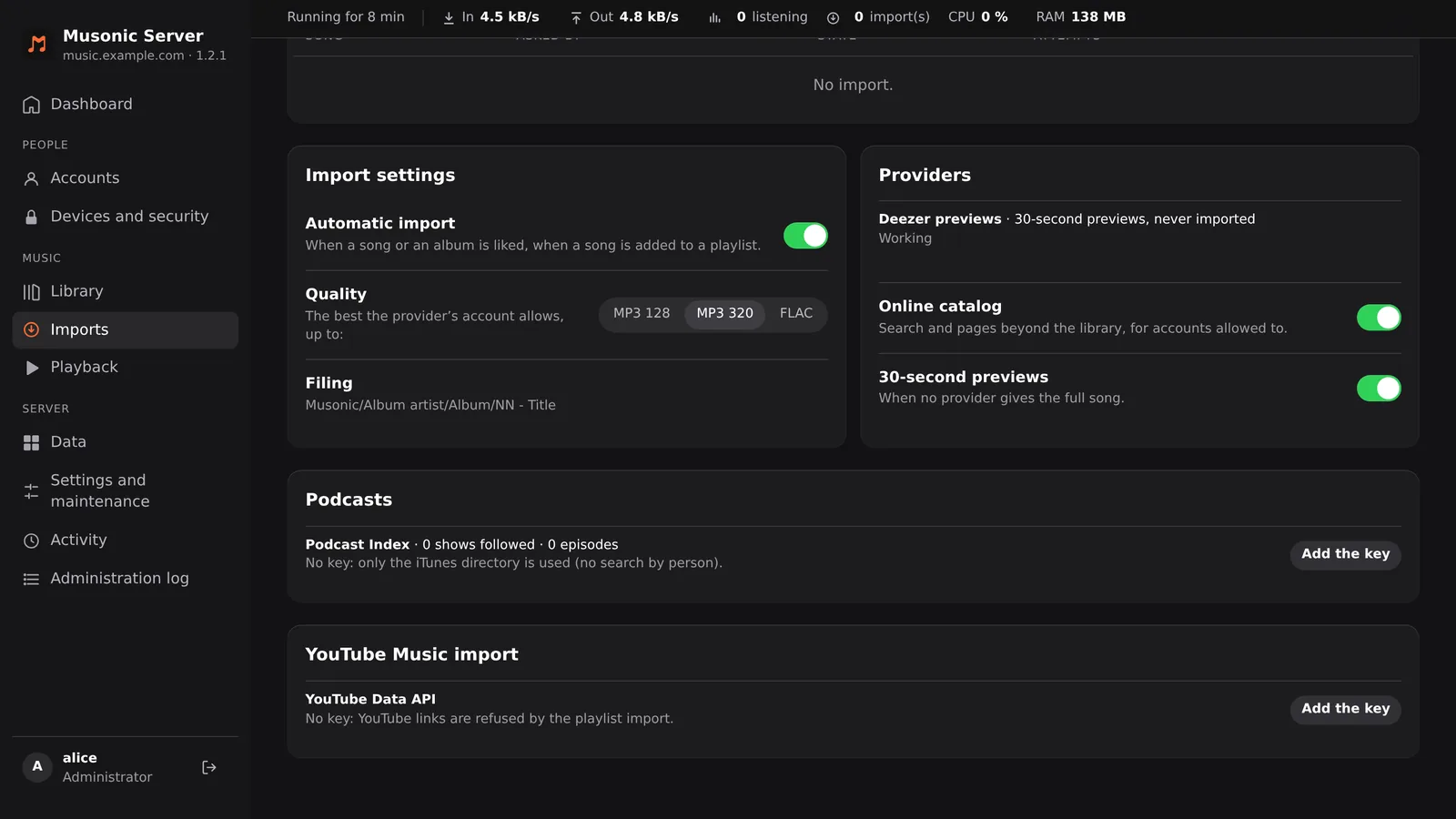
-
Click “Restart now” in the banner that appears.
The change applies after the restart. Music stops for a few seconds.
environment: MUSONIC_ONLINE: "false" # no online catalogue at all MUSONIC_ONLINE_PREVIEWS: "false" # no 30-second previews MUSONIC_IMPORT: "false" # no imports MUSONIC_IMPORT_QUALITY: "flac" # mp3_128, mp3_320 or flacThen docker compose up -d. A value saved in the console wins over the environment.
What each switch does:
| Turned off | Result |
|---|---|
Online catalog (online) |
Search and pages show only your library. No previews either. Songs already stored stay in likes and playlists. The server no longer contacts the online catalogue. |
30-second previews (online_previews) |
Online songs without a file play only through another provider; with none, they do not play. |
Automatic import (import) |
Likes and playlists keep online songs without downloading them. |
All the settings
Section titled “All the settings”| Setting (file) | Environment | Default | What it does |
|---|---|---|---|
online |
MUSONIC_ONLINE |
true |
The online catalogue in search and pages. |
online_previews |
MUSONIC_ONLINE_PREVIEWS |
true |
30-second previews of online songs no provider has. |
import |
MUSONIC_IMPORT |
true |
Import online songs when liked or added to a playlist. |
import_dir |
MUSONIC_IMPORT_DIR |
Musonic |
Folder of the imports, inside the music folder. |
import_quality |
MUSONIC_IMPORT_QUALITY |
mp3_320 |
mp3_128, mp3_320 or flac: the best the provider has, up to this. |
subsonic_provider_url |
MUSONIC_SUBSONIC_PROVIDER_URL |
none | Subsonic server to relay audio from. |
subsonic_provider_user |
MUSONIC_SUBSONIC_PROVIDER_USER |
none | Its user. |
| (environment only) | MUSONIC_SUBSONIC_PROVIDER_PASSWORD |
none | Its password. |
online, online_previews, import and import_quality can also be changed in the console; import_dir and the relay only in the configuration.
Rights and quotas per account
Section titled “Rights and quotas per account”By default every account may use the online catalogue and import, without limit. Administrators are never limited. For each other account you can turn rights off and set quotas.
-
In the console, click “Accounts”, then the account.
-
In “Rights”, turn off what this account may not do.
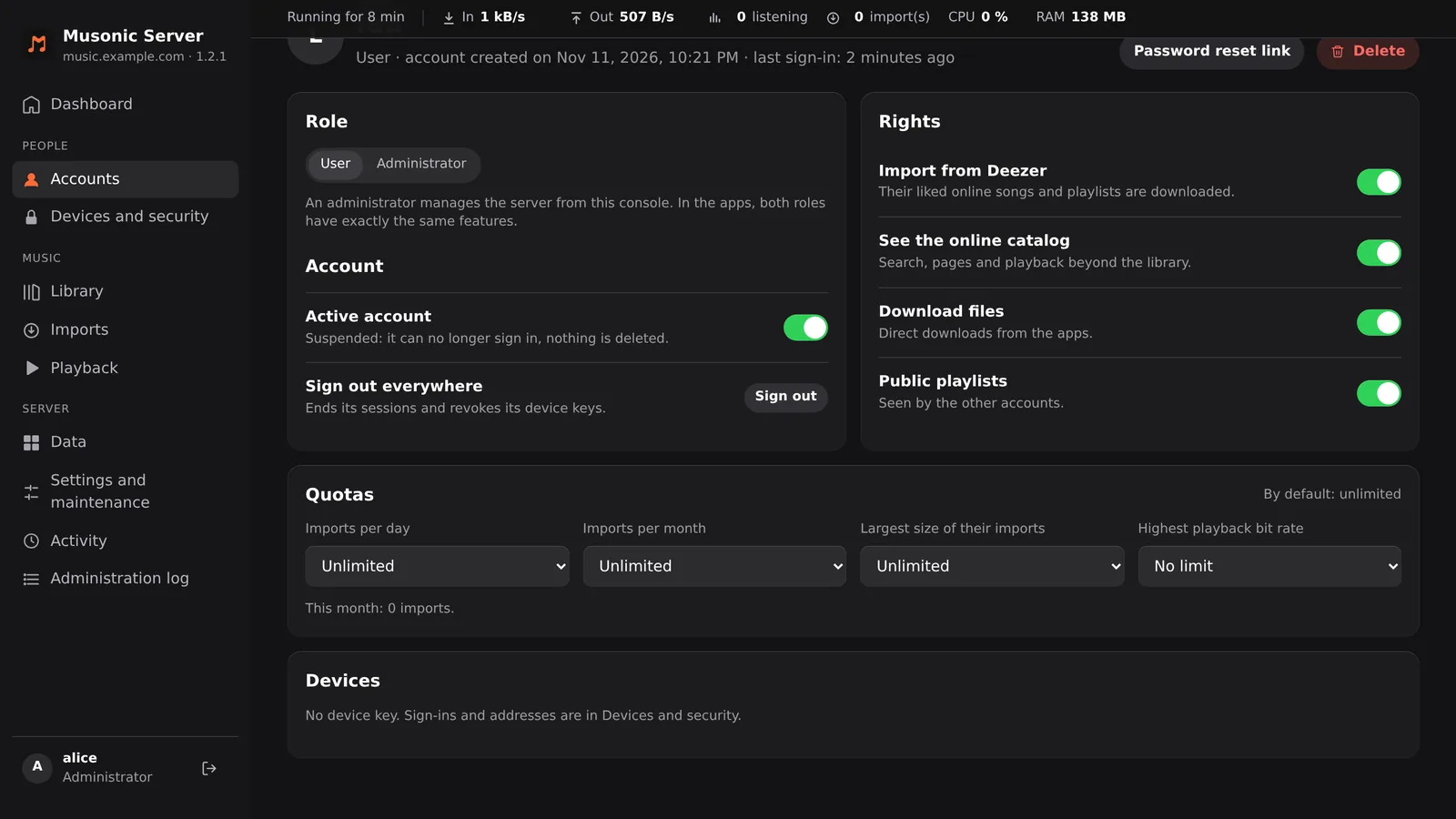
The block is on the right of the account’s page, beside Role and Account. It has four switches: the import right, See the online catalog, Download files (direct downloads from the apps) and Public playlists (seen by the other accounts). The import right (its line reads “Their liked online songs and playlists are downloaded.”): their likes and playlists keep online songs without importing them. See the online catalog: no online search, pages or playback for them; their playlist imports only look in your library.
-
In “Quotas”, set the limits you want, then wait for “Saved”.
Each quota is a list: Unlimited (the default), two common values, or Custom… to type your own. Imports per day (10, 50) and Imports per month (100, 500) count the imports this account asked for (days and months in UTC); “This month: … imports” shows where they stand. Largest size of their imports (1 GB, 5 GB) is the total size of the files imported for them. The same block has Highest playback bit rate (No limit, 320, 192 or 128 kbit/s), which caps the quality this account streams and downloads.
Once a quota is reached, the account’s likes and playlists keep working; the songs simply stay online, without a file, until the quota allows it again and someone likes them or adds them again.
Next steps
Section titled “Next steps”- Organise your music files: tags, covers and lyrics of your own files.
- Scanning your library: how imported files join their song.
- Podcasts: the other online content the server fetches.